> ## Documentation Index
> Fetch the complete documentation index at: https://docs.trybeans.com/llms.txt
> Use this file to discover all available pages before exploring further.
# Beans Emails
> Set up automated email notifications for your loyalty program.
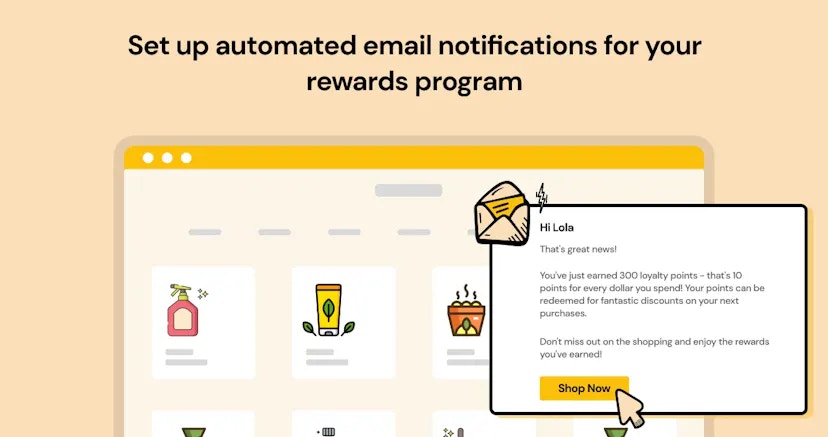 Beans Emails keeps customers engaged with automated email notifications about their rewards
program activity. [This Beans' integration](https://www.trybeans.com/integrations/trellis:foxx) informs members about earning and redeeming loyalty points through
welcome emails, transaction alerts, points balance reminders, referral invitations, and more.
## Setup
To connect to the Beans Emails integration:
1. From the Beans admin page, navigate to **Integrations**.
2. Locate and select **Beans Emails** from the available integrations.
3. Click **Connect** to enable the integration.
## Sender details
Sender details define the information displayed about your brand when customers receive an
email. Properly configured sender details ensure your emails match your brand, are delivered
to the inbox, and comply with email regulations.
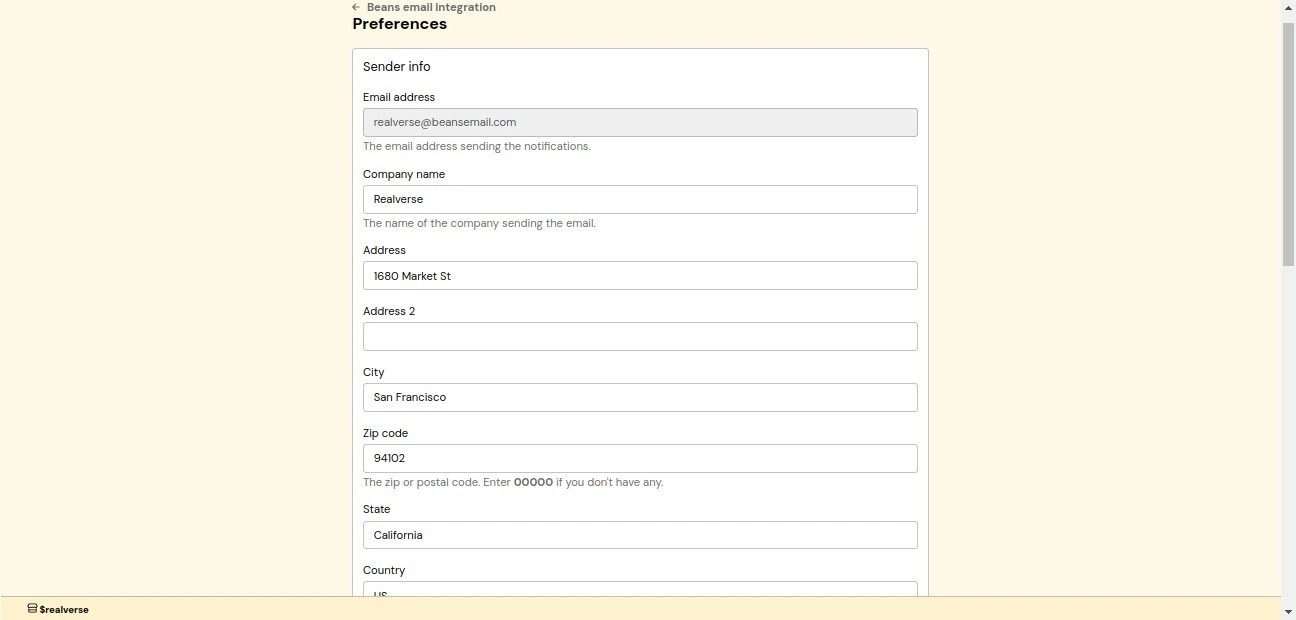
### Sender Info
Sender Info includes all information about your business such as your professional email
address, official business name, complete physical address, and location details.
It is mandatory to fill in and configure the sender details before any notifications are sent.
Beans Emails keeps customers engaged with automated email notifications about their rewards
program activity. [This Beans' integration](https://www.trybeans.com/integrations/trellis:foxx) informs members about earning and redeeming loyalty points through
welcome emails, transaction alerts, points balance reminders, referral invitations, and more.
## Setup
To connect to the Beans Emails integration:
1. From the Beans admin page, navigate to **Integrations**.
2. Locate and select **Beans Emails** from the available integrations.
3. Click **Connect** to enable the integration.
## Sender details
Sender details define the information displayed about your brand when customers receive an
email. Properly configured sender details ensure your emails match your brand, are delivered
to the inbox, and comply with email regulations.
### Sender Info
Sender Info includes all information about your business such as your professional email
address, official business name, complete physical address, and location details.
It is mandatory to fill in and configure the sender details before any notifications are sent.
 ### Social links
Enhance customer engagement by connecting your social media presence. You can fill in links to
your TikTok, Instagram, Facebook, and Twitter (X) profiles.
These links appear in email footers, helping grow your social following.
Once you've completed the configuration, review all entered information and click the **Save**
button to apply your settings.
## Notifications
Beans Emails provides several types of automated notifications, each triggered by specific customer actions.
Sent when a new customer joins your loyalty program. It's an opportunity to welcome them
and introduce your rewards program.
{' '}
Sent when points are awarded to a customer. It confirms their point earnings and encourages further engagement.
{' '}
Sent when a customer redeems points. It provides transparency about point usage and updates their balance, helping
customers stay informed about their rewards status.
{' '}
A monthly reminder sent to members about their available points balance. It encourages customers to use their points
and stay active in the program.
An invite email sent when a referrer invites their friend using the referral invitation
form. It informs the referrer's friend that they have been invited to shop at your store.
### Social links
Enhance customer engagement by connecting your social media presence. You can fill in links to
your TikTok, Instagram, Facebook, and Twitter (X) profiles.
These links appear in email footers, helping grow your social following.
Once you've completed the configuration, review all entered information and click the **Save**
button to apply your settings.
## Notifications
Beans Emails provides several types of automated notifications, each triggered by specific customer actions.
Sent when a new customer joins your loyalty program. It's an opportunity to welcome them
and introduce your rewards program.
{' '}
Sent when points are awarded to a customer. It confirms their point earnings and encourages further engagement.
{' '}
Sent when a customer redeems points. It provides transparency about point usage and updates their balance, helping
customers stay informed about their rewards status.
{' '}
A monthly reminder sent to members about their available points balance. It encourages customers to use their points
and stay active in the program.
An invite email sent when a referrer invites their friend using the referral invitation
form. It informs the referrer's friend that they have been invited to shop at your store.
 ## Email log management
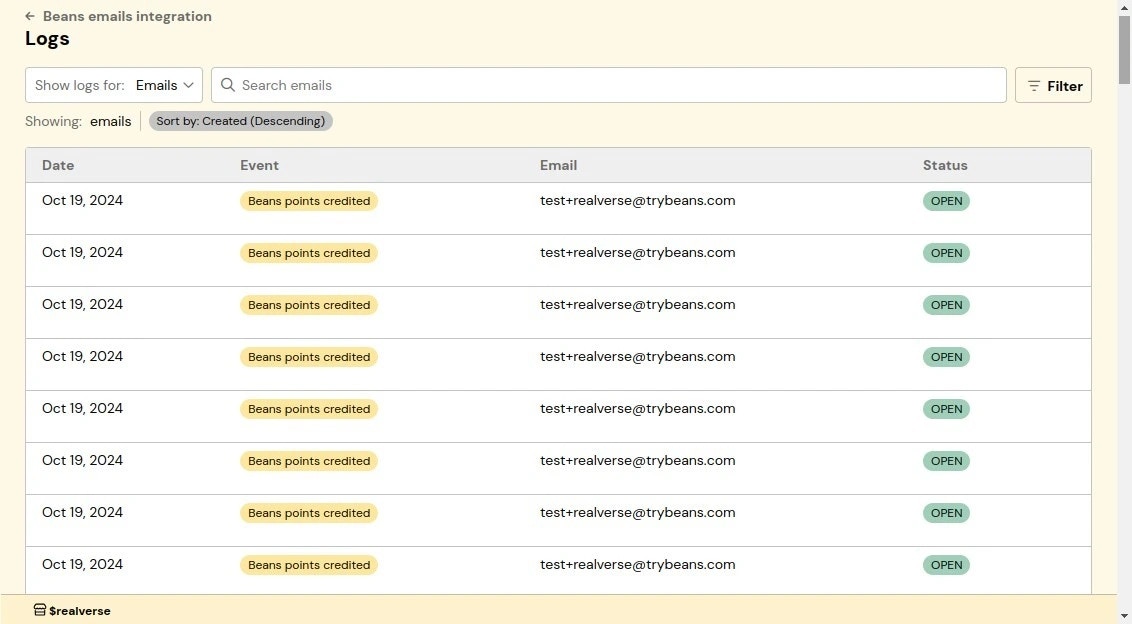
The Email log provides comprehensive tracking of all sent email notifications, ensuring you
have full visibility and control. The log includes:
* Date and time of email send.
* Triggering event.
* Recipient email address.
* Delivery status.
## Email log management
The Email log provides comprehensive tracking of all sent email notifications, ensuring you
have full visibility and control. The log includes:
* Date and time of email send.
* Triggering event.
* Recipient email address.
* Delivery status.
 ## Status
The Status page gives you control over the status and data synchronization between the loyalty
program and Beans Emails. From here, you can monitor the connection status and reset synchronization if needed.
## Status
The Status page gives you control over the status and data synchronization between the loyalty
program and Beans Emails. From here, you can monitor the connection status and reset synchronization if needed.
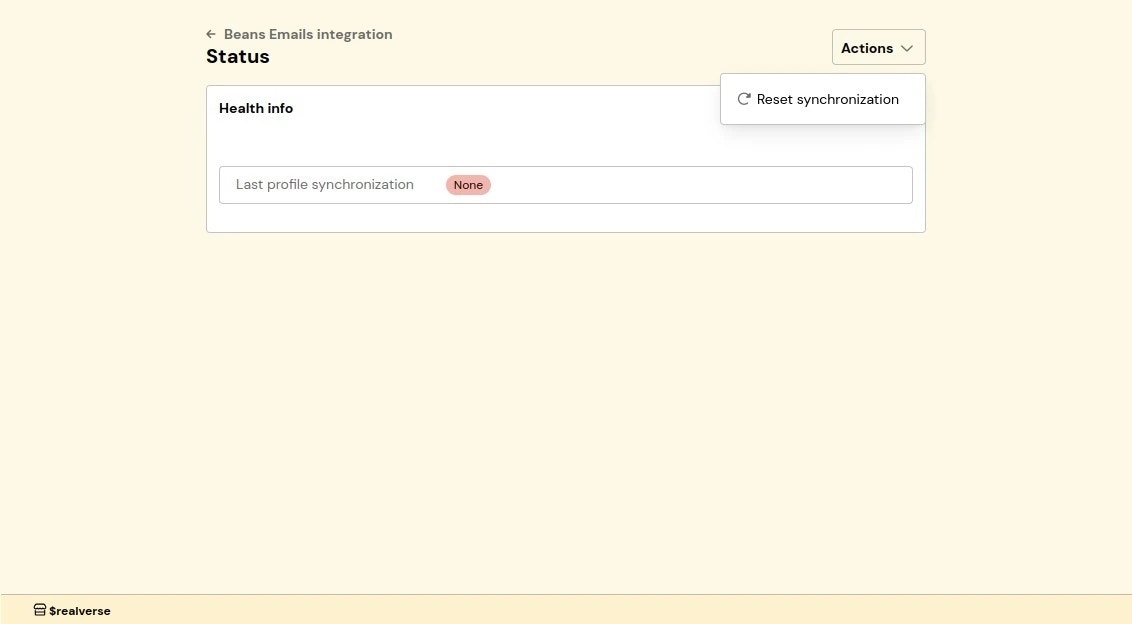 To access the status page:
1. Navigate to the Email Notifications integration home page.
2. Click on **Status** in the integration navigation menu.
### Reset synchronization
You may need to reset synchronization if:
* Email notifications aren't being sent as expected.
* There are discrepancies in customer data.
* You've recently made significant changes to your loyalty program settings.
To reset synchronization:
1. Click the **Actions** dropdown in the top right.
2. Select **Reset Synchronization**.
This process will re-establish the connection between your loyalty program and Beans Emails
without affecting existing customer data or email settings.
## Replacement tags
Replacement tags are dynamic placeholders used in email templates to personalize content for each recipient.
When an email is sent, these tags are automatically replaced with actual customer data such as names, points balances,
and transaction details.
### Global tags
Global tags work across all email notifications and help personalize emails to each customer:
* `[%first_name%]`: Customer's first name.
* `[%last_name%]`: Customer's last name.
* `[%beans_balance%]`: Customer's current points balance.
* `[%beans_value%]`: Monetary value of the customer's current points balance (in store currency).
* `[%tier_name%]`: Customer's loyalty tier level.
* `[%unsubscribe_link%]`: Mandatory unsubscribe link for customer to opt out of receiving emails.
The \[%tier\_name%] tag will only display data if the tier feature is activated.
### Notification-specific tags
Each email notification has unique tags for personalizing content based on specific events.
**Points transactions (debit or credit)**
* `[%transaction_delta%]`: Amount of points credited or debited.
* `[%transaction_description%]`: Description of the transaction.
**Referral invitations**
* `[%referral_reward%]`: Points awarded for the referral.
* `[%referrer_name%]`: Name of the referring customer.
* `[%referral_link%]`: Unique referral invitation link.
## Important note
Beans Emails is designed specifically for loyalty program notifications. While it effectively
handles automated loyalty program communications, it is not intended to be a comprehensive
email marketing solution.
For advanced email marketing features and fine tuned notifications, we recommend using
dedicated [email marketing platforms that we integrate with](https://www.trybeans.com/integrations#marketing).
To access the status page:
1. Navigate to the Email Notifications integration home page.
2. Click on **Status** in the integration navigation menu.
### Reset synchronization
You may need to reset synchronization if:
* Email notifications aren't being sent as expected.
* There are discrepancies in customer data.
* You've recently made significant changes to your loyalty program settings.
To reset synchronization:
1. Click the **Actions** dropdown in the top right.
2. Select **Reset Synchronization**.
This process will re-establish the connection between your loyalty program and Beans Emails
without affecting existing customer data or email settings.
## Replacement tags
Replacement tags are dynamic placeholders used in email templates to personalize content for each recipient.
When an email is sent, these tags are automatically replaced with actual customer data such as names, points balances,
and transaction details.
### Global tags
Global tags work across all email notifications and help personalize emails to each customer:
* `[%first_name%]`: Customer's first name.
* `[%last_name%]`: Customer's last name.
* `[%beans_balance%]`: Customer's current points balance.
* `[%beans_value%]`: Monetary value of the customer's current points balance (in store currency).
* `[%tier_name%]`: Customer's loyalty tier level.
* `[%unsubscribe_link%]`: Mandatory unsubscribe link for customer to opt out of receiving emails.
The \[%tier\_name%] tag will only display data if the tier feature is activated.
### Notification-specific tags
Each email notification has unique tags for personalizing content based on specific events.
**Points transactions (debit or credit)**
* `[%transaction_delta%]`: Amount of points credited or debited.
* `[%transaction_description%]`: Description of the transaction.
**Referral invitations**
* `[%referral_reward%]`: Points awarded for the referral.
* `[%referrer_name%]`: Name of the referring customer.
* `[%referral_link%]`: Unique referral invitation link.
## Important note
Beans Emails is designed specifically for loyalty program notifications. While it effectively
handles automated loyalty program communications, it is not intended to be a comprehensive
email marketing solution.
For advanced email marketing features and fine tuned notifications, we recommend using
dedicated [email marketing platforms that we integrate with](https://www.trybeans.com/integrations#marketing).