> ## Documentation Index
> Fetch the complete documentation index at: https://docs.trybeans.com/llms.txt
> Use this file to discover all available pages before exploring further.
# BigCommerce
> Integrate Beans with your BigCommerce store.
BigCommerce is an e-commerce platform designed to provide merchants with the tools
they need to sell products online effectively.
[Integrating Beans with BigCommerce](https://www.trybeans.com/integrations/trellis:bigcommerce)
enhances this functionality by enabling merchants to implement a rewards system that promotes
customer loyalty. With Beans for BigCommerce, you can reward customers for their purchases,
encouraging repeat business and fostering a loyal customer base.
## Setup
1. Navigate to the Beans admin dashboard and select **Integrations**.
2. Find and click on **BigCommerce** from the integrations list.
3. Click **Connect** to begin the integration process.
4. You'll need to generate BigCommerce API credentials. To do this:
* Log in to your BigCommerce admin panel
* Go to **Settings** > **API** > **Store-level API Accounts**
* Click **Create API Account**
* Enter a name for your API account (e.g., "Beans Integration")
* Under **OAuth Scopes**, ensure all permissions are set to "Full"
* Click **Save** to generate the API credentials
5. You'll receive three pieces of information that need to be copied to
Beans: **Client ID**, **Client secret**, and **Access token**.
6. Copy your **BigCommerce API path or Store URL** (it should look
like: `https://api.bigcommerce.com/stores/xxxxxxxx/v3/`)
7. Paste all four credentials into their respective fields in the Beans interface.
8. Click **Connect** to finalize the integration.
## Reinstall
If you suspect Beans is not properly installed on your BigCommerce store,
there is a straightforward solution to address this without any negative side effects.
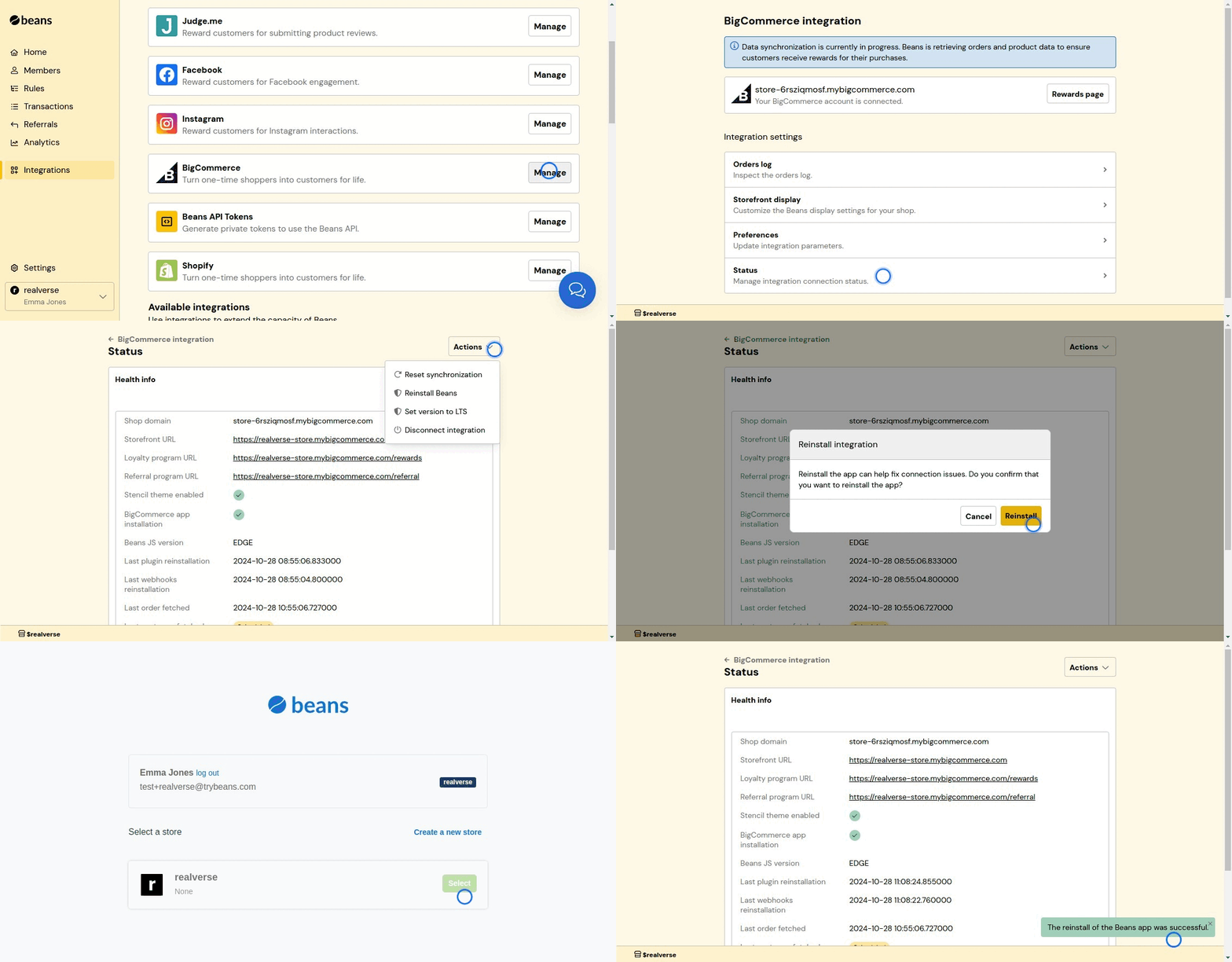 1. From the Beans admin dashboard, navigate to the BigCommerce integration home page.
2. Select **Status** in the integration navigation menu.
3. From the **Actions** dropdown on the top right, select **Reinstall Beans**.
## Rewards page
To improve the visibility of your rewards program and make it easier for customers to find,
we suggest adding a link to the rewards page in your main menu. Here's an article on how to do
it: [BigCommerce - Navigation Menu Options](https://support.bigcommerce.com/s/article/Web-Pages?language=en_US#navigation).
## Redemption
1. From the Beans admin dashboard, navigate to the BigCommerce integration home page.
2. Select **Status** in the integration navigation menu.
3. From the **Actions** dropdown on the top right, select **Reinstall Beans**.
## Rewards page
To improve the visibility of your rewards program and make it easier for customers to find,
we suggest adding a link to the rewards page in your main menu. Here's an article on how to do
it: [BigCommerce - Navigation Menu Options](https://support.bigcommerce.com/s/article/Web-Pages?language=en_US#navigation).
## Redemption
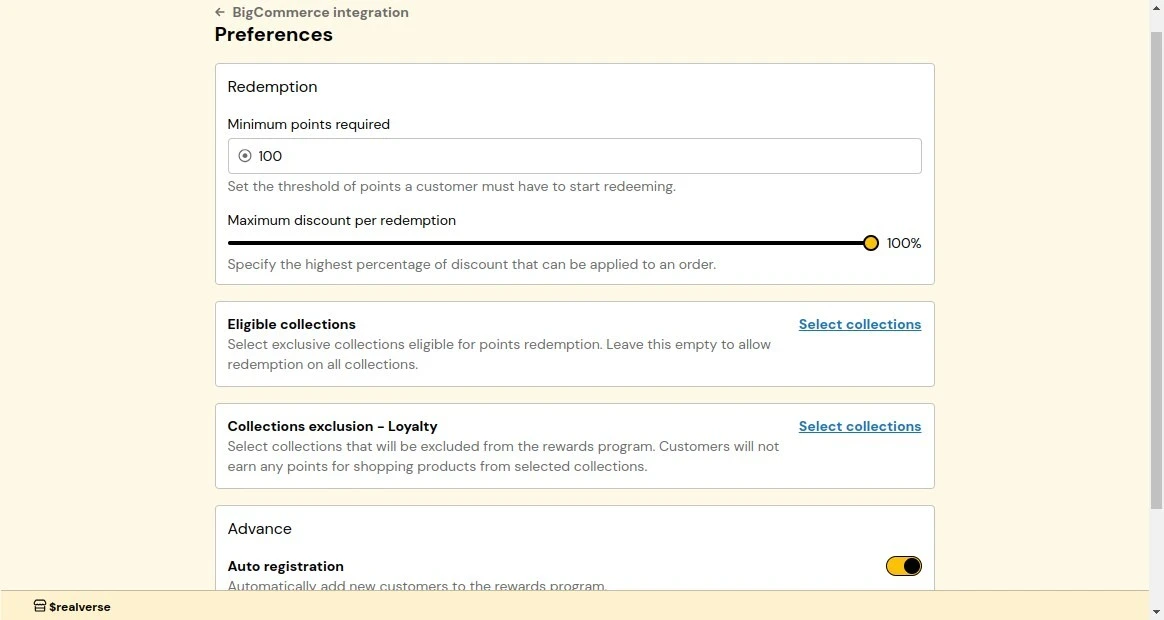 ### Minimum points required for redemption
Sets a minimum points threshold that customers must reach before redeeming rewards. By default,
customers need to accumulate at least 100 points before being eligible for redemption. You can
adjust this threshold higher to ensure meaningful program engagement and prevent inefficient redemptions.
For example, if you set the minimum to 500 points, customers would need to earn at least 500 points before
they can start redeeming rewards.
**How it works:**
1. From the BigCommerce integration dashboard, navigate to **Preferences**.
2. Locate the **Redemption** section and enter your desired minimum points threshold in the
**Minimum Points Required** field.
3. Click **Save** to apply changes.
Choose a minimum threshold that balances customer satisfaction with your business goals. Too high may discourage
participation, while too low could reduce program effectiveness.
### Maximum discount per redemption
Sets a limit on how much of the total purchase price can be discounted through points.
This ensures that the discounts provided through redemptions remain within acceptable
limits for your business. For example, if a customer wants to buy a product priced at \$10 and
has 1000 points (equal to \$10), but the maximum discount is set to 50%, they can only use 500
points, giving them a \$5 discount.
**How it works:**
1. From the BigCommerce integration dashboard, navigate to **Preferences**.
2. Locate the **Redemption** section and use the **Maximum Discount Per Redemption** slider to set
your desired maximum discount percentage.
3. Click **Save** to apply changes.
Setting a reasonable maximum discount percentage helps maintain a balance between rewarding customers and protecting
your profit margins.
### Eligible collections
Enable point redemption for specific product collections in your store. Customers can then redeem
points only for products in the selected collections. When no collections are selected, all products
are eligible for redemption.
**How it works:**
1. From the BigCommerce integrations home page, navigate to **Preferences**.
2. Locate the **Eligible Collections** section and click on **Select collections**.
3. Choose the collections you want to make eligible for point redemption.
4. Click **Save** to confirm.
### Collections exclusion - Loyalty
When collections are excluded, customers will not earn points when purchasing products from
those collections. This helps you maintain control over which products contribute to rewards program earnings.
**How it works:**
1. From the BigCommerce integration dashboard, navigate to **Preferences**.
2. Locate the **Collections exclusion - Loyalty** section and click on **Select collections**.
3. Choose the collections you want to exclude from points earnings.
4. Click **Save** to confirm.
## Auto registration
Automatically enrolls new customers into your rewards program when they create an account
or make a purchase. This ensures seamless participation and maximum program engagement.
**How it works:**
1. From the BigCommerce integration dashboard, navigate to **Preferences**.
2. Locate the **Advance** section and switch the **Auto registration** toggle to **On**.
3. Click **Save** to confirm.
## Storefront Display
### Widget
The widget appears as a floating button in the corner of your storefront that displays notifications
to help customers access their rewards program features, including joining the program, redeeming
points, and checking their balance.
**How it works:**
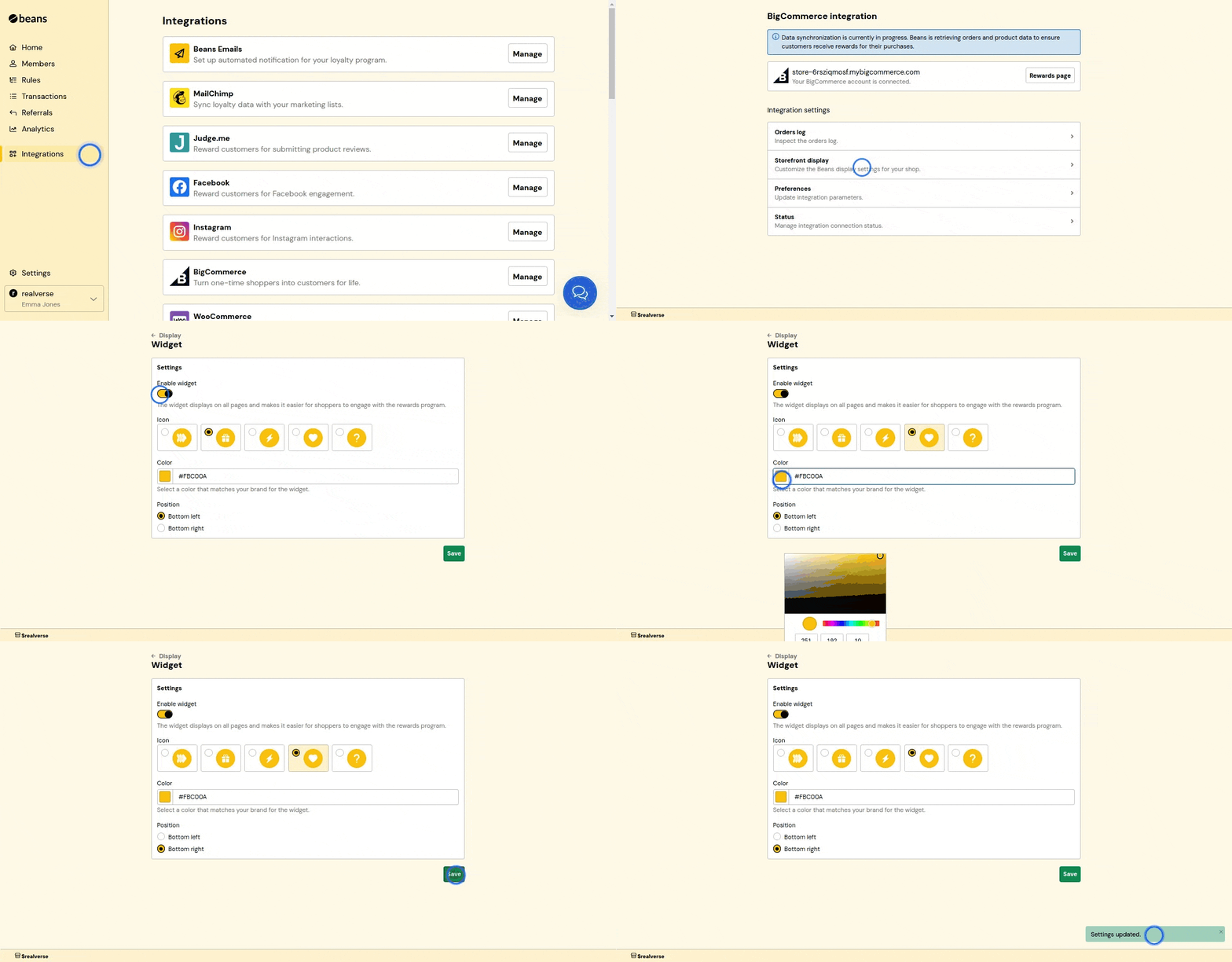
1. From the BigCommerce integration dashboard, navigate to **Storefront display**.
2. Locate and click on **Widget**.
3. In the Widget settings page, toggle "Enable widget" to on.
4. Adjust the widget's position and appearance to match your brand's style.
5. Click **Save** to apply changes.
### Minimum points required for redemption
Sets a minimum points threshold that customers must reach before redeeming rewards. By default,
customers need to accumulate at least 100 points before being eligible for redemption. You can
adjust this threshold higher to ensure meaningful program engagement and prevent inefficient redemptions.
For example, if you set the minimum to 500 points, customers would need to earn at least 500 points before
they can start redeeming rewards.
**How it works:**
1. From the BigCommerce integration dashboard, navigate to **Preferences**.
2. Locate the **Redemption** section and enter your desired minimum points threshold in the
**Minimum Points Required** field.
3. Click **Save** to apply changes.
Choose a minimum threshold that balances customer satisfaction with your business goals. Too high may discourage
participation, while too low could reduce program effectiveness.
### Maximum discount per redemption
Sets a limit on how much of the total purchase price can be discounted through points.
This ensures that the discounts provided through redemptions remain within acceptable
limits for your business. For example, if a customer wants to buy a product priced at \$10 and
has 1000 points (equal to \$10), but the maximum discount is set to 50%, they can only use 500
points, giving them a \$5 discount.
**How it works:**
1. From the BigCommerce integration dashboard, navigate to **Preferences**.
2. Locate the **Redemption** section and use the **Maximum Discount Per Redemption** slider to set
your desired maximum discount percentage.
3. Click **Save** to apply changes.
Setting a reasonable maximum discount percentage helps maintain a balance between rewarding customers and protecting
your profit margins.
### Eligible collections
Enable point redemption for specific product collections in your store. Customers can then redeem
points only for products in the selected collections. When no collections are selected, all products
are eligible for redemption.
**How it works:**
1. From the BigCommerce integrations home page, navigate to **Preferences**.
2. Locate the **Eligible Collections** section and click on **Select collections**.
3. Choose the collections you want to make eligible for point redemption.
4. Click **Save** to confirm.
### Collections exclusion - Loyalty
When collections are excluded, customers will not earn points when purchasing products from
those collections. This helps you maintain control over which products contribute to rewards program earnings.
**How it works:**
1. From the BigCommerce integration dashboard, navigate to **Preferences**.
2. Locate the **Collections exclusion - Loyalty** section and click on **Select collections**.
3. Choose the collections you want to exclude from points earnings.
4. Click **Save** to confirm.
## Auto registration
Automatically enrolls new customers into your rewards program when they create an account
or make a purchase. This ensures seamless participation and maximum program engagement.
**How it works:**
1. From the BigCommerce integration dashboard, navigate to **Preferences**.
2. Locate the **Advance** section and switch the **Auto registration** toggle to **On**.
3. Click **Save** to confirm.
## Storefront Display
### Widget
The widget appears as a floating button in the corner of your storefront that displays notifications
to help customers access their rewards program features, including joining the program, redeeming
points, and checking their balance.
**How it works:**
1. From the BigCommerce integration dashboard, navigate to **Storefront display**.
2. Locate and click on **Widget**.
3. In the Widget settings page, toggle "Enable widget" to on.
4. Adjust the widget's position and appearance to match your brand's style.
5. Click **Save** to apply changes.
 ### Rewards page
The rewards page is a dedicated section on your storefront that displays your rewards program details.
It allows customers to view their points balance, redeem rewards, and learn more about your program.
### Rewards page
The rewards page is a dedicated section on your storefront that displays your rewards program details.
It allows customers to view their points balance, redeem rewards, and learn more about your program.
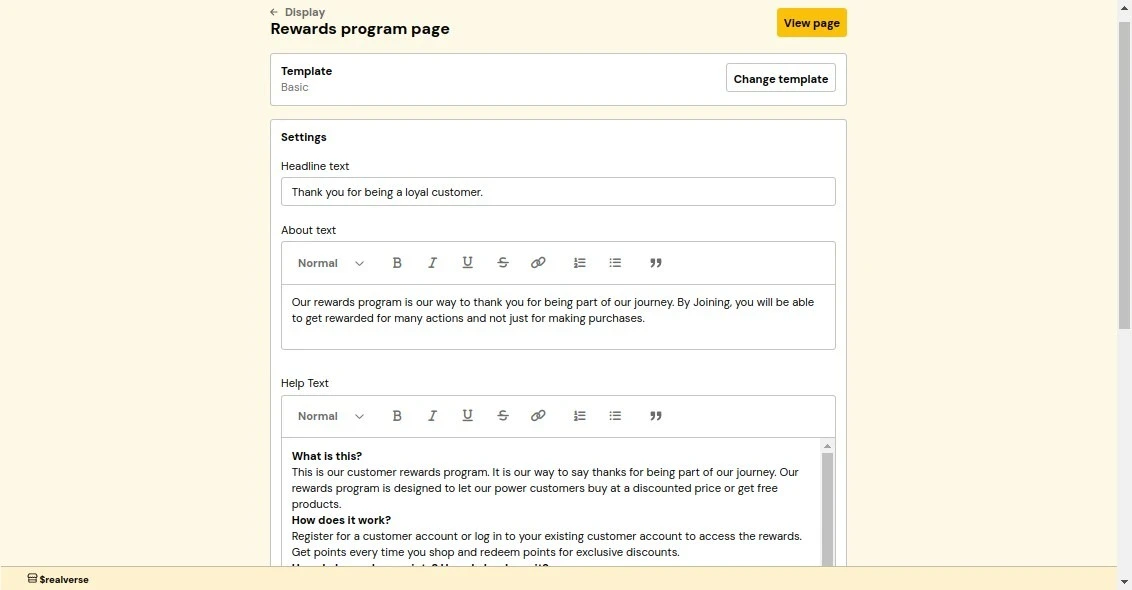 **How it works:**
1. From the BigCommerce integration dashboard, navigate to **Storefront display**.
2. Locate and click on **Rewards page**.
3. Customize the template and settings as needed.
4. Click **Save** to apply changes.
**Customization settings:**
* **Headline Text**: The main title displayed at the top of the rewards page to attract customer attention.
* **About Text**: A small block of text that explains your rewards program purpose and welcomes customers.
* **Help Text**: A FAQ-style text that explains your rewards program, including common questions like
"What is this?", "How does it work?", "How to redeem points?", and important terms and conditions.
* **Primary Color**: The main color used throughout the rewards page to maintain consistent branding with your store's theme.
* **Shop Now Link**: A direct link to the shopping page. It will be used as a call-to-action for customers to
start earning points.
* **Contrast Color**: A color that contrasts with your primary color, typically black or white, to ensure text readability.
### Referral page
The referral page is a dedicated section on your storefront that displays your referral program details.
It allows customers to view and share their referral link with friends.
**How it works:**
1. From the BigCommerce integration dashboard, navigate to **Storefront display**.
2. Locate and click on **Rewards page**.
3. Customize the template and settings as needed.
4. Click **Save** to apply changes.
**Customization settings:**
* **Headline Text**: The main title displayed at the top of the rewards page to attract customer attention.
* **About Text**: A small block of text that explains your rewards program purpose and welcomes customers.
* **Help Text**: A FAQ-style text that explains your rewards program, including common questions like
"What is this?", "How does it work?", "How to redeem points?", and important terms and conditions.
* **Primary Color**: The main color used throughout the rewards page to maintain consistent branding with your store's theme.
* **Shop Now Link**: A direct link to the shopping page. It will be used as a call-to-action for customers to
start earning points.
* **Contrast Color**: A color that contrasts with your primary color, typically black or white, to ensure text readability.
### Referral page
The referral page is a dedicated section on your storefront that displays your referral program details.
It allows customers to view and share their referral link with friends.
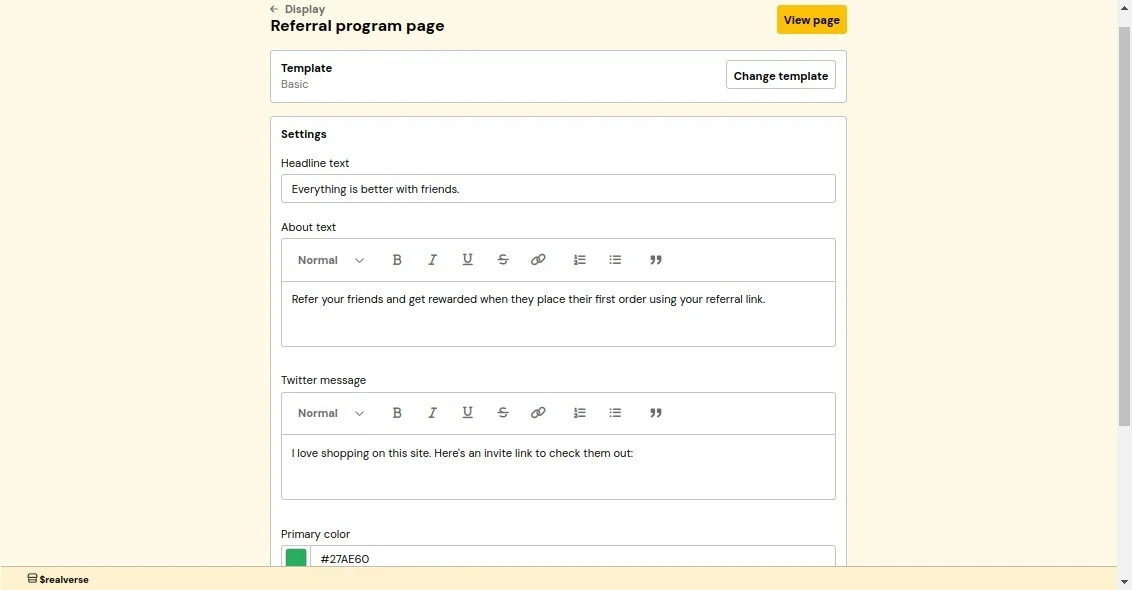 **How it works:**
1. From the BigCommerce integration dashboard, navigate to **Storefront display**.
2. Locate the **Referral page** section.
3. Customize the template and settings as needed.
4. Click **Save** to apply changes.
**Customization settings:**
* **Headline Text**: The main title displayed at the top of the referral page to attract customer attention.
* **About Text**: A small block of text that explains your referral program purpose and welcomes customers.
* **Twitter Message**: The default text that appears when customers share their referral link on Twitter.
* **Primary Color**: The main color used throughout the referral page to maintain consistent branding with your store's theme.
* **Contrast Color**: A color that contrasts with your primary color, typically black or white, to ensure text readability.
### Redemption button
The redemption button allows customers to redeem their rewards directly from the cart or checkout page.
By default, it is placed near the checkout call-to-action (CTA), allowing customers to apply their
rewards before completing a purchase.
**How it works:**
1. From the BigCommerce integration dashboard, navigate to **Storefront display**.
2. Locate the **Referral page** section.
3. Customize the template and settings as needed.
4. Click **Save** to apply changes.
**Customization settings:**
* **Headline Text**: The main title displayed at the top of the referral page to attract customer attention.
* **About Text**: A small block of text that explains your referral program purpose and welcomes customers.
* **Twitter Message**: The default text that appears when customers share their referral link on Twitter.
* **Primary Color**: The main color used throughout the referral page to maintain consistent branding with your store's theme.
* **Contrast Color**: A color that contrasts with your primary color, typically black or white, to ensure text readability.
### Redemption button
The redemption button allows customers to redeem their rewards directly from the cart or checkout page.
By default, it is placed near the checkout call-to-action (CTA), allowing customers to apply their
rewards before completing a purchase.
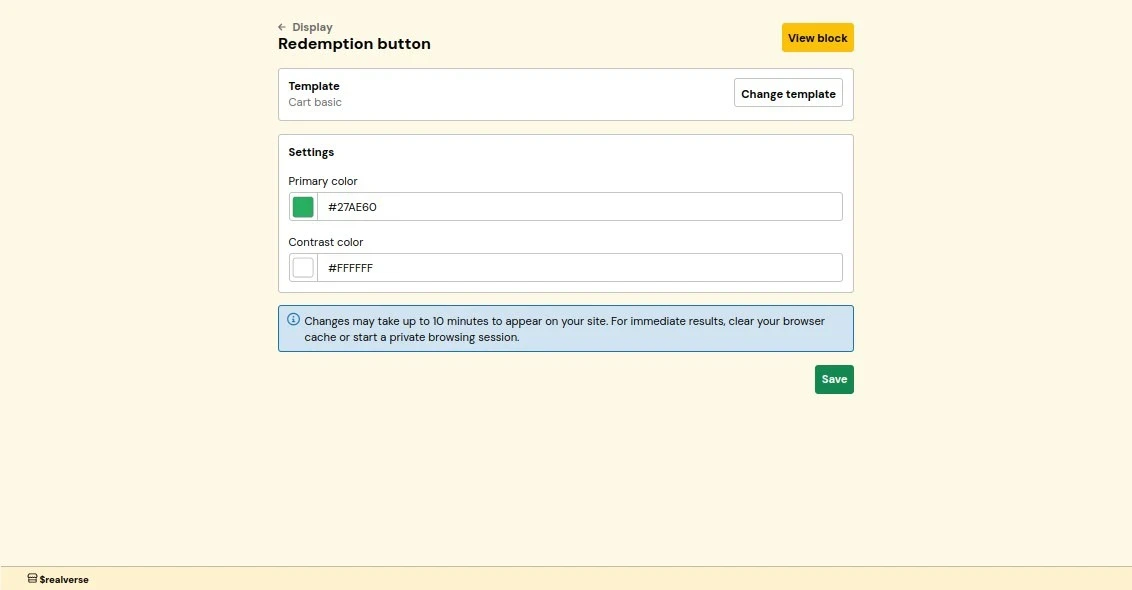 **How it works:**
1. From the BigCommerce integration dashboard, navigate to **Storefront display**.
2. Locate the **Redemption Button** section.
3. Customize the template and settings as needed.
4. Click **Save** to apply changes.
**Customization settings:**
* **Primary Color**: The button background color.
* **Contrast Color**: The button text color. It should contrast with your primary color. It is
recommended to use black or white to ensure text readability.
### Referral invitation popup
The referral invitation popup appears when someone visits a referral link, encouraging them to
join your rewards program using their unique link.
**How it works:**
1. From the BigCommerce integration dashboard, navigate to **Storefront display**.
2. Locate the **Redemption Button** section.
3. Customize the template and settings as needed.
4. Click **Save** to apply changes.
**Customization settings:**
* **Primary Color**: The button background color.
* **Contrast Color**: The button text color. It should contrast with your primary color. It is
recommended to use black or white to ensure text readability.
### Referral invitation popup
The referral invitation popup appears when someone visits a referral link, encouraging them to
join your rewards program using their unique link.
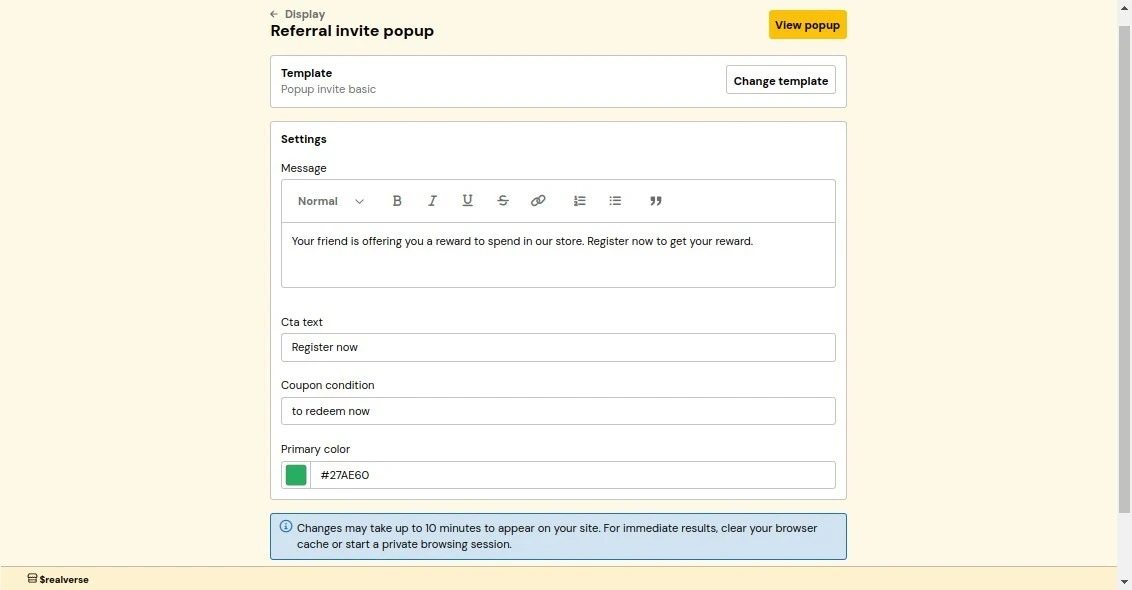 **How it works:**
1. From the BigCommerce integration dashboard, navigate to **Storefront display**.
2. Locate and click on **Referral Invitation Popup**.
3. Customize the template and settings as needed.
4. Click **Save** to apply changes.
**Customization settings:**
* **Message**: A message informing customers that they are being referred and inviting them
to sign up in order to get a reward.
* **Call-to-Action Text**: The text of the button to encourage customers to sign up.
* **Primary Color**: The popup's main color. It should match your brand colors.
### Referral reward popup
The referral reward popup notifies customers of successful referrals and encourages them to use their
rewards. This confirmation popup helps maintain engagement with your referral program.
**How it works:**
1. From the BigCommerce integration dashboard, navigate to **Storefront display**.
2. Locate and click on **Referral Invitation Popup**.
3. Customize the template and settings as needed.
4. Click **Save** to apply changes.
**Customization settings:**
* **Message**: A message informing customers that they are being referred and inviting them
to sign up in order to get a reward.
* **Call-to-Action Text**: The text of the button to encourage customers to sign up.
* **Primary Color**: The popup's main color. It should match your brand colors.
### Referral reward popup
The referral reward popup notifies customers of successful referrals and encourages them to use their
rewards. This confirmation popup helps maintain engagement with your referral program.
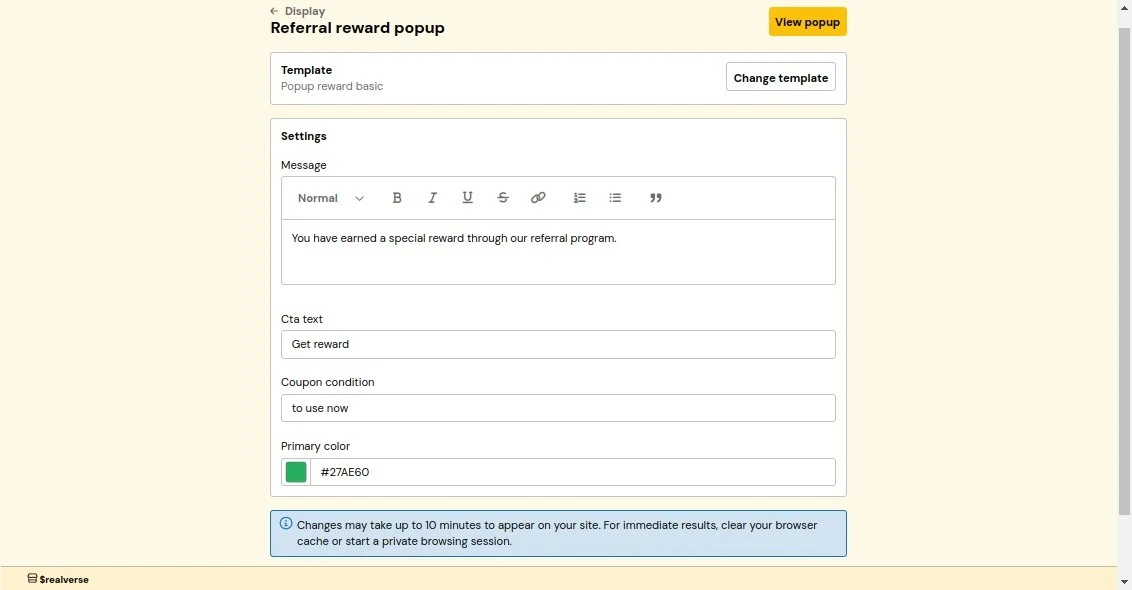 **How it works:**
1. From the BigCommerce integration dashboard, navigate to **Storefront display**.
2. Locate the **Referral Reward Popup** section.
3. Customize the template and settings as needed.
4. Click **Save** to apply changes.
**Customization settings:**
* **Message**: A confirmation message informing customers that their referral was successful.
* **Call-to-Action Text**: The text of the button to encourage customers to redeem their reward.
* **Primary Color**: The popup's main color. It should match your brand colors.
**How it works:**
1. From the BigCommerce integration dashboard, navigate to **Storefront display**.
2. Locate the **Referral Reward Popup** section.
3. Customize the template and settings as needed.
4. Click **Save** to apply changes.
**Customization settings:**
* **Message**: A confirmation message informing customers that their referral was successful.
* **Call-to-Action Text**: The text of the button to encourage customers to redeem their reward.
* **Primary Color**: The popup's main color. It should match your brand colors.