> ## Documentation Index
> Fetch the complete documentation index at: https://docs.trybeans.com/llms.txt
> Use this file to discover all available pages before exploring further.
# Judge.me
> Integrate Beans with Judge.me to reward customers for product reviews
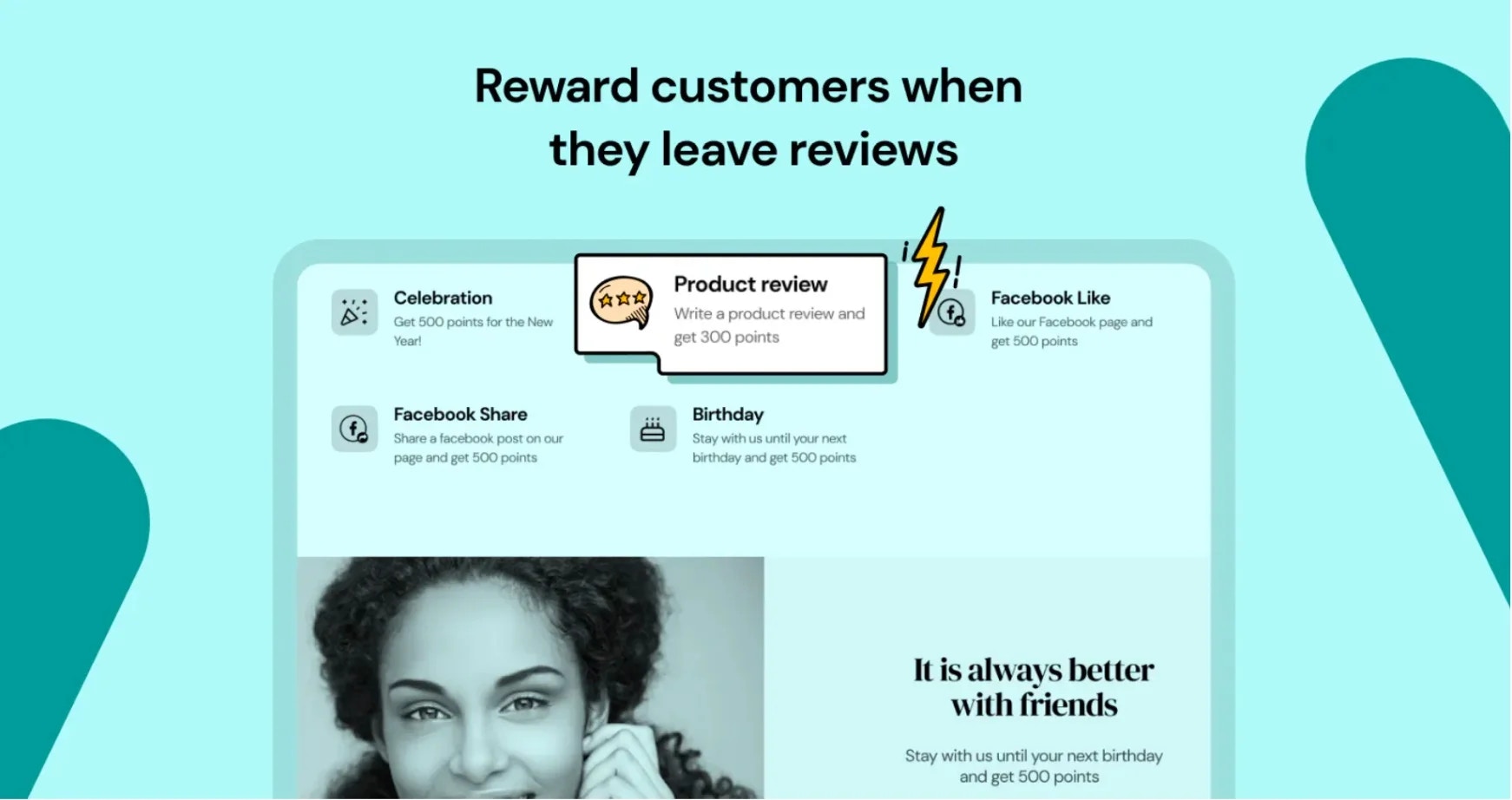 [Judge.me](https://judge.me/) is a platform designed for online merchants to gather and display product reviews.
The [integration between Beans and Judge.me](https://www.trybeans.com/integrations/trellis:judgeme)
empowers merchants to significantly boost
the number of post-purchase reviews by offering an enticing incentive:
loyalty points for each review submitted via Judge.me.
## Setup
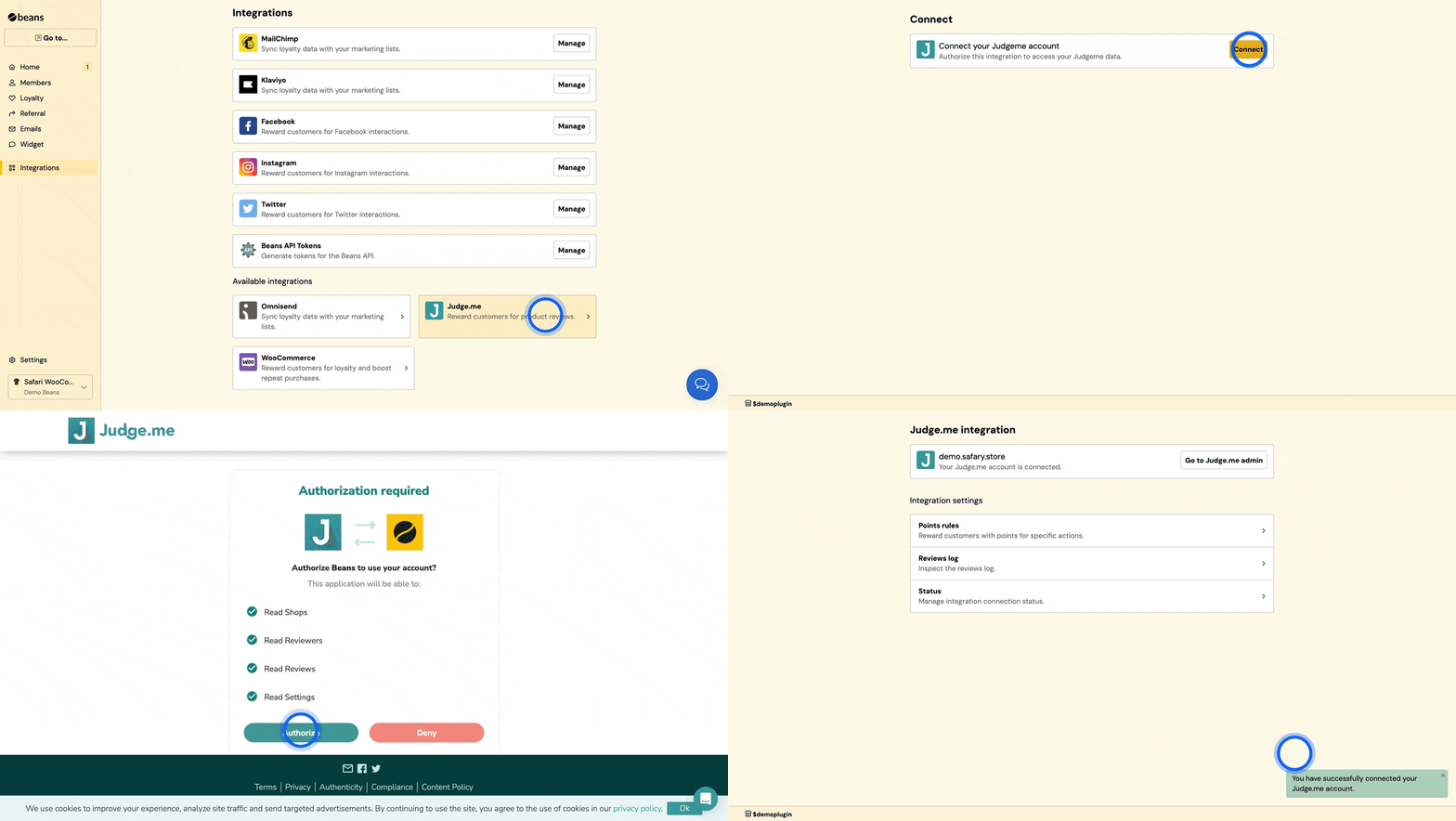
1. From the Beans admin, go to **Integrations**.
2. Locate **Judge.me** in the list of available integrations.
3. Click on the **Connect** button and proceed as directed.
4. Enter the domain of your shop to either sign in to your existing Judge.me account or
to install the app if you haven't done so already.
5. Grant Beans permission to interact with your Judge.me account.
[Judge.me](https://judge.me/) is a platform designed for online merchants to gather and display product reviews.
The [integration between Beans and Judge.me](https://www.trybeans.com/integrations/trellis:judgeme)
empowers merchants to significantly boost
the number of post-purchase reviews by offering an enticing incentive:
loyalty points for each review submitted via Judge.me.
## Setup
1. From the Beans admin, go to **Integrations**.
2. Locate **Judge.me** in the list of available integrations.
3. Click on the **Connect** button and proceed as directed.
4. Enter the domain of your shop to either sign in to your existing Judge.me account or
to install the app if you haven't done so already.
5. Grant Beans permission to interact with your Judge.me account.
 ## Rules
### Points for product reviews
This feature allows you to incentivize customers by awarding loyalty points when they post product reviews.
As a merchant, you have complete control over the reward frequency to suit your business model.
You can set specific frequency limits for awarding points, such as once per day,
once per week, or once per month. Alternatively, you may choose to impose no restrictions,
offering rewards for every review posted. This flexibility ensures you can encourage ongoing
engagement while managing the incentives effectively.
## Rules
### Points for product reviews
This feature allows you to incentivize customers by awarding loyalty points when they post product reviews.
As a merchant, you have complete control over the reward frequency to suit your business model.
You can set specific frequency limits for awarding points, such as once per day,
once per week, or once per month. Alternatively, you may choose to impose no restrictions,
offering rewards for every review posted. This flexibility ensures you can encourage ongoing
engagement while managing the incentives effectively.
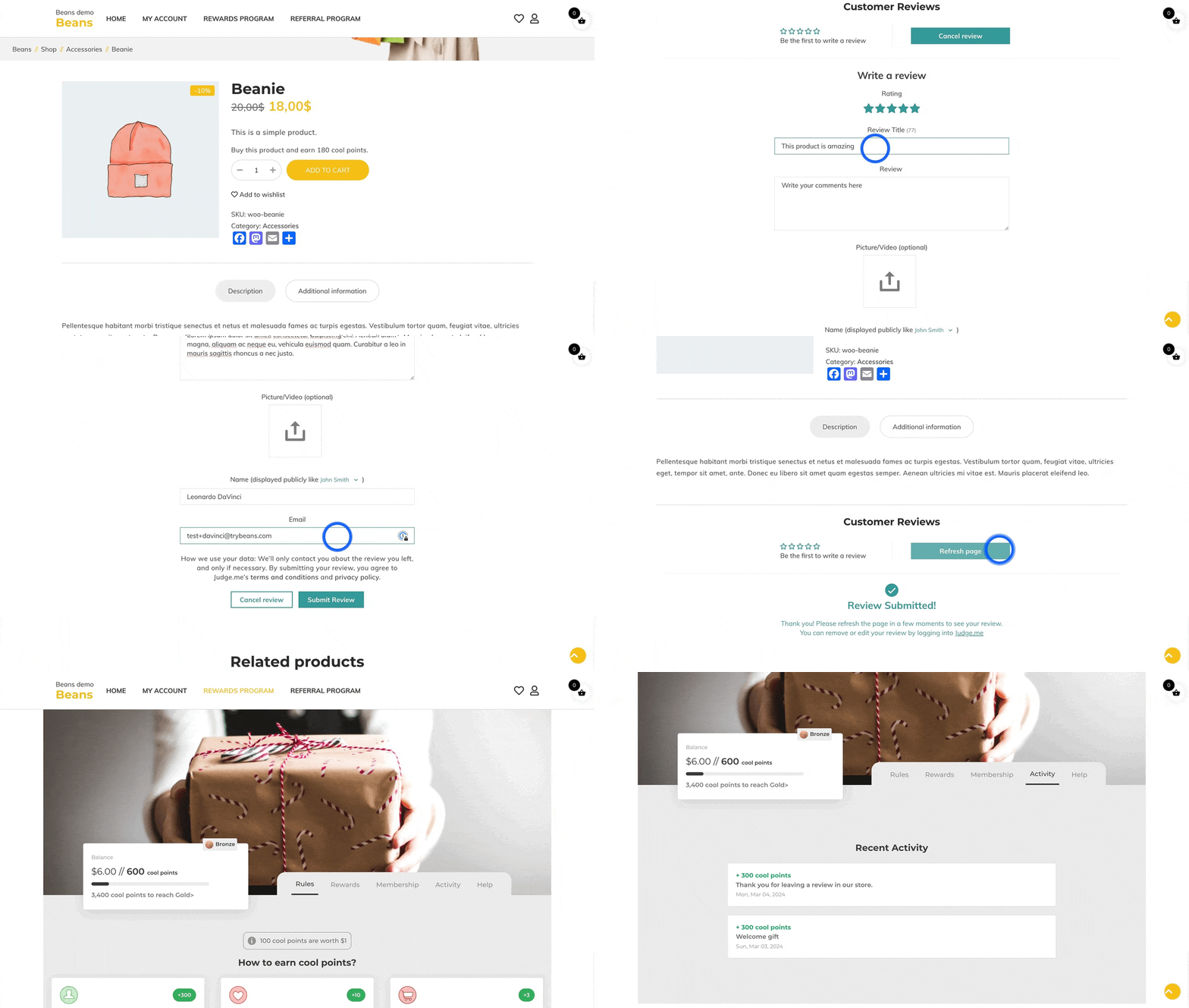 ### Points for product reviews with photos
Reward your customers more generously when they include photos with their product reviews.
This rule take precedence over the classic points for text-only reviews.
This is irrespective of which rule offers a higher point reward.
Consequently, it's advisable to assign a higher point value to reviews with photos
compared to text-only reviews, ensuring a more attractive incentive for customers
to share visually enriched feedback.
## Reviews log
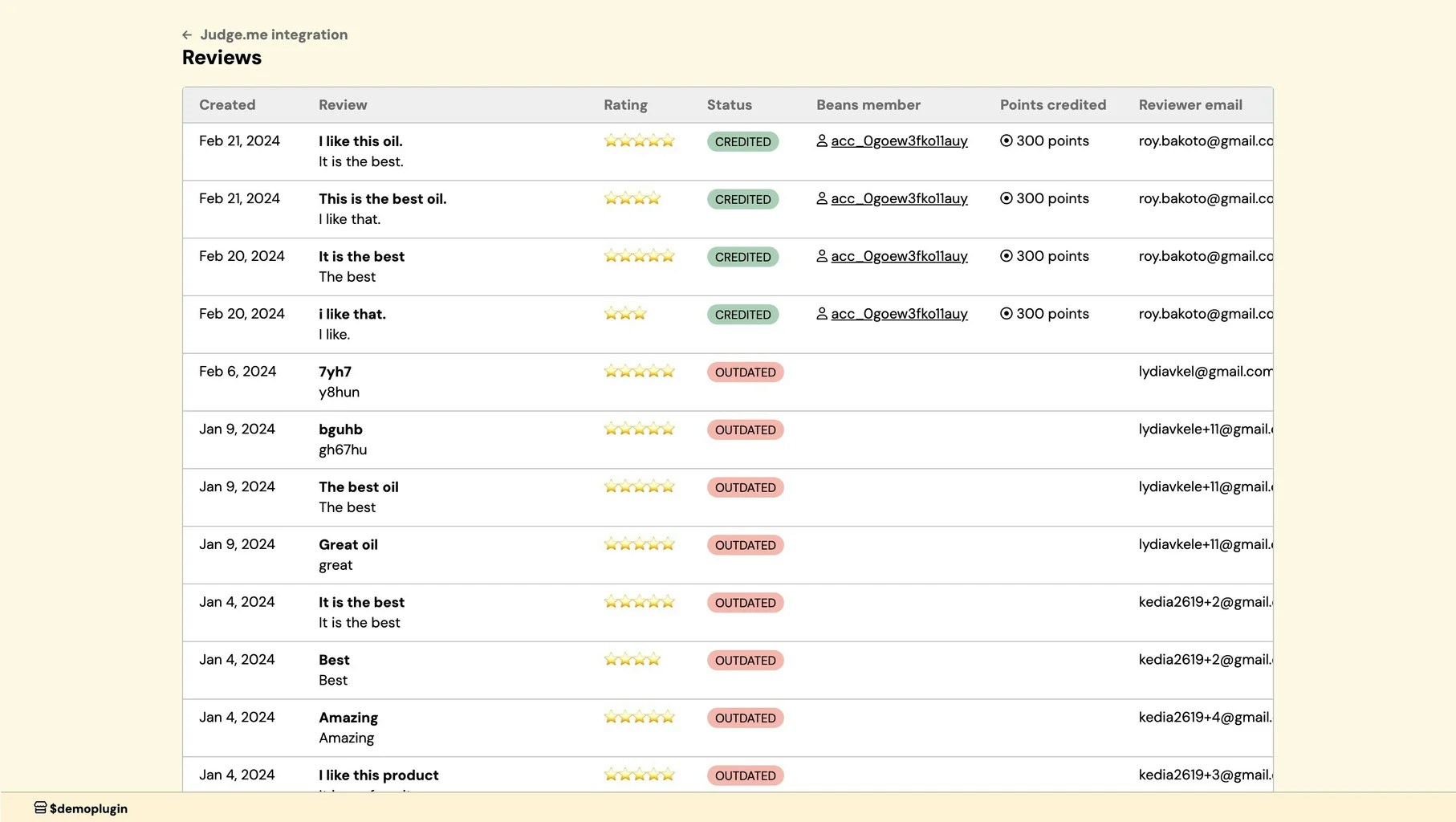
The reviews log offers merchants a straightforward and efficient way to track the history of all rewarded reviews.
Within this log, merchants can quickly ascertain whether a shopper has been awarded points for their review and the
exact amount of points credited. Additionally, if a shopper has not received points for their review, the log
provides a detailed explanation, clarifying the reason behind the omission. This functionality ensures transparency
and ease in managing the rewards process for product reviews.
To access the logs page
1. Navigate to the Judge.me integration home page.
2. Click on **Review logs** in the integration navigation menu.
### Points for product reviews with photos
Reward your customers more generously when they include photos with their product reviews.
This rule take precedence over the classic points for text-only reviews.
This is irrespective of which rule offers a higher point reward.
Consequently, it's advisable to assign a higher point value to reviews with photos
compared to text-only reviews, ensuring a more attractive incentive for customers
to share visually enriched feedback.
## Reviews log
The reviews log offers merchants a straightforward and efficient way to track the history of all rewarded reviews.
Within this log, merchants can quickly ascertain whether a shopper has been awarded points for their review and the
exact amount of points credited. Additionally, if a shopper has not received points for their review, the log
provides a detailed explanation, clarifying the reason behind the omission. This functionality ensures transparency
and ease in managing the rewards process for product reviews.
To access the logs page
1. Navigate to the Judge.me integration home page.
2. Click on **Review logs** in the integration navigation menu.
 ## Status
This interface provides control over the status and data synchronization between Beans and Judge.me,
offering options to disconnect the integration, or reset the connection as needed.
To access the status page:
1. Navigate to the Judge.me integration home page
2. Click on **Status** in the integration navigation menu.
## Status
This interface provides control over the status and data synchronization between Beans and Judge.me,
offering options to disconnect the integration, or reset the connection as needed.
To access the status page:
1. Navigate to the Judge.me integration home page
2. Click on **Status** in the integration navigation menu.