> ## Documentation Index
> Fetch the complete documentation index at: https://docs.trybeans.com/llms.txt
> Use this file to discover all available pages before exploring further.
# Klaviyo
> Integrate Beans with Klaviyo to sync loyalty data with your email marketing
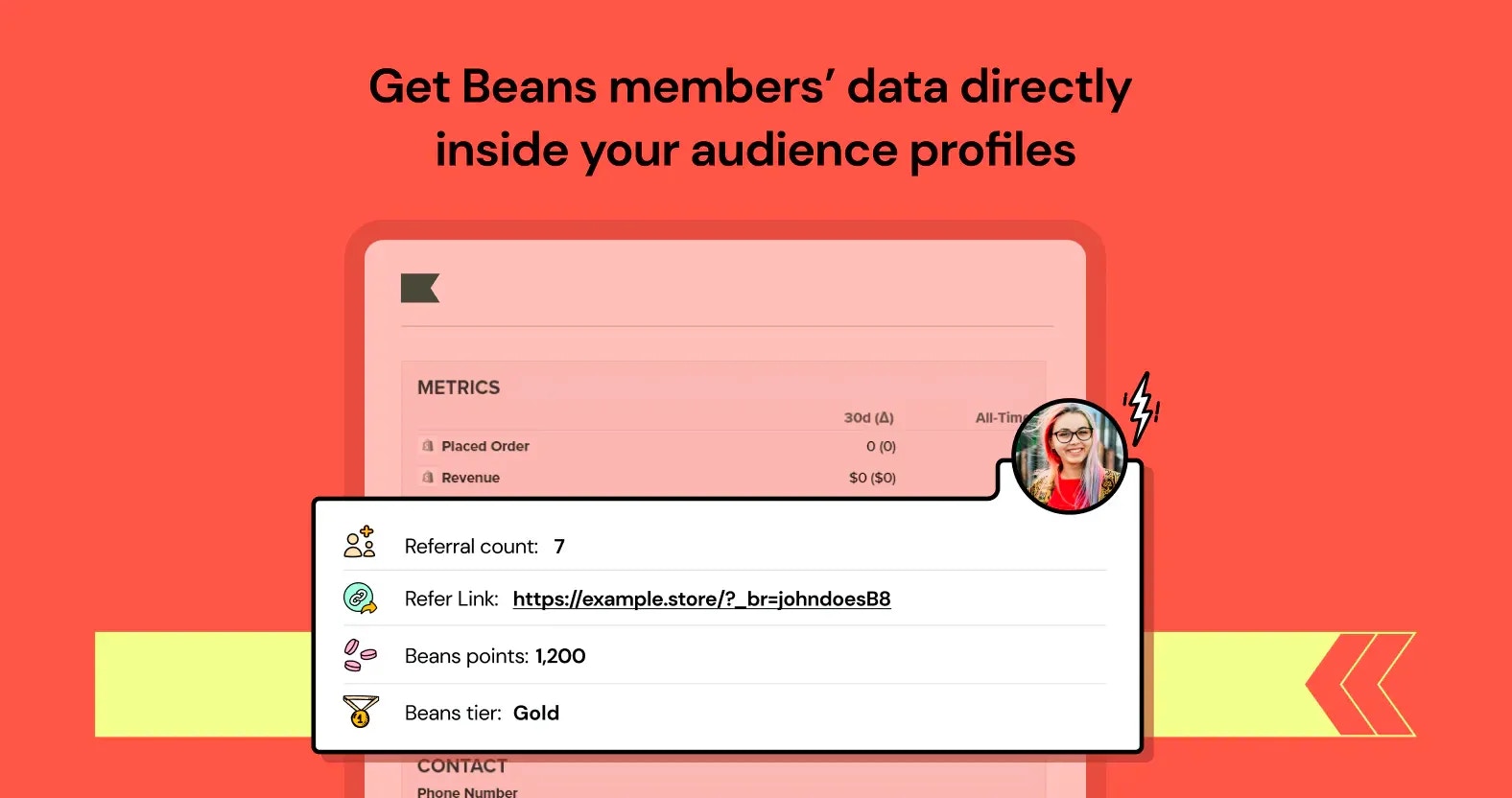
[Klaviyo](https://klaviyo.com/) is an email and sms automation platform that helps merchants
build advanced marketing flows. The
[Beans integration with Klaviyo](https://www.trybeans.com/integrations/trellis:klaviyo)
allows you to create personalized
emails for your rewards program and build segmented lists using rewards program data.
In addition, you can build custom email and sms flows based on rewards program events.
## Setup
1. From the Beans admin, go to **Integrations**.
2. Locate Klaviyo in the list of available integrations.
3. Click on the connect button and proceed as directed.
4. You will need to enter a **Klaviyo** **API key**.
5. Create a [**Klaviyo API Key**](https://help.klaviyo.com/hc/en-us/articles/7423954176283) with Full Access permission.
6. Copy and paste the Klaviyo **API key** into the designated field and click on Connect.
## Metrics
A metric indicates a specific type of event that occurred within the Beans app
and was subsequently synced to your Klaviyo account.
The following events are synced to your Klaviyo account.
This event is triggered when a customer joins the loyalty program.
Use this metric to set up a welcome email to customers who join the rewards program.
The welcome email is the perfect opportunity to get shoppers excited about the loyalty program.
```yaml theme={null}
Beans Member ID: "acc_0e65355mlysieu"
Beans Member Points: "300"
Beans Member Points Value: "3"
Beans Tier: "Basic"
$value: "300"
```
This event is triggered when a customer earns points.
Use this metric to send customers an email notification when they earn points.
Customers appreciate instant gratification. Sending notifications promptly upon point accrual
reinforces their positive behavior and encourages repeat purchases.
```yaml theme={null}
Beans Member ID: "acc_08cvj8r0f4mbw1"
Beans Member Points: "32730"
Beans Member Points Value: "327.3"
Beans Tier: "Diamond"
Beans Transaction Delta: "13060"
Beans Transaction Rule: "rule:liana:repeat_purchase"
Beans Transaction Sign: "+"
Beans Transaction Type: "credit"
Beans Transaction Description: "Extra bonus for purchasing twice or more in the last 120 days"
$value: "32730"
```
This event is triggered when a customer spends or loses points.
Informing customers when points are debited provides transparency about how their points are used or deducted.
```yaml theme={null}
Beans Member ID: "acc_08cvj8r0f4mbw1"
Beans Member Points: "21990"
Beans Member Points Value: "219.9"
Beans Tier: "Diamond"
Beans Transaction Delta: "23800"
Beans Transaction Rule: "rule:liana:discount"
Beans Transaction Sign: "-"
Beans Transaction Type: "debit"
Beans Transaction Description: "Debited for a $238 discount - redeemxvzwlymi"
$value: "21990"
```
This event is triggered when a customer is moved to a lower tier in the loyalty program.
This event, while potentially sensitive, presents an opportunity to engage with customers
effectively and provide a clear explanation of why the tier downgrade occurred.
```yaml theme={null}
Beans Member ID: "acc_08cvj8r0f4mbw1"
Beans Member Points: "13580"
Beans Member Points Value: "135.8"
Beans Tier: "Gold"
Beans Tier Old: "Diamond"
$value: "13580"
```
This event is triggered when a customer is promoted to a higher tier
in the loyalty program. Use this event to clearly communicate the benefits and advantages
that come with the newly attained tier.
```yaml theme={null}
Beans Member ID: "acc_08cvj8r0f4mbw1"
Beans Member Points: "13580"
Beans Member Points Value: "135.8"
Beans Tier: "Diamond"
Beans Tier Old: "Gold"
$value: "13580"
```
This event activates when a customer initiates a referral by sending an invitation.
Use this event to generate an email notification informing the invitee that
they have been invited to shop at your store, courtesy of the referrer.
This notification serves as a warm introduction to your store and encourages
the invitee to take their first step towards a rewarding shopping experience.
```yaml theme={null}
Beans Reward Value: "500 points"
Beans Referrer Name: "Yan"
Beans Invite Link: "https://example.com?_br=BOT22!email"
$value: "0"
```
This event is triggered when a referred friend successfully earns their reward.
It is pivotal for notifying the new customer about their available reward.
It's a gesture that celebrates their acceptance of the referral invitation and
encourages their engagement with your offerings.
```yaml theme={null}
Beans Reward Value: "500 points"
Beans Reward Code: "REFERX15"
$value: "0"
```
## Balance reminder
The process for sending balance reminders through Klaviyo involves a manual step due to a specific limitation within
Klaviyo's system, which currently does not support the automation of periodic events. Consequently, merchants are
required to create these reminder campaigns manually each time they wish to notify customers about their unused
points.
Periodic balance reminder emails are a crucial component of engaging customers
with their accumulated loyalty points. These reminders serve as a polite prompt
to customers, highlighting that they have unused points available for redemption
towards rewards. It’s an effective strategy to encourage repeat purchases and
deepen customer engagement with your loyalty program.
When integrating Beans with Klaviyo, balance reminder emails are facilitated through
the creation of a dedicated campaign in Klaviyo. Beans ensures seamless synchronization
of all necessary data, including points balances, to Klaviyo. Below is an extensive overview
of the rewards program attributes that are synchronized to Klaviyo, enabling a smooth and efficient reminder process.
```yaml theme={null}
Beans Member ID: "acc_08cvj8r0f4mbw1"
Beans Member Points: "13580"
Beans Member Points Value: "135.8"
Beans Member Birthday: "2000-10-05"
Beans Expiring Quantity: "450"
Beans Expiring Date: "2025-12-24"
Beans Tier: "Gold"
Beans Tier Next: "Diamond"
Beans Tier Next Milestone: "20000"
Beans Tier Expiring Days: "220"
Beans Tier Progress: "15600"
Beans Referral Code: "YAN22"
Beans Referral Link: "https://example.com?_br=YAN22!email"
Beans Referral Count: "4"
```
## Event logs
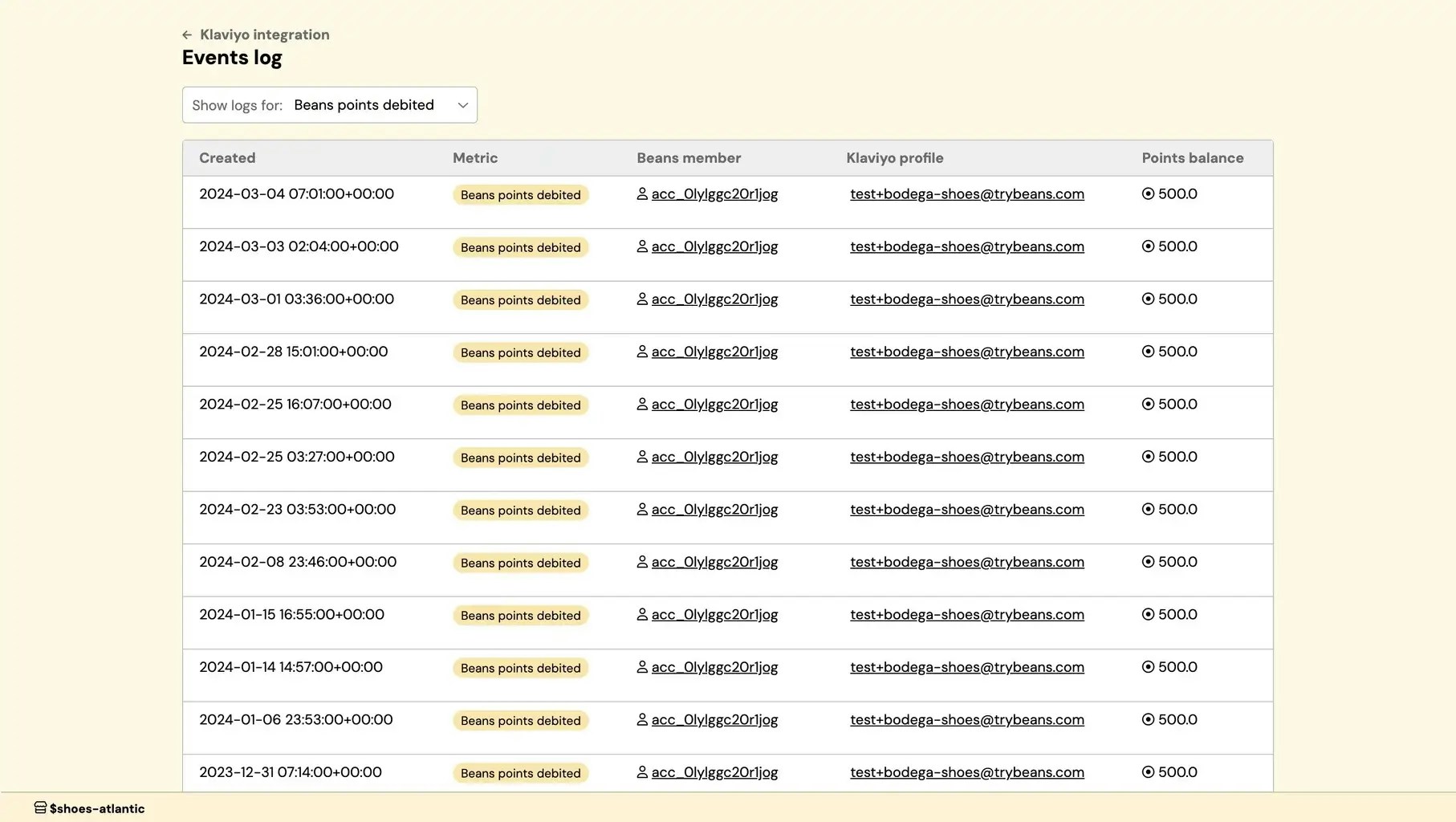
The events log section gives you insights into the synchronization process between Beans and Klaviyo,
allowing you to quickly debug synchronization issues. It is an overview of the most recent
events that triggered. It is not possible to navigate the logs to see past events.
You can only inspect events log associated to a single metric at a time. Use the filter option to select the metric
that you want to inspect.
To access the events log page:
1. Navigate to Klaviyo integration home page
2. Click the **Events log** in the integration navigation menu.
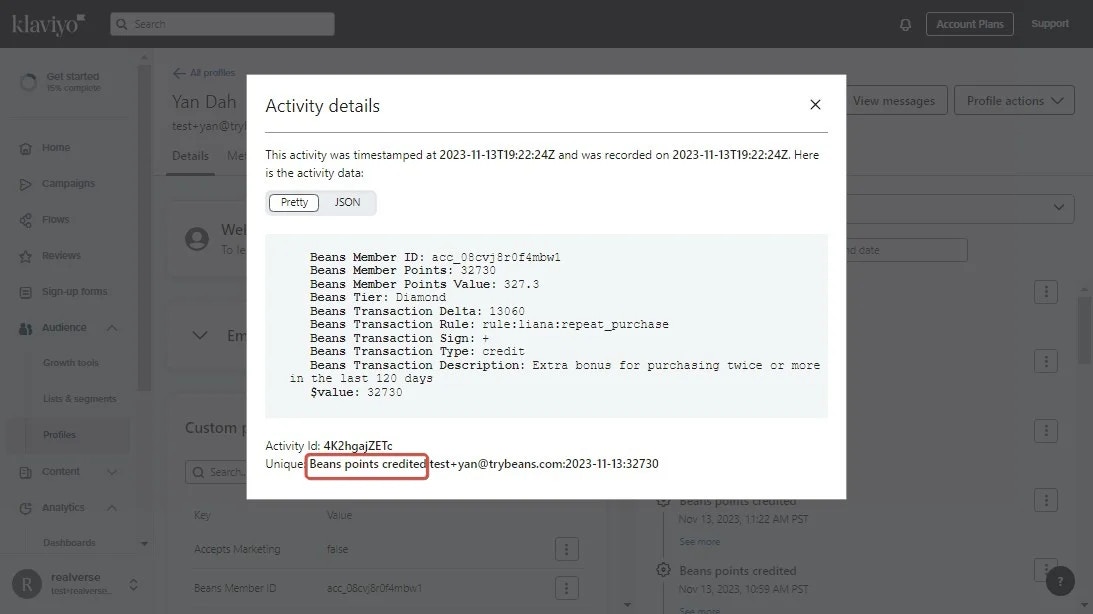
You can also view information about a specific event by
[checking a Profile activity log in the Klaviyo Dashboard](https://help.klaviyo.com/hc/en-us/articles/115005247088#h_01H93XCYWW5V0VAM8P1HCJXCS9).
## Status
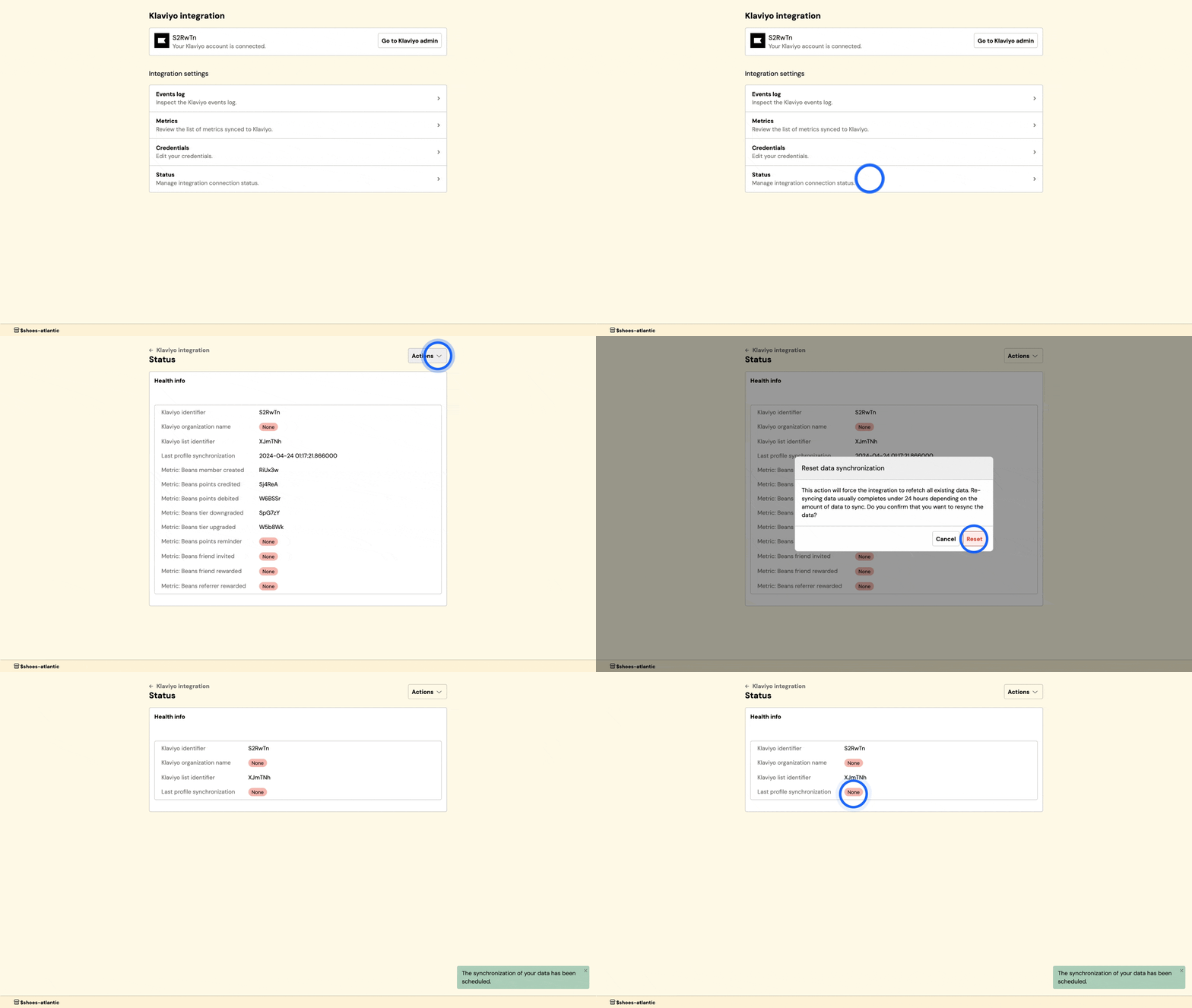
This interface provides control over the status and data synchronization between Beans and Klaviyo,
offering options to disconnect the integration, or reset the connection as needed.
To access the status page:
1. Navigate to Klaviyo integration home page
2. Click on **Status** in the integration navigation menu.
### Reset synchronization
If you experience issues with data synchronization after reconnecting the integration between Beans and Klaviyo,
you can manually reset synchronization. This is useful since the integration only automatically resynchronizes
all data every 30 days, which may not suit your immediate needs.
To reset data synchronization:
1. From the Beans admin dashboard, navigate to the Klaviyo integration home page.
2. Select **Status** in the integration navigation menu.
3. Use the **Actions** dropdown at the top right to select **Reset synchronization**.
 [Klaviyo](https://klaviyo.com/) is an email and sms automation platform that helps merchants
build advanced marketing flows. The
[Beans integration with Klaviyo](https://www.trybeans.com/integrations/trellis:klaviyo)
allows you to create personalized
emails for your rewards program and build segmented lists using rewards program data.
In addition, you can build custom email and sms flows based on rewards program events.
## Setup
1. From the Beans admin, go to **Integrations**.
2. Locate Klaviyo in the list of available integrations.
3. Click on the connect button and proceed as directed.
4. You will need to enter a **Klaviyo** **API key**.
5. Create a [**Klaviyo API Key**](https://help.klaviyo.com/hc/en-us/articles/7423954176283) with Full Access permission.
6. Copy and paste the Klaviyo **API key** into the designated field and click on Connect.
## Metrics
A metric indicates a specific type of event that occurred within the Beans app
and was subsequently synced to your Klaviyo account.
The following events are synced to your Klaviyo account.
[Klaviyo](https://klaviyo.com/) is an email and sms automation platform that helps merchants
build advanced marketing flows. The
[Beans integration with Klaviyo](https://www.trybeans.com/integrations/trellis:klaviyo)
allows you to create personalized
emails for your rewards program and build segmented lists using rewards program data.
In addition, you can build custom email and sms flows based on rewards program events.
## Setup
1. From the Beans admin, go to **Integrations**.
2. Locate Klaviyo in the list of available integrations.
3. Click on the connect button and proceed as directed.
4. You will need to enter a **Klaviyo** **API key**.
5. Create a [**Klaviyo API Key**](https://help.klaviyo.com/hc/en-us/articles/7423954176283) with Full Access permission.
6. Copy and paste the Klaviyo **API key** into the designated field and click on Connect.
## Metrics
A metric indicates a specific type of event that occurred within the Beans app
and was subsequently synced to your Klaviyo account.
The following events are synced to your Klaviyo account.
 You can also view information about a specific event by
[checking a Profile activity log in the Klaviyo Dashboard](https://help.klaviyo.com/hc/en-us/articles/115005247088#h_01H93XCYWW5V0VAM8P1HCJXCS9).
You can also view information about a specific event by
[checking a Profile activity log in the Klaviyo Dashboard](https://help.klaviyo.com/hc/en-us/articles/115005247088#h_01H93XCYWW5V0VAM8P1HCJXCS9).
 ## Status
This interface provides control over the status and data synchronization between Beans and Klaviyo,
offering options to disconnect the integration, or reset the connection as needed.
To access the status page:
1. Navigate to Klaviyo integration home page
2. Click on **Status** in the integration navigation menu.
### Reset synchronization
If you experience issues with data synchronization after reconnecting the integration between Beans and Klaviyo,
you can manually reset synchronization. This is useful since the integration only automatically resynchronizes
all data every 30 days, which may not suit your immediate needs.
To reset data synchronization:
1. From the Beans admin dashboard, navigate to the Klaviyo integration home page.
2. Select **Status** in the integration navigation menu.
3. Use the **Actions** dropdown at the top right to select **Reset synchronization**.
## Status
This interface provides control over the status and data synchronization between Beans and Klaviyo,
offering options to disconnect the integration, or reset the connection as needed.
To access the status page:
1. Navigate to Klaviyo integration home page
2. Click on **Status** in the integration navigation menu.
### Reset synchronization
If you experience issues with data synchronization after reconnecting the integration between Beans and Klaviyo,
you can manually reset synchronization. This is useful since the integration only automatically resynchronizes
all data every 30 days, which may not suit your immediate needs.
To reset data synchronization:
1. From the Beans admin dashboard, navigate to the Klaviyo integration home page.
2. Select **Status** in the integration navigation menu.
3. Use the **Actions** dropdown at the top right to select **Reset synchronization**.