# Beans Emails
Source: https://docs.trybeans.com/integrations/beansemail
Set up automated email notifications for your loyalty program.
Beans Emails keeps customers engaged with automated email notifications about their rewards
program activity. [This Beans' integration](https://www.trybeans.com/integrations/trellis:foxx) informs members about earning and redeeming loyalty points through
welcome emails, transaction alerts, points balance reminders, referral invitations, and more.
## Setup
To connect to the Beans Emails integration:
1. From the Beans admin page, navigate to **Integrations**.
2. Locate and select **Beans Emails** from the available integrations.
3. Click **Connect** to enable the integration.
## Sender details
Sender details define the information displayed about your brand when customers receive an
email. Properly configured sender details ensure your emails match your brand, are delivered
to the inbox, and comply with email regulations.
### Sender Info
Sender Info includes all information about your business such as your professional email
address, official business name, complete physical address, and location details.
It is mandatory to fill in and configure the sender details before any notifications are sent.
### Social links
Enhance customer engagement by connecting your social media presence. You can fill in links to
your TikTok, Instagram, Facebook, and Twitter (X) profiles.
These links appear in email footers, helping grow your social following.
Once you've completed the configuration, review all entered information and click the **Save**
button to apply your settings.
## Notifications
Beans Emails provides several types of automated notifications, each triggered by specific customer actions.
Sent when a new customer joins your loyalty program. It's an opportunity to welcome them
and introduce your rewards program.
{' '}
Sent when points are awarded to a customer. It confirms their point earnings and encourages further engagement.
{' '}
Sent when a customer redeems points. It provides transparency about point usage and updates their balance, helping
customers stay informed about their rewards status.
{' '}
A monthly reminder sent to members about their available points balance. It encourages customers to use their points
and stay active in the program.
An invite email sent when a referrer invites their friend using the referral invitation
form. It informs the referrer's friend that they have been invited to shop at your store.
## Email log management
The Email log provides comprehensive tracking of all sent email notifications, ensuring you
have full visibility and control. The log includes:
* Date and time of email send.
* Triggering event.
* Recipient email address.
* Delivery status.
## Status
The Status page gives you control over the status and data synchronization between the loyalty
program and Beans Emails. From here, you can monitor the connection status and reset synchronization if needed.
To access the status page:
1. Navigate to the Email Notifications integration home page.
2. Click on **Status** in the integration navigation menu.
### Reset synchronization
You may need to reset synchronization if:
* Email notifications aren't being sent as expected.
* There are discrepancies in customer data.
* You've recently made significant changes to your loyalty program settings.
To reset synchronization:
1. Click the **Actions** dropdown in the top right.
2. Select **Reset Synchronization**.
This process will re-establish the connection between your loyalty program and Beans Emails
without affecting existing customer data or email settings.
## Replacement tags
Replacement tags are dynamic placeholders used in email templates to personalize content for each recipient.
When an email is sent, these tags are automatically replaced with actual customer data such as names, points balances,
and transaction details.
### Global tags
Global tags work across all email notifications and help personalize emails to each customer:
* `[%first_name%]`: Customer's first name.
* `[%last_name%]`: Customer's last name.
* `[%beans_balance%]`: Customer's current points balance.
* `[%beans_value%]`: Monetary value of the customer's current points balance (in store currency).
* `[%tier_name%]`: Customer's loyalty tier level.
* `[%unsubscribe_link%]`: Mandatory unsubscribe link for customer to opt out of receiving emails.
The \[%tier\_name%] tag will only display data if the tier feature is activated.
### Notification-specific tags
Each email notification has unique tags for personalizing content based on specific events.
**Points transactions (debit or credit)**
* `[%transaction_delta%]`: Amount of points credited or debited.
* `[%transaction_description%]`: Description of the transaction.
**Referral invitations**
* `[%referral_reward%]`: Points awarded for the referral.
* `[%referrer_name%]`: Name of the referring customer.
* `[%referral_link%]`: Unique referral invitation link.
## Important note
Beans Emails is designed specifically for loyalty program notifications. While it effectively
handles automated loyalty program communications, it is not intended to be a comprehensive
email marketing solution.
For advanced email marketing features and fine tuned notifications, we recommend using
dedicated [email marketing platforms that we integrate with](https://www.trybeans.com/integrations#marketing).
# BigCommerce
Source: https://docs.trybeans.com/integrations/bigcommerce
Integrate Beans with your BigCommerce store.
BigCommerce is an e-commerce platform designed to provide merchants with the tools
they need to sell products online effectively.
[Integrating Beans with BigCommerce](https://www.trybeans.com/integrations/trellis:bigcommerce)
enhances this functionality by enabling merchants to implement a rewards system that promotes
customer loyalty. With Beans for BigCommerce, you can reward customers for their purchases,
encouraging repeat business and fostering a loyal customer base.
## Setup
1. Navigate to the Beans admin dashboard and select **Integrations**.
2. Find and click on **BigCommerce** from the integrations list.
3. Click **Connect** to begin the integration process.
4. You'll need to generate BigCommerce API credentials. To do this:
* Log in to your BigCommerce admin panel
* Go to **Settings** > **API** > **Store-level API Accounts**
* Click **Create API Account**
* Enter a name for your API account (e.g., "Beans Integration")
* Under **OAuth Scopes**, ensure all permissions are set to "Full"
* Click **Save** to generate the API credentials
5. You'll receive three pieces of information that need to be copied to
Beans: **Client ID**, **Client secret**, and **Access token**.
6. Copy your **BigCommerce API path or Store URL** (it should look
like: `https://api.bigcommerce.com/stores/xxxxxxxx/v3/`)
7. Paste all four credentials into their respective fields in the Beans interface.
8. Click **Connect** to finalize the integration.
## Reinstall
If you suspect Beans is not properly installed on your BigCommerce store,
there is a straightforward solution to address this without any negative side effects.
1. From the Beans admin dashboard, navigate to the BigCommerce integration home page.
2. Select **Status** in the integration navigation menu.
3. From the **Actions** dropdown on the top right, select **Reinstall Beans**.
## Rewards page
To improve the visibility of your rewards program and make it easier for customers to find,
we suggest adding a link to the rewards page in your main menu. Here's an article on how to do
it: [BigCommerce - Navigation Menu Options](https://support.bigcommerce.com/s/article/Web-Pages?language=en_US#navigation).
## Redemption
### Minimum points required for redemption
Sets a minimum points threshold that customers must reach before redeeming rewards. By default,
customers need to accumulate at least 100 points before being eligible for redemption. You can
adjust this threshold higher to ensure meaningful program engagement and prevent inefficient redemptions.
For example, if you set the minimum to 500 points, customers would need to earn at least 500 points before
they can start redeeming rewards.
**How it works:**
1. From the BigCommerce integration dashboard, navigate to **Preferences**.
2. Locate the **Redemption** section and enter your desired minimum points threshold in the
**Minimum Points Required** field.
3. Click **Save** to apply changes.
Choose a minimum threshold that balances customer satisfaction with your business goals. Too high may discourage
participation, while too low could reduce program effectiveness.
### Maximum discount per redemption
Sets a limit on how much of the total purchase price can be discounted through points.
This ensures that the discounts provided through redemptions remain within acceptable
limits for your business. For example, if a customer wants to buy a product priced at \$10 and
has 1000 points (equal to \$10), but the maximum discount is set to 50%, they can only use 500
points, giving them a \$5 discount.
**How it works:**
1. From the BigCommerce integration dashboard, navigate to **Preferences**.
2. Locate the **Redemption** section and use the **Maximum Discount Per Redemption** slider to set
your desired maximum discount percentage.
3. Click **Save** to apply changes.
Setting a reasonable maximum discount percentage helps maintain a balance between rewarding customers and protecting
your profit margins.
### Eligible collections
Enable point redemption for specific product collections in your store. Customers can then redeem
points only for products in the selected collections. When no collections are selected, all products
are eligible for redemption.
**How it works:**
1. From the BigCommerce integrations home page, navigate to **Preferences**.
2. Locate the **Eligible Collections** section and click on **Select collections**.
3. Choose the collections you want to make eligible for point redemption.
4. Click **Save** to confirm.
### Collections exclusion - Loyalty
When collections are excluded, customers will not earn points when purchasing products from
those collections. This helps you maintain control over which products contribute to rewards program earnings.
**How it works:**
1. From the BigCommerce integration dashboard, navigate to **Preferences**.
2. Locate the **Collections exclusion - Loyalty** section and click on **Select collections**.
3. Choose the collections you want to exclude from points earnings.
4. Click **Save** to confirm.
## Auto registration
Automatically enrolls new customers into your rewards program when they create an account
or make a purchase. This ensures seamless participation and maximum program engagement.
**How it works:**
1. From the BigCommerce integration dashboard, navigate to **Preferences**.
2. Locate the **Advance** section and switch the **Auto registration** toggle to **On**.
3. Click **Save** to confirm.
## Storefront Display
### Widget
The widget appears as a floating button in the corner of your storefront that displays notifications
to help customers access their rewards program features, including joining the program, redeeming
points, and checking their balance.
**How it works:**
1. From the BigCommerce integration dashboard, navigate to **Storefront display**.
2. Locate and click on **Widget**.
3. In the Widget settings page, toggle "Enable widget" to on.
4. Adjust the widget's position and appearance to match your brand's style.
5. Click **Save** to apply changes.
### Rewards page
The rewards page is a dedicated section on your storefront that displays your rewards program details.
It allows customers to view their points balance, redeem rewards, and learn more about your program.
**How it works:**
1. From the BigCommerce integration dashboard, navigate to **Storefront display**.
2. Locate and click on **Rewards page**.
3. Customize the template and settings as needed.
4. Click **Save** to apply changes.
**Customization settings:**
* **Headline Text**: The main title displayed at the top of the rewards page to attract customer attention.
* **About Text**: A small block of text that explains your rewards program purpose and welcomes customers.
* **Help Text**: A FAQ-style text that explains your rewards program, including common questions like
"What is this?", "How does it work?", "How to redeem points?", and important terms and conditions.
* **Primary Color**: The main color used throughout the rewards page to maintain consistent branding with your store's theme.
* **Shop Now Link**: A direct link to the shopping page. It will be used as a call-to-action for customers to
start earning points.
* **Contrast Color**: A color that contrasts with your primary color, typically black or white, to ensure text readability.
### Referral page
The referral page is a dedicated section on your storefront that displays your referral program details.
It allows customers to view and share their referral link with friends.
**How it works:**
1. From the BigCommerce integration dashboard, navigate to **Storefront display**.
2. Locate the **Referral page** section.
3. Customize the template and settings as needed.
4. Click **Save** to apply changes.
**Customization settings:**
* **Headline Text**: The main title displayed at the top of the referral page to attract customer attention.
* **About Text**: A small block of text that explains your referral program purpose and welcomes customers.
* **Twitter Message**: The default text that appears when customers share their referral link on Twitter.
* **Primary Color**: The main color used throughout the referral page to maintain consistent branding with your store's theme.
* **Contrast Color**: A color that contrasts with your primary color, typically black or white, to ensure text readability.
### Redemption button
The redemption button allows customers to redeem their rewards directly from the cart or checkout page.
By default, it is placed near the checkout call-to-action (CTA), allowing customers to apply their
rewards before completing a purchase.
**How it works:**
1. From the BigCommerce integration dashboard, navigate to **Storefront display**.
2. Locate the **Redemption Button** section.
3. Customize the template and settings as needed.
4. Click **Save** to apply changes.
**Customization settings:**
* **Primary Color**: The button background color.
* **Contrast Color**: The button text color. It should contrast with your primary color. It is
recommended to use black or white to ensure text readability.
### Referral invitation popup
The referral invitation popup appears when someone visits a referral link, encouraging them to
join your rewards program using their unique link.
**How it works:**
1. From the BigCommerce integration dashboard, navigate to **Storefront display**.
2. Locate and click on **Referral Invitation Popup**.
3. Customize the template and settings as needed.
4. Click **Save** to apply changes.
**Customization settings:**
* **Message**: A message informing customers that they are being referred and inviting them
to sign up in order to get a reward.
* **Call-to-Action Text**: The text of the button to encourage customers to sign up.
* **Primary Color**: The popup's main color. It should match your brand colors.
### Referral reward popup
The referral reward popup notifies customers of successful referrals and encourages them to use their
rewards. This confirmation popup helps maintain engagement with your referral program.
**How it works:**
1. From the BigCommerce integration dashboard, navigate to **Storefront display**.
2. Locate the **Referral Reward Popup** section.
3. Customize the template and settings as needed.
4. Click **Save** to apply changes.
**Customization settings:**
* **Message**: A confirmation message informing customers that their referral was successful.
* **Call-to-Action Text**: The text of the button to encourage customers to redeem their reward.
* **Primary Color**: The popup's main color. It should match your brand colors.
# Facebook
Source: https://docs.trybeans.com/integrations/facebook
Integrate Beans with Facebook to reward customers for liking your Facebook page
[Facebook](https://www.facebook.com/) is a global platform that connects people and brands through social interactions.
The [integration between Beans and Facebook](https://www.trybeans.com/integrations/trellis:facebook)
enables merchants to significantly increase their brand engagement by offering a
compelling incentive such as rewarding customers for liking the brand's page on Facebook.
This strategic collaboration empowers merchants to leverage social interactions to foster
customer loyalty and enhance their online presence.
## Setup
1. From the Beans admin, go to **Integrations**.
2. Locate **Facebook** in the list of available integrations.
3. Click on the **Connect** button and proceed as directed.
4. Grant Beans permission to interact with your Facebook account.
5. Select the Facebook page that you want to link to Beans.
## Rules
### Points for Facebook page like
This feature allows you to reward customers with loyalty points when they like your Facebook page.
It's an effective method to boost your Facebook page's visibility and engage customers with your brand on social media.
**How it works:** Once you enable this feature, customers can earn points by liking your Facebook page.
This applies to both new and existing followers, ensuring that all your customers have the opportunity to be rewarded.
**Important details:** Customers are rewarded with points only once for liking the page. The system ensures that points
are not awarded multiple times to the same customer, even if they unlike and re-like the page.
If a customer decides to unlike your page, the points previously awarded for liking the page will not be taken back.
## Status
This interface provides control over the status and data synchronization between Beans and Facebook,
offering options to disconnect the integration, or reset the connection as needed.
To access the status page:
1. Navigate to the Facebook integration home page
2. Click on **Status** in the integration navigation menu.
# Instagram
Source: https://docs.trybeans.com/integrations/instagram
Integrate Beans with Instagram to reward customers for following your Instagram account
[Instagram](https://www.instagram.com/) is a widely-used platform that connects people and brands through visual content.
The [integration between Beans and Instagram](https://www.trybeans.com/integrations/trellis:instagram)
enables merchants to significantly boost their brand engagement by offering a
compelling incentive such as rewarding customers for following the brand's account on Instagram.
This innovative collaboration helps merchants capitalize on visual interactions
to build customer loyalty and elevate their online presence.
## Setup
1. From the Beans admin, go to **Integrations**.
2. Locate **Instagram** in the list of available integrations.
3. Click on the **Connect** button and proceed as directed.
4. Grant Beans permission to access your Instagram account.
## Rules
### Points for Instagram Follow
This feature allows you to reward customers with loyalty points
when they follow your Instagram page, enhancing engagement and growing your social media presence.
**How it works:** Once you enable this feature, customers can earn points by following your brand on Instagram.
This applies to both new and existing followers, ensuring all your customers have the opportunity to be rewarded.
**Important details:** Customers are rewarded with points only once for following the page.
The system ensures that points are not awarded multiple times to the same customer,
even if they unfollow and refollow the page. If a customer decides to unfollow your brand,
the points previously awarded for following will not be revoked.
## Status
This interface provides control over the status and data synchronization between Beans and Instagram,
offering options to disconnect the integration, or reset the connection as needed.
To access the status page:
1. Navigate to the Instagram integration home page
2. Click on **Status** in the integration navigation menu.
# Judge.me
Source: https://docs.trybeans.com/integrations/judgeme
Integrate Beans with Judge.me to reward customers for product reviews
[Judge.me](https://judge.me/) is a platform designed for online merchants to gather and display product reviews.
The [integration between Beans and Judge.me](https://www.trybeans.com/integrations/trellis:judgeme)
empowers merchants to significantly boost
the number of post-purchase reviews by offering an enticing incentive:
loyalty points for each review submitted via Judge.me.
## Setup
1. From the Beans admin, go to **Integrations**.
2. Locate **Judge.me** in the list of available integrations.
3. Click on the **Connect** button and proceed as directed.
4. Enter the domain of your shop to either sign in to your existing Judge.me account or
to install the app if you haven't done so already.
5. Grant Beans permission to interact with your Judge.me account.
## Rules
### Points for product reviews
This feature allows you to incentivize customers by awarding loyalty points when they post product reviews.
As a merchant, you have complete control over the reward frequency to suit your business model.
You can set specific frequency limits for awarding points, such as once per day,
once per week, or once per month. Alternatively, you may choose to impose no restrictions,
offering rewards for every review posted. This flexibility ensures you can encourage ongoing
engagement while managing the incentives effectively.
### Points for product reviews with photos
Reward your customers more generously when they include photos with their product reviews.
This rule take precedence over the classic points for text-only reviews.
This is irrespective of which rule offers a higher point reward.
Consequently, it's advisable to assign a higher point value to reviews with photos
compared to text-only reviews, ensuring a more attractive incentive for customers
to share visually enriched feedback.
## Reviews log
The reviews log offers merchants a straightforward and efficient way to track the history of all rewarded reviews.
Within this log, merchants can quickly ascertain whether a shopper has been awarded points for their review and the
exact amount of points credited. Additionally, if a shopper has not received points for their review, the log
provides a detailed explanation, clarifying the reason behind the omission. This functionality ensures transparency
and ease in managing the rewards process for product reviews.
To access the logs page
1. Navigate to the Judge.me integration home page.
2. Click on **Review logs** in the integration navigation menu.
## Status
This interface provides control over the status and data synchronization between Beans and Judge.me,
offering options to disconnect the integration, or reset the connection as needed.
To access the status page:
1. Navigate to the Judge.me integration home page
2. Click on **Status** in the integration navigation menu.
# Klaviyo
Source: https://docs.trybeans.com/integrations/klaviyo
Integrate Beans with Klaviyo to sync loyalty data with your email marketing
[Klaviyo](https://klaviyo.com/) is an email and sms automation platform that helps merchants
build advanced marketing flows. The
[Beans integration with Klaviyo](https://www.trybeans.com/integrations/trellis:klaviyo)
allows you to create personalized
emails for your rewards program and build segmented lists using rewards program data.
In addition, you can build custom email and sms flows based on rewards program events.
## Setup
1. From the Beans admin, go to **Integrations**.
2. Locate Klaviyo in the list of available integrations.
3. Click on the connect button and proceed as directed.
4. You will need to enter a **Klaviyo** **API key**.
5. Create a [**Klaviyo API Key**](https://help.klaviyo.com/hc/en-us/articles/7423954176283) with Full Access permission.
6. Copy and paste the Klaviyo **API key** into the designated field and click on Connect.
## Metrics
A metric indicates a specific type of event that occurred within the Beans app
and was subsequently synced to your Klaviyo account.
The following events are synced to your Klaviyo account.
This event is triggered when a customer joins the loyalty program.
Use this metric to set up a welcome email to customers who join the rewards program.
The welcome email is the perfect opportunity to get shoppers excited about the loyalty program.
```yaml theme={null}
Beans Member ID: "acc_0e65355mlysieu"
Beans Member Points: "300"
Beans Member Points Value: "3"
Beans Tier: "Basic"
$value: "300"
```
This event is triggered when a customer earns points.
Use this metric to send customers an email notification when they earn points.
Customers appreciate instant gratification. Sending notifications promptly upon point accrual
reinforces their positive behavior and encourages repeat purchases.
```yaml theme={null}
Beans Member ID: "acc_08cvj8r0f4mbw1"
Beans Member Points: "32730"
Beans Member Points Value: "327.3"
Beans Tier: "Diamond"
Beans Transaction Delta: "13060"
Beans Transaction Rule: "rule:liana:repeat_purchase"
Beans Transaction Sign: "+"
Beans Transaction Type: "credit"
Beans Transaction Description: "Extra bonus for purchasing twice or more in the last 120 days"
$value: "32730"
```
This event is triggered when a customer spends or loses points.
Informing customers when points are debited provides transparency about how their points are used or deducted.
```yaml theme={null}
Beans Member ID: "acc_08cvj8r0f4mbw1"
Beans Member Points: "21990"
Beans Member Points Value: "219.9"
Beans Tier: "Diamond"
Beans Transaction Delta: "23800"
Beans Transaction Rule: "rule:liana:discount"
Beans Transaction Sign: "-"
Beans Transaction Type: "debit"
Beans Transaction Description: "Debited for a $238 discount - redeemxvzwlymi"
$value: "21990"
```
This event is triggered when a customer is moved to a lower tier in the loyalty program.
This event, while potentially sensitive, presents an opportunity to engage with customers
effectively and provide a clear explanation of why the tier downgrade occurred.
```yaml theme={null}
Beans Member ID: "acc_08cvj8r0f4mbw1"
Beans Member Points: "13580"
Beans Member Points Value: "135.8"
Beans Tier: "Gold"
Beans Tier Old: "Diamond"
$value: "13580"
```
This event is triggered when a customer is promoted to a higher tier
in the loyalty program. Use this event to clearly communicate the benefits and advantages
that come with the newly attained tier.
```yaml theme={null}
Beans Member ID: "acc_08cvj8r0f4mbw1"
Beans Member Points: "13580"
Beans Member Points Value: "135.8"
Beans Tier: "Diamond"
Beans Tier Old: "Gold"
$value: "13580"
```
This event activates when a customer initiates a referral by sending an invitation.
Use this event to generate an email notification informing the invitee that
they have been invited to shop at your store, courtesy of the referrer.
This notification serves as a warm introduction to your store and encourages
the invitee to take their first step towards a rewarding shopping experience.
```yaml theme={null}
Beans Reward Value: "500 points"
Beans Referrer Name: "Yan"
Beans Invite Link: "https://example.com?_br=BOT22!email"
$value: "0"
```
This event is triggered when a referred friend successfully earns their reward.
It is pivotal for notifying the new customer about their available reward.
It's a gesture that celebrates their acceptance of the referral invitation and
encourages their engagement with your offerings.
```yaml theme={null}
Beans Reward Value: "500 points"
Beans Reward Code: "REFERX15"
$value: "0"
```
## Balance reminder
The process for sending balance reminders through Klaviyo involves a manual step due to a specific limitation within
Klaviyo's system, which currently does not support the automation of periodic events. Consequently, merchants are
required to create these reminder campaigns manually each time they wish to notify customers about their unused
points.
Periodic balance reminder emails are a crucial component of engaging customers
with their accumulated loyalty points. These reminders serve as a polite prompt
to customers, highlighting that they have unused points available for redemption
towards rewards. It’s an effective strategy to encourage repeat purchases and
deepen customer engagement with your loyalty program.
When integrating Beans with Klaviyo, balance reminder emails are facilitated through
the creation of a dedicated campaign in Klaviyo. Beans ensures seamless synchronization
of all necessary data, including points balances, to Klaviyo. Below is an extensive overview
of the rewards program attributes that are synchronized to Klaviyo, enabling a smooth and efficient reminder process.
```yaml theme={null}
Beans Member ID: "acc_08cvj8r0f4mbw1"
Beans Member Points: "13580"
Beans Member Points Value: "135.8"
Beans Member Birthday: "2000-10-05"
Beans Expiring Quantity: "450"
Beans Expiring Date: "2025-12-24"
Beans Tier: "Gold"
Beans Tier Next: "Diamond"
Beans Tier Next Milestone: "20000"
Beans Tier Expiring Days: "220"
Beans Tier Progress: "15600"
Beans Referral Code: "YAN22"
Beans Referral Link: "https://example.com?_br=YAN22!email"
Beans Referral Count: "4"
```
## Event logs
The events log section gives you insights into the synchronization process between Beans and Klaviyo,
allowing you to quickly debug synchronization issues. It is an overview of the most recent
events that triggered. It is not possible to navigate the logs to see past events.
You can only inspect events log associated to a single metric at a time. Use the filter option to select the metric
that you want to inspect.
To access the events log page:
1. Navigate to Klaviyo integration home page
2. Click the **Events log** in the integration navigation menu.
You can also view information about a specific event by
[checking a Profile activity log in the Klaviyo Dashboard](https://help.klaviyo.com/hc/en-us/articles/115005247088#h_01H93XCYWW5V0VAM8P1HCJXCS9).
## Status
This interface provides control over the status and data synchronization between Beans and Klaviyo,
offering options to disconnect the integration, or reset the connection as needed.
To access the status page:
1. Navigate to Klaviyo integration home page
2. Click on **Status** in the integration navigation menu.
### Reset synchronization
If you experience issues with data synchronization after reconnecting the integration between Beans and Klaviyo,
you can manually reset synchronization. This is useful since the integration only automatically resynchronizes
all data every 30 days, which may not suit your immediate needs.
To reset data synchronization:
1. From the Beans admin dashboard, navigate to the Klaviyo integration home page.
2. Select **Status** in the integration navigation menu.
3. Use the **Actions** dropdown at the top right to select **Reset synchronization**.
# Shopify
Source: https://docs.trybeans.com/integrations/shopify
Integrate Beans with your Shopify store.
Shopify is a leading e-commerce platform that provides
merchants with the tools they need to sell products online efficiently.
[Integrating Beans with Shopify](https://www.trybeans.com/integrations/radix:shopify)
enhances this experience by enabling merchants to boost
customer loyalty through a rewards system. With Beans for Shopify, you can reward customers for their
purchases, encouraging repeat business and fostering a loyal customer base.
## Setup
To begin, install the [Beans app for Shopify](https://apps.shopify.com/beans)
through the Shopify App Store. Follow the
[Shopify guideline](https://help.shopify.com/en/manual/apps/installing-apps#install-through-the-shopify-app-store)
on how to install an app through the Shopify App Store.
## Customer accounts
In order to get the app to work as expected, it is required to enable customer accounts for your Shopify Store.
Shopify gives you the option to set customer accounts as disabled, optional or required.
Beans requires customer accounts to be set to optional or required.
Beans support both *Classic customer accounts* and *New customer accounts*.
Here is how to enable customer accounts with Shopify:
[Enable customer accounts](https://help.shopify.com/en/manual/checkout-settings/customer-accounts)
## Shopify OS 2.0
If you are using a Shopify Online Store 2.0 theme, it is essential to enable the Beans app in your Shopify theme.
The new Online Store 2.0 is an improvement released by Shopify to facilitate
full integration for app developers with a merchant's shop.
1. From the Shopify dashboard, go to your Themes page.
2. Locate the Current theme section and click on Customize.
3. Click on Theme Settings, go to the App Embed tab, then locate the Beans Ultimate app extension and switch it on.
## Rewards page
Beans automatically adds a rewards page to your shop.
By default, you can access the page at `https://example.myshopify.com/pages/rewards`, assuming
your website's full URL is `https://example.myshopify.com`.
The Shopify navigation tool let you dynamically set up a navigation menu for your website.
We recommend adding the link to the rewards program in the Main menu in order to make it easy for your customers to access.
Here is how to do: [Editing Shopify store menu](https://help.shopify.com/en/manual/sell-online/online-store/menus-and-links/editing-menus)
## Redemption
### Minimum points required for redemption
Sets a minimum points threshold that customers must reach before redeeming rewards. By default,
customers need to accumulate at least 100 points before being eligible for redemption. You can
adjust this threshold higher to ensure meaningful program engagement and prevent inefficient redemptions.
For example, if you set the minimum to 500 points, customers would need to earn at least 500 points before
they can start redeeming rewards.
**How it works:**
1. From the Shopify integration dashboard, navigate to **Preferences**.
2. Locate the **Redemption** section and enter your desired minimum points threshold in the
**Minimum Points Required** field.
3. Click **Save** to apply changes.
Choose a minimum threshold that balances customer satisfaction with your business goals. Too high may discourage
participation, while too low could reduce program effectiveness.
### Maximum discount per redemption
Sets a limit on how much of the total purchase price can be discounted through points.
This ensures that the discounts provided through redemptions remain within acceptable
limits for your business. For example, if a customer wants to buy a product priced at \$10 and
has 1000 points (equal to \$10), but the maximum discount is set to 50%, they can only use 500
points, giving them a \$5 discount.
**How it works:**
1. From the Shopify integration dashboard, navigate to **Preferences**.
2. Locate the **Redemption** section and use the **Maximum Discount Per Redemption** slider to set
your desired maximum discount percentage.
3. Click **Save** to apply changes.
Setting a reasonable maximum discount percentage helps maintain a balance between rewarding customers and protecting
your profit margins.
## Using discount codes with points redemption
When customers redeem points, Beans generates a discount code that automatically applies to their
cart at checkout. The ability to combine this with other discount codes depends on your Shopify plan:
**Shopify (Classic)**
* Only one discount code can be used per checkout.
* Points redemption discount codes cannot be combined with other discounts.
**Shopify Plus**
* Multiple discount codes can be enabled at checkout.
* Some discount codes may still be incompatible due to conflicting rules.
* Review your discount settings to ensure smooth points redemption.
## Shopify customer tags
When you enable [tiers](https://docs.trybeans.com/manage/admin/tiers) in Beans, the system
automatically adds tier-specific tags to your customers in Shopify. These tags make it easy
to identify customer tier levels, create segments, track progression, and target marketing
campaigns based on loyalty tiers directly in Shopify.
For example, if a customer reaches the Gold tier, they'll receive the tag **Beans-Tier-Gold** in their Shopify profile.
Tier tagging is automatically enabled as soon as you activate tiers in Beans and connect your Shopify store - no
additional setup required.
## Storefront Display
### Widget
The widget appears as a floating button in the corner of your storefront that displays notifications
to help customers access their rewards program features, including joining the program, redeeming
points, and checking their balance.
**How it works:**
1. From the Shopify integration dashboard, navigate to **Storefront display**.
2. Locate and click on **Widget**.
3. In the Widget settings page, toggle "Enable widget" to on.
4. Adjust the widget's position and appearance to match your brand's style.
5. Click **Save** to apply changes.
### Rewards page
The rewards page is a dedicated section on your storefront that displays your rewards program details.
It allows customers to view their points balance, redeem rewards, and learn more about your program.
**How it works:**
1. From the Shopify integration dashboard, navigate to **Storefront display**.
2. Locate and click on **Rewards page**.
3. Customize the template and settings as needed.
4. Click **Save** to apply changes.
**Customization settings:**
* **Headline Text**: The main title displayed at the top of the rewards page to attract customer attention.
* **About Text**: A small block of text that explains your rewards program purpose and welcomes customers.
* **Help Text**: A FAQ-style text that explains your rewards program, including common questions like
"What is this?", "How does it work?", "How to redeem points?", and important terms and conditions.
* **Primary Color**: The main color used throughout the rewards page to maintain consistent branding with your store's theme.
* **Shop Now Link**: A direct link to the shopping page. It will be used as a call-to-action for customers to
start earning points.
* **Contrast Color**: A color that contrasts with your primary color, typically black or white, to ensure text readability.
### Referral page
The referral page is a dedicated section on your storefront that displays your referral program details.
It allows customers to view and share their referral link with friends.
**How it works:**
1. From the Shopify integration dashboard, navigate to **Storefront display**.
2. Locate the **Referral page** section.
3. Customize the template and settings as needed.
4. Click **Save** to apply changes.
**Customization settings:**
* **Headline Text**: The main title displayed at the top of the referral page to attract customer attention.
* **About Text**: A small block of text that explains your referral program purpose and welcomes customers.
* **Twitter Message**: The default text that appears when customers share their referral link on Twitter.
* **Primary Color**: The main color used throughout the referral page to maintain consistent branding with your store's theme.
* **Contrast Color**: A color that contrasts with your primary color, typically black or white, to ensure text readability.
### Redemption button
The redemption button allows customers to redeem their rewards directly from the cart or checkout page.
By default, it is placed near the checkout call-to-action (CTA), allowing customers to apply their
rewards before completing a purchase.
**How it works:**
1. From the Shopify integration dashboard, navigate to **Storefront display**.
2. Locate the **Redemption Button** section.
3. Customize the template and settings as needed.
4. Click **Save** to apply changes.
**Customization settings:**
* **Primary Color**: The button background color.
* **Contrast Color**: The button text color. It should contrast with your primary color. It is
recommended to use black or white to ensure text readability.
### Referral invitation popup
The referral invitation popup appears when someone visits a referral link, encouraging them to
join your rewards program using their unique link.
**How it works:**
1. From the Shopify integration dashboard, navigate to **Storefront display**.
2. Locate and click on **Referral Invitation Popup**.
3. Customize the template and settings as needed.
4. Click **Save** to apply changes.
**Customization settings:**
* **Message**: A message informing customers that they are being referred and inviting them
to sign up in order to get a reward.
* **Call-to-Action Text**: The text of the button to encourage customers to sign up.
* **Primary Color**: The popup's main color. It should match your brand colors.
### Referral reward popup
The referral reward popup notifies customers of successful referrals and encourages them to use their
rewards. This confirmation popup helps maintain engagement with your referral program.
**How it works:**
1. From the Shopify integration dashboard, navigate to **Storefront display**.
2. Locate the **Referral Reward Popup** section.
3. Customize the template and settings as needed.
4. Click **Save** to apply changes.
**Customization settings:**
* **Message**: A confirmation message informing customers that their referral was successful.
* **Call-to-Action Text**: The text of the button to encourage customers to redeem their reward.
* **Primary Color**: The popup's main color. It should match your brand colors.
## Reinstall
If you suspect the Beans plugin isn't properly installed on your Shopify site,
Beans provides a straightforward solution to address this without any negative side effects.
1. From the Beans admin dashboard, navigate to the Shopify integration home page.
2. Select **Status** in the integration navigation menu.
3. From the **Actions** dropdown on the top right, select **Reinstall Beans**.
## Uninstall Beans from Shopify
Follow these steps to completely remove Beans from your Shopify store:
1. From your Shopify admin, go to **Apps**.
2. Find Beans in your installed apps list.
3. Click **Delete** to remove the application.
4. Remove the automatically created program pages:
* Go to **Online Store > Pages**
* Find and delete the "Rewards Program" page
* Find and delete the "Referral Program" page
5. Remove the Beans authentication code:
* Go to **Online Store > Themes**
* Click **Actions > Edit code**
* Open the `theme.liquid` file
* Find and delete the following snippet:
```js theme={null}
```
# API Tokens
Source: https://docs.trybeans.com/integrations/tokenify
Generate and manage API authentication credentials.
Beans API Tokens is a utility that lets merchants generate and manage API authentication credentials.
It's designed to help merchants:
* Integrate Beans with their existing tech stack
* Create custom business logic with Beans data
* Access Beans data through the Beans API for analytics and automation
The API tokens provided by this integration are designed for individual merchants use, enabling them to access their
data. They are not intended for partners developing integrations for multiple merchants.
## How it works
Once activated Merchants receive a unique set of API tokens, comprising a public identifier and a secret token.
Public identifier can be used to access non-sensitive data from the storefront
or any other place where security is not a concern. Secret token should be used server-side for accessing Beans API
endpoints that require authentication. To learn more about how to use the API, please refer to the
[API documentation](https://api.trybeans.com/v3/doc).
## Example
Here is an example of how to use the API to access Beans data.
```bash theme={null}
curl -u ":" -X GET "https://api.trybeans.com/v3/ultimate/card/current/"
```
# Twitter
Source: https://docs.trybeans.com/integrations/twitter
Integrate Beans with Twitter to reward customers for following your Twitter account
[Twitter](https://www.twitter.com/), also known as the X platform, is a dynamic platform that
connects people and brands through real-time conversations and updates.
The [integration between Beans and Twitter](https://www.trybeans.com/integrations/trellis:twitter) allows
merchants to significantly boost their brand engagement by offering an attractive incentive:
rewarding customers for following the brand’s Twitter account. This strategic collaboration helps merchants
leverage social interactions to build customer loyalty and enhance their online presence.
## Setup
1. From the Beans admin, go to **Integrations**.
2. Locate **Twitter** in the list of available integrations.
3. Click on the **Connect** button and proceed as directed.
4. Grant Beans permission to access your Twitter account.
## Rules
### Points for Twitter Follow
This feature allows you to reward customers with loyalty points
when they follow your Twitter page, enhancing engagement and growing your social media presence.
**How it works:** Once you enable this feature, customers can earn points by following your brand on Twitter.
This applies to both new and existing followers, ensuring all your customers have the opportunity to be rewarded.
**Important details:** Customers are rewarded with points only once for following the page.
The system ensures that points are not awarded multiple times to the same customer,
even if they unfollow and refollow the page. If a customer decides to unfollow your brand,
the points previously awarded for following will not be revoked.
## Status
This interface provides control over the status and data synchronization between Beans and Twitter,
offering options to disconnect the integration, or reset the connection as needed.
To access the status page:
1. Navigate to the Twitter integration home page
2. Click on **Status** in the integration navigation menu.
# WooCommerce
Source: https://docs.trybeans.com/integrations/woocommerce
Integrate Beans with your WooCommerce store.
WooCommerce is an open-source e-commerce platform designed to provide merchants
with the tools they need to sell products online effectively.
[Integrating Beans with WooCommerce](https://www.trybeans.com/integrations/radix:woocommerce)
enhances this experience by enabling merchants
to boost customer loyalty through a rewards system. With Beans for WooCommerce,
you can reward customers for their purchases,
encouraging repeat business and fostering a loyal customer base.
## Setup
To begin, install the [Beans plugin for WooCommerce](https://wordpress.org/plugins/beans-woocommerce-loyalty-rewards/)
from the WordPress plugin repository. Follow the
[WordPress guideline](https://wordpress.org/documentation/article/manage-plugins/) for plugin installation.
After installation, activate the plugin and connect Beans to your shop using the setup instructions.
To manually connect Beans to your WooCommerce store, follow these steps:
1. Navigate to the plugins management page in your WordPress admin.
2. Find **Beans** and select **settings**.
3. On the Beans admin page within WordPress, follow the prompts and click **Connect**.
4. Select your Beans account or create a new one. If you already have one, log in.
5. Once on the connect page, choose **Connect manually**.
6. Provide WooCommerce API keys as instructed.
7. In WordPress admin, go to **WooCommerce > Settings > Advanced > REST API**.
8. Select **Add key** to create a new key for Beans.
9. Fill out the form: name the key, choose the primary admin as the user, and set permissions to **Read/Write**.
10. Generate and copy the API Key.
11. Paste the keys into the Beans interface form field.
12. Click **Connect** to complete the process.
## Rewards page
The Beans plugin for WooCommerce automatically adds a rewards page to your shop.
By default, you can access the page at `https://myshop.com/rewards-program`, assuming
your website's full URL is `https://myshop.com`.
To display the rewards program page, Beans uses the shortcode `[beans_page]`.
This makes it very easy to edit the page if necessary.
It is recommended to add the link to your rewards program in the main menu to make it easy for your customers to access.
Here is how to do it: [How to Add Navigation Menu in WordPress](https://www.wpbeginner.com/beginners-guide/how-to-add-navigation-menu-in-wordpress-beginners-guide/)
Learn more about customizing your rewards page in the [Storefront
display](/integrations/woocommerce#storefront-display) section.
## Redemption
### Minimum points required for redemption
Sets a minimum points threshold that customers must reach before redeeming rewards. By default,
customers need to accumulate at least 100 points before being eligible for redemption. You can
adjust this threshold higher to ensure meaningful program engagement and prevent inefficient redemptions.
For example, if you set the minimum to 500 points, customers would need to earn at least 500 points before
they can start redeeming rewards.
**How it works:**
1. From the WooCommerce integration dashboard, navigate to **Preferences**.
2. Locate the **Redemption** section and enter your desired minimum points threshold in the
**Minimum Points Required** field.
3. Click **Save** to apply changes.
Choose a minimum threshold that balances customer satisfaction with your business goals. Too high may discourage
participation, while too low could reduce program effectiveness.
### Maximum discount per redemption
Sets a limit on how much of the total purchase price can be discounted through points.
This ensures that the discounts provided through redemptions remain within acceptable
limits for your business. For example, if a customer wants to buy a product priced at \$10 and
has 1000 points (equal to \$10), but the maximum discount is set to 50%, they can only use 500
points, giving them a \$5 discount.
**How it works:**
1. From the WooCommerce integration dashboard, navigate to **Preferences**.
2. Locate the **Redemption** section and use the **Maximum Discount Per Redemption** slider to set
your desired maximum discount percentage.
3. Click **Save** to apply changes.
Setting a reasonable maximum discount percentage helps maintain a balance between rewarding customers and protecting
your profit margins.
### Eligible collections
Enable point redemption for specific product collections in your store. Customers can then redeem
points only for products in the selected collections. When no collections are selected, all products
are eligible for redemption.
**How it works:**
1. From the WooCommerce integrations home page, navigate to **Preferences**.
2. Locate the **Eligible Collections** section and click on **Select collections**.
3. Choose the collections you want to make eligible for point redemption.
4. Click **Save** to confirm.
## Auto registration
Automatically enrolls new customers into your rewards program when they create an account
or make a purchase. This ensures seamless participation and maximum program engagement.
**How it works:**
1. From the WooCommerce integration dashboard, navigate to **Preferences**.
2. Locate the **Advance** section and switch the **Auto registration** toggle to **On**.
3. Click **Save** to confirm.
## Storefront display
### Widget
The widget appears as a floating button in the corner of your storefront that displays notifications
to help customers access their rewards program features, including joining the program, redeeming
points, and checking their balance.
**How it works:**
1. From the WooCommerce integration dashboard, navigate to **Storefront display**.
2. Locate and click on **Widget**.
3. In the Widget settings page, toggle "Enable widget" to on.
4. Adjust the widget's position and appearance to match your brand's style.
5. Click **Save** to apply changes.
### Rewards page
The rewards page is a dedicated section on your storefront that displays your rewards program details.
It allows customers to view their points balance, redeem rewards, and learn more about your program.
**How it works:**
1. From the WooCommerce integration dashboard, navigate to **Storefront display**.
2. Locate and click on **Rewards page**.
3. Customize the template and settings as needed.
4. Click **Save** to apply changes.
**Customization settings:**
* **Headline Text**: The main title displayed at the top of the rewards page to attract customer attention.
* **About Text**: A small block of text that explains your rewards program purpose and welcomes customers.
* **Help Text**: A FAQ-style text that explains your rewards program, including common questions like
"What is this?", "How does it work?", "How to redeem points?", and important terms and conditions.
* **Primary Color**: The main color used throughout the rewards page to maintain consistent branding with your store's theme.
* **Shop Now Link**: A direct link to the shopping page. It will be used as a call-to-action for customers to
start earning points.
* **Contrast Color**: A color that contrasts with your primary color, typically black or white, to ensure text readability.
### Referral page
The referral page is a dedicated section on your storefront that displays your referral program details.
It allows customers to view and share their referral link with friends.
**How it works:**
1. From the WooCommerce integration dashboard, navigate to **Storefront display**.
2. Locate the **Referral page** section.
3. Customize the template and settings as needed.
4. Click **Save** to apply changes.
**Customization settings:**
* **Headline Text**: The main title displayed at the top of the referral page to attract customer attention.
* **About Text**: A small block of text that explains your referral program purpose and welcomes customers.
* **Twitter Message**: The default text that appears when customers share their referral link on Twitter.
* **Primary Color**: The main color used throughout the referral page to maintain consistent branding with your store's theme.
* **Contrast Color**: A color that contrasts with your primary color, typically black or white, to ensure text readability.
### Redemption button
The redemption button allows customers to redeem their rewards directly from the cart or checkout page.
By default, it is placed near the checkout call-to-action (CTA), allowing customers to apply their
rewards before completing a purchase.
**How it works:**
1. From the WooCommerce integration dashboard, navigate to **Storefront display**.
2. Locate the **Redemption Button** section.
3. Customize the template and settings as needed.
4. Click **Save** to apply changes.
**Customization settings:**
* **Primary Color**: The button background color.
* **Contrast Color**: The button text color. It should contrast with your primary color. It is
recommended to use black or white to ensure text readability.
### Referral invitation popup
The referral invitation popup appears when someone visits a referral link, encouraging them to
join your rewards program using their unique link.
**How it works:**
1. From the WooCommerce integration dashboard, navigate to **Storefront display**.
2. Locate and click on **Referral Invitation Popup**.
3. Customize the template and settings as needed.
4. Click **Save** to apply changes.
**Customization settings:**
* **Message**: A message informing customers that they are being referred and inviting them
to sign up in order to get a reward.
* **Call-to-Action Text**: The text of the button to encourage customers to sign up.
* **Primary Color**: The popup's main color. It should match your brand colors.
### Referral reward popup
The referral reward popup notifies customers of successful referrals and encourages them to use their
rewards. This confirmation popup helps maintain engagement with your referral program.
**How it works:**
1. From the WooCommerce integration dashboard, navigate to **Storefront display**.
2. Locate the **Referral Reward Popup** section.
3. Customize the template and settings as needed.
4. Click **Save** to apply changes.
**Customization settings:**
* **Message**: A confirmation message informing customers that their referral was successful.
* **Call-to-Action Text**: The text of the button to encourage customers to redeem their reward.
* **Primary Color**: The popup's main color. It should match your brand colors.
## Reinstall
If you suspect the Beans plugin isn't properly installed on your WordPress site,
Beans provides a straightforward solution to address this without any negative side effects.
1. From the Beans admin dashboard, navigate to the WooCommerce integration home page.
2. Select **Status** in the integration navigation menu.
3. From the **Actions** dropdown on the top right, select **Reinstall Beans**.
## Troubleshooting
### Issues with connecting Beans
Beans uses the WooCommerce API to access your store data. Here are the most common reasons why you might experience
issues with connecting Beans to your store.
* **Password-protected store**: To connect Beans to your store,
you might need to temporarily disable password protection for your store.
* **"coming soon" or "site under construction" plugin that restricts public access**:
This will block API access, which is essential for our application.
To resolve this, temporarily disable the plugin to allow connection, then reactivate it afterward.
* **Incorrect API keys**: Please double-check your API keys to ensure they are correct.
* **Invalid SSL certificate**: Beans use SSL to securely connect to your store.
If your SSL certificate is invalid, you might need to renew it.
* **Cache plugin**: If you have a cache management plugin that strips the "Authorization" header,
try disabling the plugin to see if it resolves the issue.
* **Incorrect permalinks**: Ensure that your
[WordPress permalinks](https://wordpress.org/documentation/article/customize-permalinks/#pretty-permalinks)
are set to a pretty permalink structure. The recommended setting is `/%postname%/`.
* **Outdated WordPress or WooCommerce version**: Update your WordPress and WooCommerce to the latest versions.
* **Localhost**: If you're using localhost, you need to install Beans on a live server
or use a localtunnel URL such as [ngrok](https://ngrok.com/) to connect to your store.
* **Invalid WordPress site location**: WordPress must be installed at the root level of your domain or subdomain.
For example, if you're developing a store at `www.example.com/dev/`, our server will attempt to connect
to `www.example.com`. To avoid this issue, install the development store on a subdomain like the `dev.example.com`
# Analytics
Source: https://docs.trybeans.com/manage/admin/analytics
Analyze and get insight into your transactions.
The Beans analytics page provides valuable insights into the performance of your rewards program. It
offers detailed metrics on various aspects of customer engagement and program effectiveness, helping you
make informed decisions to optimize your strategy.
To access the Analytics page, follow these steps:
1. From the Beans admin dashboard, navigate to the **Analytics** page.
2. Review the metrics displayed.
3. Use the filter options to adjust the time period and gain specific insights into your program's
performance.
## Metrics
In addition to insights on the usage of the rules, the analytics page helps track key metrics such as:
* **New members enrolled**: This metric shows the number of new customers who
have enrolled in your rewards program over a specified
period. It helps you understand the growth and reach of your program, allowing you to assess the
effectiveness of your marketing and engagement efforts.
* **Number of daily redemptions**: Track how frequently customers are redeeming
their points on a daily basis. This metric provides insights
into customer engagement and the attractiveness of your redemption options. High redemption rates can
indicate strong customer interest and satisfaction with the rewards offered.
* **Loyalty revenue**: Loyalty revenue includes orders where customers have used points for redemptions.
This metric helps you quantify the financial contribution of your rewards program to overall sales.
Analyzing loyalty revenue can assist in evaluating the return on investment (ROI) of your loyalty initiatives.
* **Referral revenue**: This metric tracks the revenue generated from customer referrals. It includes
sales made by new customers who were referred to your business through your rewards program. Analyzing
referral revenue helps you assess the effectiveness of your referral program, understand its impact on
customer acquisition, and calculate the return on investment for referral incentives.
* **Referral orders count**: This metric displays the total number of orders placed by referred customers.
It helps you gauge the effectiveness of your referral program in driving actual purchases, allowing you
to assess the conversion rate of referred customers into paying customers.
* **Referred customers count**: This metric shows the number of new customers who have joined your
platform through referrals. It provides insight into how well your referral program is attracting new
customers, helping you evaluate its success in expanding your customer base.
* **Invitation sent count**: This metric tracks the number of referral invitations sent by your existing
customers. It helps you understand how actively your customers are participating in the referral
program and can indicate the program's popularity among your customer base.
# GDPR
Source: https://docs.trybeans.com/manage/admin/gdpr
Learn how Beans ensures GDPR compliance.
Beans prioritizes data protection and maintains full compliance with the EU General Data Protection Regulation (GDPR). We've built our platform with privacy at its core to protect both your business and your customers' data.
## How we protect your data
**Customer data management**
Beans provides tools to help you fulfill customer data rights requests. You can easily export customer data and permanently delete it when requested. We automatically expire visitor data after 9 months of inactivity to minimize data storage and maintain GDPR compliance.
**Security measures**
We encrypt all data at rest and in transit. Our team performs regular security audits and maintains strict access controls.
**Data Processing Agreement**
Our Data Processing Agreement (DPA) clearly outlines our commitment to data protection. This agreement details how we process data, our security measures, and both parties' responsibilities under GDPR.
**International data transfers**
Beans is certified under the EU-US Data Privacy Framework for compliant international data transfers.
**Vendor management**
We ensure all vendors meet our data protection standards and maintain Data Processing Agreements with them.
# History
Source: https://docs.trybeans.com/manage/admin/history
Review all transactions history.
The History section in the Beans app provides merchants with a comprehensive record of every transaction
that occurs in their Beans account for every customer. This feature allows for detailed tracking and
management of customer interactions with the rewards program.
It offers a full history of all transactions, including points earned, redeemed, and
expired. Merchants can filter transactions by type, allowing for a better review of specific transaction
types. This helps in analyzing customer behavior and the effectiveness of different reward strategies.
It can be used to get insight into customer activity and reward program performance.
To access the history of transactions, follow these steps:
1. From the Beans admin dashboard, navigate to the **History** page.
2. Use the filter options to narrow down the transactions by type.
3. Review the transaction details and gain insights into customer behavior.
### Managing transactions
It is important to note that recorded transactions cannot be edited or erased unless the customer's account
is deleted. This ensures the integrity of the transaction history and provides an accurate record of all
customer interactions.
### Member-specific transactions
To view a list of specific transactions for a member, go directly to their profile through the **Members**
section. This allows for a focused review of an individual customer's transaction history, making it easier
to manage and address any issues.
# Integrations
Source: https://docs.trybeans.com/manage/admin/integrations
Integrate Beans with third party applications.
Integrations are connections between the Beans app and other software applications or services.
These integrations enable the seamless flow of data and functionality between Beans and third-party systems,
enhancing the capabilities of your rewards program.
By integrating Beans with these systems, you can automate rewards,
track customer actions, and improve the overall efficiency of your rewards program.
The most common types of integrations are:
* **E-commerce Platforms**: Connect Beans with platforms
like [Shopify](/integrations/shopify) and [WooCommerce](/integrations/woocommerce) to automate reward
points for purchases.
* **POS (Point of Sale) Systems**: Integrate with electronic POS systems
such as [Square](/integrations/square), [Shopify POS](/integrations/shopifypos),
and [Clover](/integrations/clover) to reward customers
for in-store purchases and ensure a seamless omnichannel experience.
* **Email Marketing Tools**: Integrate with services
like [Klaviyo](/integrations/klaviyo) and [Mailchimp](/integrations/mailchimp) to send personalized reward
updates and promotions.
* **Product Review Systems**: Integrate with tools like
[Judge.me](/integrations/judgeme) to reward customers for leaving product reviews.
* **Social Media Platforms**: Connect with [Facebook](/integrations/facebook),
[Instagram](/integrations/instagra,), and [Twitter](/integrations/twitter) to reward customers for social
media interactions.
### Install an integration
1. From the Beans admin dashboard, navigate to the **Integrations** page.
2. Browse the list of available integrations and select the one you want to install.
3. Click the **Install**.
4. Follow the on-screen instructions to complete the installation process. This may include providing
API keys or logging into your account for the service you are integrating.
### Uninstall an integration
1. From the Beans admin dashboard, navigate to the **Integrations** page.
2. Select the integration you want to uninstall in the list of installed integrations.
3. From the integration home page, navigate to **Status** page.
4. From the top right click on **Actions > Uninstall**.
5. Confirm that you want to uninstall the integration.
### Verify an integration status
To ensure an integration functions properly, it is crucial to confirm that it is well connected to the
third-party application. Multiple issues can affect the integration's functionality, such as revoked API keys,
expired authorization, third-party API updates, or service unavailability. Visit the integration status page
for a comprehensive analysis of the connection state.
1. From the Beans admin dashboard, navigate to the **Integrations** page.
2. Select the integration you want to monitor from the list of installed integrations.
3. From the integration home page, navigate to the **Status** page.
4. If the status indicator shows an error or warning, consider reinstalling the integration.
# Members
Source: https://docs.trybeans.com/manage/admin/members
List, search, add, edit, activate, deactivate, delete, or adjust balance for a member.
## Add a member
The easiest way to automatically add customers to your rewards program is to
[integrate Beans](/integrations) with your eCommerce platform, POS, or CMS.
This ensures that customers are automatically enrolled
through any platform you are currently using to manage your orders.
However, there are instances where you may want to manually add a customer to the rewards program.
This can be handy on specific occasions.
Members added to the rewards program will receive the welcome email if you have set it up.
1. From the Beans admin dashboard, navigate to the **Members** page.
2. From the top right, click on **Add member**.
3. Enter the **first name**, **last name** and **email** of the member that you want to add to the rewards program.
4. Click on **Add member** button to confirm.
## Adjust a member's balance
Beans features a powerful automated rules engine that allows you to automatically
reward customers when they perform an action. Occasionally,
you may want to manually credit or debit a customer's Beans account.
1. From the Beans admin dashboard, navigate to the **Members** page.
2. Find the member whose balance you want to adjust and open their profile.
3. From the Edit dropdown menu on the top right, click on **Adjust balance**.
4. In the **Points** field, enter a positive amount to give the customer extra points,
or enter a negative amount to subtract points from the customer's balance.
5. In the **Description** field, enter a reason for the manual transaction.
This description will be visible to the customer.
## Update profile
Customers who join the rewards program can manage their own information.
However, there are instances where customer information may become outdated,
and the customer might forget to update it. In such cases, you can manually update the customer's profile.
1. From the Beans admin dashboard, navigate to the **Members** page.
2. Find the member whose information you want to update and open their profile.
3. From the Edit dropdown menu on the top right, click on **Update profile**.
4. Edit the customer's information as needed.
5. Click on **Update profile** to save the changes.
## Update email addresses
Beans allows customers to receive points to the same account,
regardless of which email they use at checkout.
This is ideal for customers with multiple email addresses.
1. From the Beans admin dashboard, navigate to the **Members** page.
2. Find the member whose information you want to update and open their profile.
3. From the Edit dropdown menu on the top right, click on **Email addresses**.
4. Click on **Add new email address**.
5. Provide the new email address and click on save.
6. Repeat the steps as many times as needed.
## Deactivate a member
Deactivating a member is a reversible way to prevent a customer from benefiting from the rewards program.
It effectively blacklists the member, stopping them from receiving emails, earning points, spending points,
referring friends, and accessing their earned rewards. No data will be deleted, and you can reactivate
the account later if needed. Even when a member is deactivated, their transaction history remains accessible.
When a customer chooses to opt out of the rewards program or reports rewards program notifications as spam,
their account is automatically deactivated.
1. From the Beans admin dashboard, navigate to the **Members** page.
2. Find the member that you want to deactivate and open their profile.
3. From the Edit dropdown menu on the top right, click on **Deactivate account**.
4. Confirm the deactivation.
## Reactivate a member
All members are active by default. You would only need to reactivate a member,
if their account was previously deactivated.
1. From the Beans admin dashboard, navigate to the **Members** page.
2. Search the member that you want to reactivate using their email address and open their profile.
3. From the top right, click on **Reactivate account**.
## Delete a member
Deleting a member is a radical solution that effectively erases all the customer data in
the system including their transaction history. This action is irreversible. It is recommended
to use the member deactivation option instead.
1. From the Beans admin dashboard, navigate to the **Members** page.
2. Find the member that you want to deactivate and open their profile.
3. From the Edit dropdown menu on the top right, click on **Delete member**.
4. Confirm the deletion.
## List, filter, and search members
To view all the members of your rewards program, navigate to the **Members** page from the Beans admin dashboard.
**Filter Members:** Use the filter option on the top right to filter the
list of members by activation status and points value.
**Search Members:** Use the search bar at the top to find a specific customer
by id, name, email address, or phone number.
## Perform bulk actions
Bulk actions are a productivity shortcut that allows you to edit multiple customer accounts simultaneously.
Supported bulk actions include [deactivating members](#deactivate-a-member),
[reactivating members](#reactivate-a-member), and [deleting members](#delete-a-member).
1. From the Beans admin go to the **Members** page.
2. Using the checkboxes on the left end of the member listing, select the members you want to perform the action on.
3. Select the desired action from the available options.
4. Confirm the action.
## Import members
For small updates to a few customers' points balances, manual adjustments are recommended.
Beans offers a simple way to import data in bulk using a comma-separated values (CSV) formatted file.
This is handy if you are migrating from a third-party solution to Beans or
if you want to bulk adjust a large number of customers' balances.
Using a spreadsheet software such as Microsoft Excel or Google Sheets,
ensure your CSV file includes the following headers in the first row:
* **email (required):** The email address of the user to import .
* **first\_name (optional):** The first name or given name of the user to import.
* **last\_name (optional):** The last name or family name of the user to import.
* **points (required):** The amount of points that the user should have after the import.
If the user already exists and has fewer points, they will be credited with the difference
so that the total points after the import matches the amount provided in the CSV.
If the user has more points, there will be no change to their balance after the import.
Here is a
sample CSV file
that you can download for reference.
1. From the Beans admin dashboard, navigate to the **Members** page.
2. Click on **Actions > Import Members** in the top right corner.
3. Follow the steps and upload the CSV file
4. Ensure that the fields from your CSV file are correctly mapped to the corresponding Beans fields.
5. Once all fields are mapped correctly, click on the "Start import" button to begin the import process.
Depending on the amount of data, the import process may take a few hours to complete.
You will receive a confirmation email once the import is finished.
The confirmation email will include a list of any errors encountered during the import.
After the import process is complete, review the imported members in the "Members"
section to ensure all data has been accurately imported.
## Export members
You can request an export of all existing members in your rewards program in a
comma-separated values (CSV) formatted file. The CSV file will contain at
least the email and points balance of each customer.
To request a CSV export, please reach out to the Beans support team.
# Rules
Source: https://docs.trybeans.com/manage/admin/rules
Set up and manage reward rules.
Beans has a powerful rules engine designed to let you define how you want customers to earn points.
Using the rules, you can specify exactly how many points you want
to give to your customers when they complete a predefined action.
You can set as many rules as you like.
We recommend setting at least 5 or 6 rules to make your rewards program dynamic and attractive to your customers.
Rules are automated processes that ensure customers get rewarded as soon as actions are completed.
## Activate a rule
When you activate a rule, it becomes available to your customers. Customers will be able to see the rule
when they visit your rewards program page. There are three types of automated rules:
built-in rules, integration-dependent rules, and user-defined rules.
### Built-in rules
Built-in rules are readily accessible in the Beans admin interface and can be activated without any extra steps.
Some of these rules are even active by default.
For example, the [Register rule](/manage/rules/register) is a built-in rule that rewards
customers with an initial amount of points when they join your rewards program. This rule is active by default.
Adding a built-in rule is a straightforward process:
1. From the Beans admin interface, go to the **Rules** page.
2. From the top right, click on the **Add rule** button.
3. Locate the built-in rule that you want to add in the list of available rules and click on **Activate**.
### Integration-dependent rules
Some rules depend on setting up specific
[integrations between Beans and a third-party application](https://www.trybeans.com/integrations).
The integration is a requirement for the rule to function as expected.
For example, the [Judge.me integration](/integrations/judgeme)
lets you set up a rule to reward customers for product reviews.
Without setting up the Judge.me integration first, you will not be able to reward customers for reviews.
To add an integration-dependent rule, follow these steps:
1. From the [Integrations directory](/manage/admin/integrations),
locate the integration that you are interested in and install it.
2. From the Beans admin interface, go to the **Rules** page.
3. From the top right, click on the **Add rule** button.
4. Locate the integration-dependent rule that you want to add in the list of available rules and click on **Activate**.
### User-defined rules
Beans allows merchants to define custom rules.
It is the merchant's responsibility to ensure that the rule is correctly implemented and functions as expected.
User-defined rules are super flexible and let you virtually reward customers for almost anything you can imagine.
To implement custom rules, you need to use the [Beans API](https://api.trybeans.com/v3/doc).
## Set up a rule
Once you have activated a rule, you can configure its parameters.
When applicable, you can edit how many points to award to customers for completing the action.
Additionally, some rules let you configure extra parameters such as conditions that customers should meet
to be rewarded or limits on how often the customer can be rewarded for the action.
To set up a rule's parameters, follow these steps:
1. From the Beans admin interface, go to the **Rules** page.
2. Locate the rule that you want to edit in the list of activated rules and click on **Edit**.
3. Update the rule settings and click on **Save**.
4. You might want to wait an hour for the updates to propagate to all servers,
especially for rules that depend on third-party integrations.
5. Test the rule to ensure that the update is effective.
## Deactivate a rule
If a rule no longer suits your objectives, you can deactivate it:
1. From the Beans admin interface, go to the **Rules** page.
2. Locate the rule that you want to deactivate in the list of activated rules and click on **Edit**.
3. At the bottom left, click the **Deactivate rule** button.
4. You might want to wait an hour for the updates to propagate to all servers,
especially for rules that depend on third-party integrations.
# Settings
Source: https://docs.trybeans.com/manage/admin/settings
Edit your Beans account settings and configuration.
The Settings page lets you manage a number of details about your Beans account including
store details, personal information, team access, and plan options.
## General
Update essential store information:
**Brand and Style**
* **Logo**: Your store's logo.
* **Primary Color**: The main color used to match your brand identity. This color appears on
the rewards page, emails, redemption button, and other customer-facing elements.
**Storefront**
* **Store Name**: The name of your business or store.
* **Website**: Your store's website URL.
* **Store Language**: Your store's primary language ([list of supported languages](https://www.trybeans.com/i18n)).
* **Currency**: Your store's primary currency ([list of supported currencies](https://www.trybeans.com/i18n)).
* **Category**: The product category that best describes your store. (This helps Beans provide relevant recommendations
and benchmarks for your rewards program based on similar businesses in your industry.)
* **Region**: The geographical region where your store operates.
## Profile
Edit your personal information including your email address, first name, and last name.
## Team Access
Add team members from your organization as admins to help manage your loyalty program through
the Beans dashboard. They'll have full access to configure and monitor the rewards program.
### Add a team member
1. From the **Team Access** page, click **Add admin**.
2. Enter the team member's email address, first name, and last name and click **Add admin**.
3. Once added, the team member will receive an email with instructions on how to access your
Beans workspace.
### Remove a team member
1. From the **Team Access** page, click **Remove** next to the team member's name.
2. Click **Remove admin** to confirm.
3. Once removed, the team member will no longer have access to your Beans workspace.
## Plan and Billing
Get a comprehensive overview of your Beans subscription status and usage.
You will be able to monitor your order count, subscription tier, and payment settings.
The usage dashboard shows the total number of orders processed this month, helping you track your activity relative to
your plan's maximum order limit. You'll also find details about your current subscription tier and its associated monthly cost.
You can upgrade your plan at any time to increase your order processing capacity or access additional features as your
business grows. For detailed plan comparisons and volume-based pricing options, visit our
[pricing page](https://www.trybeans.com/pricing).
### Account Suspension
If an invoice remains unpaid 7 days after issuance or after two failed charge attempts,
your account will be marked as delinquent.
Once marked delinquent, the Beans app will become inactive on your website.
Please note that if payment is made after delinquency, account reactivation may take some time.
To prevent these issues, regularly verify that your payment information is up to date.
### Refund Policy
Beans provides flexible billing options with monthly and annual subscription plans.
#### Annual Plan
A full refund is available for annual subscriptions canceled within 14 days of the initial
payment. After this period, refunds are not provided.
#### Monthly Plan
For month-to-month plans, refunds are not available for cancellations at the start or during
the billing cycle.
### Supported Currencies
Currently, billing is supported only in USD. Expanding currency support is a priority, and
additional options will be added in the future.
If your currency differs from USD, billing will still be in USD, with the applicable
conversion rate set by your bank.
# Tiers
Source: https://docs.trybeans.com/manage/admin/tiers
Segment customers into different levels.
The Beans tier system is a powerful tool that allows merchants to create different levels of membership
within their rewards program. Each tier can offer unique benefits and incentives, encouraging customers to
engage more with your brand and strive to reach higher tiers.
Tiers are levels within your rewards program that customers can achieve based on their activity and
engagement. Each tier offers distinct benefits, creating a sense of exclusivity and motivating customers to
increase their participation. Merchants can tailor rewards and benefits to each tier, making the program more
attractive and personalized.
The Beans tier system allows merchants to define up to three tiers. Each tier can have a points multiplier,
meaning customers in higher tiers earn more points per purchase than those in lower tiers. This incentivizes
customers to reach higher tiers for better rewards.
### Points multiplier
Merchants can set a points multiplier for each tier. For example, customers in the lowest
tier may earn 5 points per dollar spent, while those in the highest tier earn 10 points per dollar spent.
This encourages customers to make more purchases to move up the tiers and earn points faster.
### Tier-specific benefits
Merchants can customize their tier system by defining unique benefits for each level. While Beans provides the
framework for tier management, the implementation of specific benefits requires integration with your ecommerce
platform and custom configuration.
Here are some popular tier benefits you can implement:
* **Exclusive access to collections**: Restrict access to certain product collections to higher-tier members.
* **Free shipping**: Offer free shipping to customers in specific tiers.
* **Special discounts**: Provide additional discounts or offers to higher-tier members.
* **Early access to sales**: Allow higher-tier members to access sales or new products before others.
These benefits require manual configuration through your ecommerce platform. Beans provides the tier
structure, but you'll need to set up the specific rewards and benefits using your platform's features
and capabilities.
### Setting up tiers
1. From the Beans admin dashboard, go to the **Members** page.
2. Open the **Actions** menu and select **Tiers** from the dropdown.
3. Define the number of tiers you want to create (up to 3 tiers).
4. Set the points multiplier for each tier.
5. Define the specific benefits for each tier.
6. Save your settings to activate the tiers.
# Birthday
Source: https://docs.trybeans.com/manage/rules/birthday
Stay with us until your next birthday and get X points.
The recommended value for this rule is between 200 and 500 points awarded yearly on the birthday.
The birthday rule is designed to reward customers on their special day,
encouraging loyalty and showing appreciation for their continued patronage.
By offering points on their birthday, you create a positive connection and enhance customer satisfaction.
Customers receive points on their birthday as a special reward.
To be eligible, customers must set their birth date at least 48 hours before their birthday.
This prevents fraud and ensures that the system has awarded the points accurately.
## How it works
On January 15th, a customer sets their birth date as July 20th.
On July 20th, they will receive 300 points as a birthday reward.
This special gift not only makes them feel valued but also encourages
them to make a purchase to use their birthday points.
It is important to note that the customer does not receive any reward on January 15th.
# Cart booster
Source: https://docs.trybeans.com/manage/rules/booster
Get X% bonus points when you spend more than $Y in our shop.
This rule requires the activation of the [Loyalty rule](/manage/rules/loyalty).
The recommended value for this rule is between 50% and 100% bonus points for orders over 2x your average order value.
The cart booster rule is designed to encourage higher spending by offering
bonus points for purchases that exceed a specified amount.
This rule is a great way to increase your average order value and reward customers for larger purchases.
The cart booster rule can be customized to fit your business goals,
allowing you to define the percentage of bonus points awarded and the spending threshold.
## How it works
When a customer's order total exceeds the specified amount, they receive a percentage of bonus points
based on the value of their purchase in addition to
the points they have received according the [Loyalty rule](/manage/rules/loyalty).
For example, consider the following order details:
* Loyalty rule value: 10 points/\$
* Cart booster rule bonus: 50%
* Cart booster threshold amount: \$100
* Subtotal (Cart value): \$130
* Discount (Coupon code): \$20
* Shipping Fees: \$0
* Taxes: \$0
* Total: \$110
In this scenario, the order qualifies for the cart booster rule bonus
since its total of $110 exceeds the threshold of $100.
The customer will get 1,100 points for their loyalty according to the value set for the loyalty rule.
In addition, the customer will receive 50% of the points they earned through the loyalty rule, thus 550 points.
In total, the customer will be awarded 1,100 points + 550 points = 1,650 points.
```math theme={null}
Bonus points earned = 50% * 10 points/$ * $110 = 550 points
```
# Celebration
Source: https://docs.trybeans.com/manage/rules/celebration
Get X points for the New Year!
The recommended value for this rule is between 500 and 1000 points.
The Celebration rule lets you commemorate special occasions with your customers.
Recognition on special occasions is a great way to connect with your customers through storytelling.
It helps you create a sense of community and loyalty among your customers over time.
## How it works
This rule lets you award points to customers on a specific day of your choosing.
The rule should be set up in advance.
All members of the reward program at the time of the celebration will receive points.
Members who join the program after the celebration will not receive points.
By default the celebration rule repeats every year.
## Settings
* **Day & Month**: Specify the exact date when rewards will be given out.
* **Message**: Craft a message that customers will see when they receive their reward points.
* **Occasion**: Name the special occasion you want to celebrate.
It could be a public holiday or a personal milestone for your business.
# Expiration
Source: https://docs.trybeans.com/manage/rules/expiration
Your points will expire after X days.
The recommended period for this rule is 365 days.
The expiration rule is designed to encourage customers to use their points within a certain timeframe.
This rule helps maintain the effectiveness of your rewards program by
ensuring that points are actively used rather than hoarded.
The expiration rule specifies that points earned by customers will expire after a set number of days.
## How it works
Points will expire after the specified period, calculated from the date they were earned.
It is important to note that when customers redeem their points, the oldest points are used first.
#### Example 1
* On January 15th, 2024, a customer earns 1,000 points.
* By January 14th, 2025, the customer has not used the points earned.
* On January 15th, 2025, the 1,000 points earned on January 15th, 2024, will expire.
The customer will have 0 points.
#### Example 2
* On January 15th, 2024, a customer earns 1,000 points.
* On March 20th, 2024, the customer spends 400 points, leaving a balance of 600 points.
* By January 14th, 2025, the customer has not used the remaining points.
* On January 15th, 2025, the remaining 600 points earned on January 15th, 2024, will expire.
The customer will have 0 points.
#### Example 3
* On January 15th, 2024, a customer earns 1,000 points.
* On March 20th, 2024, the customer spends 400 points, leaving a balance of 600 points.
* On September 5th, 2024, the customer earns an additional 800 points, resulting in a total balance of 1,400 points.
* By January 14th, 2025, the customer has not used the remaining points.
* On January 15th, 2025, the remaining 600 points earned on January 15th, 2024, will expire.
The customer will have 800 points remaining.
#### Example 4
* On January 15th, 2024, a customer earns 1,000 points.
* On March 20th, 2024, the customer spends 400 points, leaving a balance of 600 points.
* On September 5th, 2024, the customer earns an additional 800 points, resulting in a total balance of 1,400 points.
* On November 18th, 2024, the customer spends 500 points, leaving a balance of 900 points.
* By January 14th, 2025, the customer has not used the remaining points.
* On January 15th, 2025, no points will expire as the oldest points are from September 5th, 2024.
The customer will still have 900 points.
* By September 4th, 2025, the customer has not used the remaining points.
* On September 5th, 2025, the remaining 900 points earned on September 5th, 2024, will expire.
The customer will have 0 points.
# Repeat purchase
Source: https://docs.trybeans.com/manage/rules/frequency
Get X% bonus points on your second purchase in an interval of Y days.
This rule requires the activation of the [Loyalty rule](/manage/rules/loyalty).
The recommended value for this rule is between 50% and 100% bonus points for repeat purchases within average order
frequency value.
The repeat purchase rule is designed to encourage customers to make a second purchase within
a specified time frame by offering bonus points. This rule is an excellent way to increase repeat
business and reward customers for their continued loyalty. The repeat purchase rule can be customized
to fit your business goals, allowing you to define the percentage of bonus points awarded and the interval period.
## How it works
When a customer makes a second purchase within the specified interval period,
they receive a percentage of bonus points based on the value of their purchase, in addition to
the points they have received according to the [Loyalty rule](/manage/rules/loyalty).
For example, consider the following order details:
* Loyalty rule value: 10 points/\$
* Cart booster rule bonus: 50%
* Repeat purchase rule interval: 90 days
* First purchase subtotal: \$50
* Second purchase subtotal: \$70
In this scenario, if the customer makes a second purchase of \$70 within 90 days of their first purchase of \$50,
they will qualify for the repeat purchase rule bonus.
The customer will get 700 points for their loyalty according to the value set for the loyalty rule.
In addition, the customer will receive 50% of the points they earned through the loyalty rule, thus 350 points.
In total, the customer will be awarded 700 points + 350 points = 1,050 points for the second purchase.
```math theme={null}
Bonus points earned = 50% * 10 points/$ * $70 = 350 points
```
# Invitation
Source: https://docs.trybeans.com/manage/rules/invitation
Sign up with a friend's invite and get X points.
The recommended value for this rule is between 300 and 1000 points.
The referral invite rule helps you implement a two-sided referral system.
It gives the referred friend an incentive to encourage them to place their first order using the referral link or code.
Providing a reward to the referee lowers the barrier to entry, making them more likely to try the product or service.
## How it works
When a customer registers for a shop account using the referral link,
they get the invite reward in addition to any [registration reward](/manage/rules/register) if it was set.
# Loyalty
Source: https://docs.trybeans.com/manage/rules/loyalty
Get X points for each dollar spent in our shop.
The loyalty rule is one of the cornerstone rules of the rewards program and is active by default for all rewards
programs.
The recommended value for this rule is between 5 and 20 points per dollar spent in the store.
The loyalty rule determines how customers are rewarded for their purchases in your shop. By
offering points for each dollar spent, you incentivize customers to return and make additional
purchases, thereby increasing customer retention and satisfaction. This rule allows you to
specify the number of points customers will earn for every dollar (or equivalent currency unit) spent in your store.
## How it works
Points are calculated based on the final value of the order after applying discounts but
before adding shipping fees and taxes. This method ensures that the rewards are fair and
reflect the actual spend on products.
Discounts applied at checkout decrease the amount of points customers earn for a purchase.
Shipping costs do not affect how many points customers earn for a purchase.
Taxes applied at checkout do not affect how many points customers earn for a purchase.
Taxes included in the product price increase the amount of points customers earn for a
purchase.
For example, consider the following order details:
* Rule value: 5 points/\$
* Subtotal (Cart value): \$100
* Discount (Coupon code): \$20
* Shipping Fees: \$30
* Taxes: \$40
* Total: \$150
In this scenario, points are awarded based on the subtotal after the discount. The customer
will earn points on the \$80 spent on products, excluding shipping fees and taxes.
$$Points earned = Rule value _ (Subtotal − Discount) = 5 points/$ _ ($100−$20) = 400 points$$
## How are loyalty revenues generated?
Loyalty revenues are income generated from your store's rewards program. You can monitor
this revenue on the Beans's admin interface's analytics page.
### What accounts for loyalty revenue?
Orders with redemption will count towards the loyalty revenue.
## Enrollment of customers in the rewards program
### New customer registration
By default, new customers who create an account on your store automatically join the rewards
program. If the welcome email is enabled, they will receive a notification introducing them
to the program and outlining its benefits.
### Existing customers
Existing customers—those with accounts prior to the inception of the loyalty program are
automatically enrolled upon activation of the program. However, only customers who have
opted to receive marketing emails are eligible for auto-enrollment. Like new customers,
existing customers will receive a welcome email if the notification is activated.
### Guest customers
Guest customers—those who place orders without creating an account are enrolled in the
rewards program only if they consent to receive marketing offers at checkout. In some
configurations, this consent option may be selected by default.
Guests who do not opt-in will not be enrolled. Alternatively, you can
[set up an email invitations](https://docs.trybeans.com/manage/admin/rules) encouraging
guest customers to join the program.
Beyond auto-enrollment, you can add members to the rewards program
[manually](https://docs.trybeans.com/manage/admin/members#add-a-member) or by
[importing their details](https://docs.trybeans.com/manage/admin/members#import-members).
### Order status
**Payment status**: Customers are awarded points only when the order has been paid. Orders
pending payment do not receive points.
**Order cancellations**: When an order is cancelled, the points awarded for that order are also
cancelled.
**Partial refunds**: When an order is partially refunded, the customer loyalty points associated
with that order are reverted in proportion to the amount refunded. This maintains the accuracy of
the rewards program. Total refunds are treated the same way as partial refunds. Order cancellation
is preferred to total refund, as it maintains a cleaner history of transactions.
# Redemption
Source: https://docs.trybeans.com/manage/rules/redemption
100 points are worth $1.
The redemption rule is one of the cornerstone rules of the rewards program and is active by default for all rewards
programs.
The value of this rule cannot be edited.
The redemption rule defines how customers can use their points.
Points have a dollar value (or equivalent currency unit).
Points can be redeemed by shoppers during checkout to get a discount on their purchase.
The redemption rule, also referred to as the redemption rate,
is the conversion rate used to compute the value of the points accumulated by customers.
It is set to 100 points are worth \$1 (or equivalent currency unit).
## How it works
Customers have the option to use their points during the checkout process.
When a customer decides to redeem their points, the maximum amount of
redeemable points for the order is withdrawn from their Beans account and applied to the order.
Customers do not decide on the quantity of points they want to redeem.
The discount does not apply to shipping fees.
For example, consider the following order:
* Subtotal (Cart value): \$100
* Shipping Fees: \$20
* Total: \$120
The shopper has a balance of 3,500 points. When they choose to redeem,
they will get a discount of \$35 = 3,500 points / 100 points/\$.
This discount will decrease the subtotal value of the cart by \$35.
```math theme={null}
Discount = Points balance / 100
```
## Settings
The redemption can be configured to maximize your business goals.
It is possible to set a maximum discount by redemption as a percentage of the cart value,
to force customers to reach a minimum balance before being able to redeem,
or limit redemption to a collection of items.
The redemption options differ by integration and can be configured at the integration level.
## Redemption rate
The default redemption rate is the best rate to, psychologically,
maximize customers' engagement in your rewards program.
It is easier for shoppers to compute the points value when 100 points are worth \$1, than
when 250 points are worth \$1. It also offers the best granularity to configure your rewards program.
For example, a redemption rate of 10 points to \$1
makes it impossible to give customers less than 10% cashback value on orders.
With such a rate, the minimum number of points you could award to a customer per dollar
spent is 1 point which would be 10 cents.
Conversely, a redemption rate of 1,000 points to \$1 creates unnecessary inflation that decreases the value of the points.
If you need to collect a thousand units of something before just getting a dollar discount, it does not sound enticing.
While the redemption rate is fixed, it is worth noting that all the other rules' values are customizable.
This implies that you still have 100% control over the value of your rewards program.
You still decide the value of the reward awarded to customers.
In addition, the redemption settings allow you to set how customers can use their points.
## Pending debits
A pending debit transaction occurs when the customer attempts to redeem their points.
At the moment a shopper attempts to redeem their points during a purchase, a debit is created with the status pending.
This means that the debit is not yet fully recorded into the customer's account history.
Once the customer completes the order, the debit status is
updated from pending to committed and the transaction will be recorded in the history.
The pending state exists to prevent customers from exploiting the system.
For example, a customer could try to redeem multiple orders
at the same time and get more discounts than they are allocated.
It also allows customers to cancel the redemption process at any time without any drawback.
The pending debits can be monitored by the merchant in the Beans admin dashboard when looking at a
member's transactions history.
## Frequently Asked Questions
#### Why is the default redemption rate 100 points to \$1?
The default redemption rate of 100 points to \$1 makes it easier for
both merchants and shoppers to know the value of points.
For example, if you give the customer 5 points for each dollar spent, this would be equivalent to 5% cashback.
So it makes it easier to resonate in terms of percentage.
It is worth noting that in the Beans system, points can only be whole numbers, so you cannot give a decimal amount of points.
So the default rate gives you the best granularity. 1 point is worth ¢1 (one cent).
[Learn more about the redemption rate](/manage/rules/redemption#redemption-rate)
#### Is it possible to update the redemption rate to 1 point worth \$1?
This is a frequent question that we get from merchants.
This is in fact a very bad idea.
Since in the Beans system points can only have integer values,
this would mean that if you are giving your customers 1 point per dollar spent,
they will get 100% cashback. Better list your products for free.
#### What if my local currency is inflated and has a lot of digits?
In some currencies, product prices are already in the thousands.
And the default rate of 100 points to 1 unit of currency makes it possible for the customer
to have a large digit amount of points, for example, millions or billions of points.
While this is not a technical limitation, it can disturb the customer experience and cause
display overflow in some places. The Beans team is aware of this issue and is working on solutions.
#### Will there be any way in the future to adjust the redemption rate?
At this stage, our team is exploring solutions to make Beans even more accessible to more merchants,
especially those who are working with an "inflated currency".
There is a feature request on our [roadmap](https://beans.productlane.io/roadmap) about it.
We encourage you to upvote and contribute by sharing your use case.
#### What happens to points when a purchase fails or is abandoned?
When customers redeem points for a purchase, Beans creates a pending debit transaction.
If the purchase is not completed (due to payment failure, cart abandonment, etc.) within 48 hours,
the points are returned automatically to the customer's account and can be used for future purchases.
This ensures customers never lose points due to incomplete transactions.
# Refer a friend
Source: https://docs.trybeans.com/manage/rules/referrer
Refer a friend and get X points after their first purchase.
The recommended value for this rule is between 300 and 1000 points per successful referral.
The referral rule helps you incentivize customers who recommend
your business to their families and friends by rewarding them.
Customers get rewarded when they refer a friend to your store that completes a purchase.
Referrals are considered successful only when the referred customer is a new customer placing their first order.
## How it works
Each customer who joins your referral program gets access to a unique referral link.
The referral link helps track new customers that are being referred to your store.
From the referral page, the customer can email the referral link to their friends or share it directly on social media.
The customer can copy the link and share it with their friends through any other channel.
After registering for an account on the shop, the referred customer
will get their [referral invite reward](/manage/rules/invitation) if it was set.
## Successful Referral
A referral is deemed successful when the referred customer makes a purchase using the invite link or code.
When the referral is successful, the referrer gets their reward.
The referrer will only get rewarded for the first order placed by their friend.
## Settings
* **Minimum purchase**: This setting allows you to set a minimum amount for the referral order.
The referral gets rewarded only if the referral order exceeds the minimum purchase limit.
## Referrals log
The Referrals Log allows you to track how many referral invites each customer has sent to your store, making it easier to monitor referrals and view the revenue generated from them.
**To check referrals:**
1. From your Beans admin dashboard, go to the Members page.
2. In the list of logs, you will see the referral activity from each customer.
## Fraud prevention
The referral program is designed with security measures to prevent fraud and ensure that
referrals are genuine. These measures help protect merchants from potential abuse and maintain the integrity
of the referral program.
* **Reward only after purchase completion**: The referrer only receives their reward once the referred
customer completes a purchase. This ensures that rewards are given for legitimate transactions.
* **Minimum purchase amount**: Merchants can set a minimum purchase amount that the referred customer must
meet before the referrer is rewarded. This protects merchants from losing money on small, non-profitable
referrals and ensures that the referral program contributes to meaningful sales.
* **No self-referrals**: The system is designed to prevent customers from referring themselves. Beans
automatically detects and blocks any attempt to use the same account or information to generate a referral
for oneself.
* **No referrals to existing customers**: A customer cannot refer someone who is already an existing
customer.
* **IP and delivery address monitoring**: Beans monitors IP addresses and delivery addresses to detect and
raise warnings on suspicious referral activity. If multiple referrals are coming from the same IP address
or delivery address, the system flags these as potentially fraudulent and alerts the merchant to review
these referrals.
# Register
Source: https://docs.trybeans.com/manage/rules/register
Join our rewards program and get X points.
The register rule is one of the cornerstone rules of the rewards program and is active by default for all rewards
programs.
The recommended value for this rule is between 100 and 500 points.
The register rule allows you to reward customers when they sign up to your rewards program.
This rule is essential for encouraging new customers to join your rewards program and immediately see its value.
With a starting points balance, new members are more likely to make their first purchase to utilize their rewards.
## How it works
A customer visits your online store and decides to register for the rewards program.
As soon as they complete the registration process, they are awarded 200 points (assuming this is the set value).
This immediate reward makes them feel valued and encourages them
to explore the store and make a purchase to use their points.
# Product reviews
Source: https://docs.trybeans.com/manage/rules/review
Write a product review and get X points.
This rule requires an integration with your product review system. To find out if your review system is supported,
check the [list of available integrations](https://www.trybeans.com/integrations).
The recommended value for this rule is between 100 and 300 points per review.
The product review rule is a great way to encourage customers to share their feedback
and experiences with your products. This rule not only helps improve your product
visibility but also fosters a community of engaged customers.
The product review rule rewards customers with points for writing reviews of your products.
By incentivizing reviews, you can gather valuable customer feedback,
enhance your product's credibility, and attract more potential buyers.
## How it works
When a customer writes and submits a product review through your integrated review system,
they are automatically awarded the specified number of points.
This encourages more customers to share their opinions and enhances the overall customer experience.
For example, consider the following scenario:
A customer purchases a product from your store and, after using it,
decides to write a review. Upon submitting the review through
your integrated review system, they receive 150 points as a reward.
# Social media
Source: https://docs.trybeans.com/manage/rules/social
Follow us on social media and get X points.
This rule requires an integration with the social media platform that you are using. To find out the list of supported
social platforms, check the [list of available integrations](https://www.trybeans.com/integrations).
The recommended value for this rule is between 100 and 300 points per action.
The social media rules are a great way to increase your brand’s visibility on social media platforms
by rewarding customers for actions on social media such as following your account.
By incentivizing social media follows, you can enhance your brand’s online presence,
engage with a larger audience, and build a community of loyal followers.
## How it works
For this rule to function, your rewards program must be integrated with the social media platforms you are using.
This integration ensures that points are automatically awarded when customers follow your social media accounts.
The following social media platforms are currently supported:
* [Integrating Beans with Instagram](/integrations/instagram)
* [Integrating Beans with Facebook](/integrations/facebook)
* [Integrating Beans with X (Twitter)](/integrations/twitter)
# FAQ
Source: https://docs.trybeans.com/start/faq
Frequently asked questions about Beans.
## Who is Beans for?
Beans is built for e-commerce businesses and merchants with point-of-sale (POS) systems. Whether you sell physical goods or offer services online, Beans can enhance your customer loyalty programs to get more repeat purchases.
## How to get started with Beans?
Getting started with Beans is easy. You can connect your store through one of [our existing integrations](https://www.trybeans.com/integrations) like Shopify, WooCommerce, or BigCommerce. If your platform isn't supported yet, you can use our well-documented API to create a custom integration. Our API is designed to be developer-friendly while giving you full control over the loyalty experience.
## Why is Beans better than other options?
Here are the key features that make Beans effective:
* **End-user experience focus**: Beans is one of the few customer reward programs that prioritizes user engagement. Every part of our infrastructure is built with the end user in mind, ensuring that your customers stay engaged.
* **Managed and hassle-free**: Beans takes care of everything—from balance reminders to activity notifications—so your customers won't forget about you, allowing you to focus on growing your business.
* **Flexible reward rules**: Beans offers an extensive range of customizable rules that let you
reward customers for nearly every action that matters to your business.
* **User-friendly interface**: The interface is incredibly simple and easy to navigate.
* **Powerful API**: Beans comes with an elegant and robust API, making it quick and easy to
integrate into your website.
* **No coding required**: Several plugins are available, enabling you to get started in minutes without any coding skills.
* **No legacy systems**: Beans offers a modern, user-friendly alternative to outdated loyalty programs, giving you complete control over the reward experience.
* **Transparent pricing**: We offer Pro and Enterprise plans based on your monthly order volume, with no hidden fees or limits on points. Our pricing is straightforward and scales with your business. All plans include a 14-day trial to help you get started.
* **Excellent support**: When you need assistance, you'll receive fast, personalized help from real people.
## How secure is Beans?
We adhere to industry standards, ensuring that every part of our infrastructure and each
stage of our operations are built with security in mind. Beans uses HTTPS across all
services, including our public website. We routinely audit our security measures,
including the certificates we provide, the certificate authorities we rely on, and the
ciphers we support.
## Do you provide phone support?
No, we don’t offer phone support—but please don't take this as a sign of
disinterest! We're eager to help and answer your questions.
While it might seem unusual, we've found that beginning with email allows us to provide the
quickest and most effective response. Our goal is to deliver fast, high-quality answers via
email, ensuring you're always talking to a human that can help first-hand. If a phone call
is needed after that, we're happy to arrange one.
## Can I reach an engineer to talk about technical issues?
Yes, you can reach out to an engineer for technical issues. Our support team includes
engineers who are well-equipped to assist with any technical questions. If the first point
of contact doesn’t have the answer, they will find the right person to help.
# Introduction
Source: https://docs.trybeans.com/start/introduction
Learn how to set up and manage your Beans program.
Beans is a cutting-edge rewards program application crafted
to empower merchants in forging unwavering loyalty with each transaction. The Beans help center
is designed to facilitate the effortless
integration of Beans into your business operations.
## Setting up
Discover the seamless process of integrating Beans into your WooCommerce store.
Learn how to add Beans to your Shopify store to reward customers for every purchase.
Explore our range of one-click install apps designed to augment the capabilities of Beans.
Leverage the Beans API to create custom integrations tailored to your unique business requirements.
## Manage
Easily manage member details and account balance.
Rules allow you to define specific actions that reward customers.
## Resources
Discover effective strategies and insights on fostering lasting customer relationships.
A vibrant space to find inspiration, exchange insights, and seek answers to all your questions.
Take a look at our roadmap to see the exciting features we have in store.
Have questions or need assistance with setting up? Our support team is here to help.
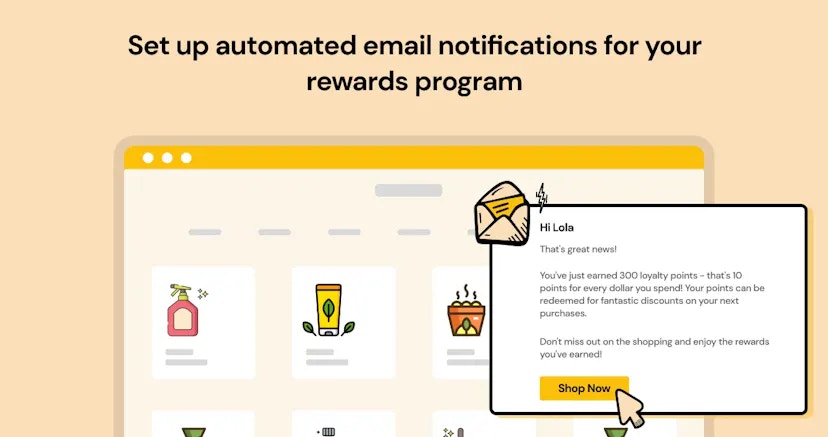 Beans Emails keeps customers engaged with automated email notifications about their rewards
program activity. [This Beans' integration](https://www.trybeans.com/integrations/trellis:foxx) informs members about earning and redeeming loyalty points through
welcome emails, transaction alerts, points balance reminders, referral invitations, and more.
## Setup
To connect to the Beans Emails integration:
1. From the Beans admin page, navigate to **Integrations**.
2. Locate and select **Beans Emails** from the available integrations.
3. Click **Connect** to enable the integration.
## Sender details
Sender details define the information displayed about your brand when customers receive an
email. Properly configured sender details ensure your emails match your brand, are delivered
to the inbox, and comply with email regulations.
### Sender Info
Sender Info includes all information about your business such as your professional email
address, official business name, complete physical address, and location details.
Beans Emails keeps customers engaged with automated email notifications about their rewards
program activity. [This Beans' integration](https://www.trybeans.com/integrations/trellis:foxx) informs members about earning and redeeming loyalty points through
welcome emails, transaction alerts, points balance reminders, referral invitations, and more.
## Setup
To connect to the Beans Emails integration:
1. From the Beans admin page, navigate to **Integrations**.
2. Locate and select **Beans Emails** from the available integrations.
3. Click **Connect** to enable the integration.
## Sender details
Sender details define the information displayed about your brand when customers receive an
email. Properly configured sender details ensure your emails match your brand, are delivered
to the inbox, and comply with email regulations.
### Sender Info
Sender Info includes all information about your business such as your professional email
address, official business name, complete physical address, and location details.
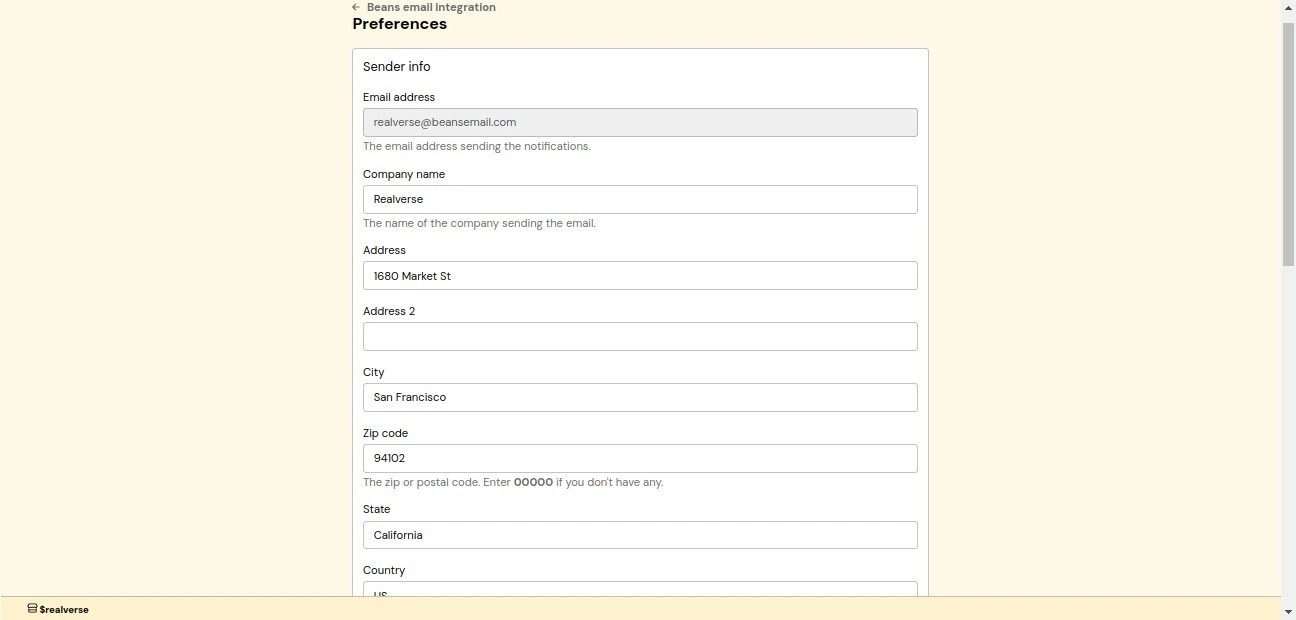 ### Social links
Enhance customer engagement by connecting your social media presence. You can fill in links to
your TikTok, Instagram, Facebook, and Twitter (X) profiles.
These links appear in email footers, helping grow your social following.
Once you've completed the configuration, review all entered information and click the **Save**
button to apply your settings.
## Notifications
Beans Emails provides several types of automated notifications, each triggered by specific customer actions.
### Social links
Enhance customer engagement by connecting your social media presence. You can fill in links to
your TikTok, Instagram, Facebook, and Twitter (X) profiles.
These links appear in email footers, helping grow your social following.
Once you've completed the configuration, review all entered information and click the **Save**
button to apply your settings.
## Notifications
Beans Emails provides several types of automated notifications, each triggered by specific customer actions.
 ## Email log management
The Email log provides comprehensive tracking of all sent email notifications, ensuring you
have full visibility and control. The log includes:
* Date and time of email send.
* Triggering event.
* Recipient email address.
* Delivery status.
## Email log management
The Email log provides comprehensive tracking of all sent email notifications, ensuring you
have full visibility and control. The log includes:
* Date and time of email send.
* Triggering event.
* Recipient email address.
* Delivery status.
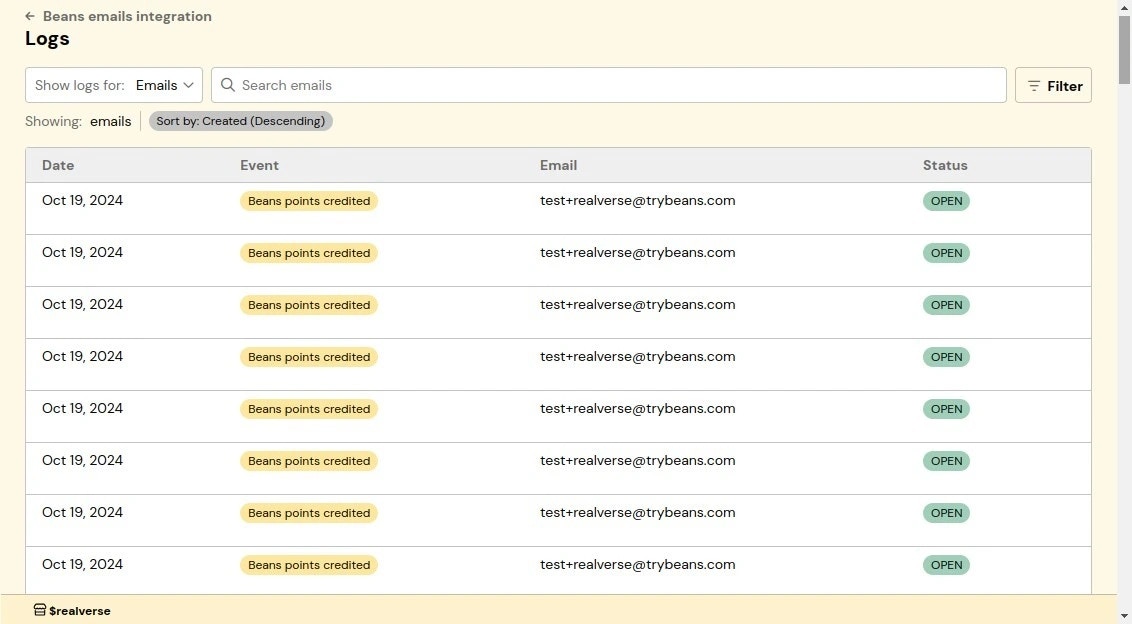 ## Status
The Status page gives you control over the status and data synchronization between the loyalty
program and Beans Emails. From here, you can monitor the connection status and reset synchronization if needed.
## Status
The Status page gives you control over the status and data synchronization between the loyalty
program and Beans Emails. From here, you can monitor the connection status and reset synchronization if needed.
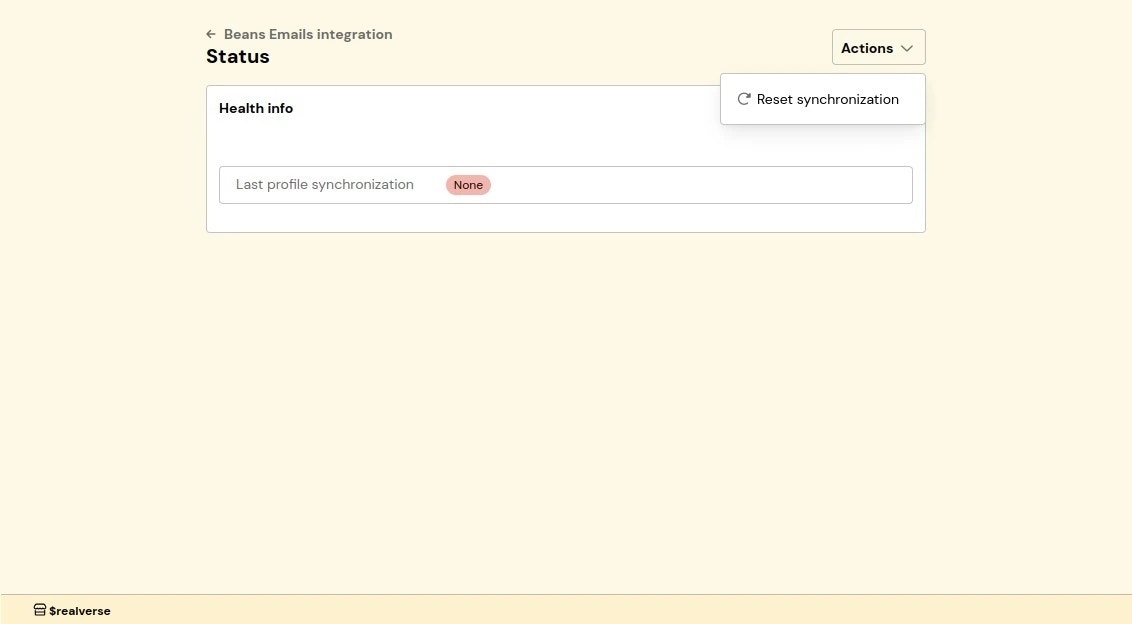 To access the status page:
1. Navigate to the Email Notifications integration home page.
2. Click on **Status** in the integration navigation menu.
### Reset synchronization
You may need to reset synchronization if:
* Email notifications aren't being sent as expected.
* There are discrepancies in customer data.
* You've recently made significant changes to your loyalty program settings.
To reset synchronization:
1. Click the **Actions** dropdown in the top right.
2. Select **Reset Synchronization**.
This process will re-establish the connection between your loyalty program and Beans Emails
without affecting existing customer data or email settings.
## Replacement tags
Replacement tags are dynamic placeholders used in email templates to personalize content for each recipient.
When an email is sent, these tags are automatically replaced with actual customer data such as names, points balances,
and transaction details.
### Global tags
Global tags work across all email notifications and help personalize emails to each customer:
* `[%first_name%]`: Customer's first name.
* `[%last_name%]`: Customer's last name.
* `[%beans_balance%]`: Customer's current points balance.
* `[%beans_value%]`: Monetary value of the customer's current points balance (in store currency).
* `[%tier_name%]`: Customer's loyalty tier level.
* `[%unsubscribe_link%]`: Mandatory unsubscribe link for customer to opt out of receiving emails.
To access the status page:
1. Navigate to the Email Notifications integration home page.
2. Click on **Status** in the integration navigation menu.
### Reset synchronization
You may need to reset synchronization if:
* Email notifications aren't being sent as expected.
* There are discrepancies in customer data.
* You've recently made significant changes to your loyalty program settings.
To reset synchronization:
1. Click the **Actions** dropdown in the top right.
2. Select **Reset Synchronization**.
This process will re-establish the connection between your loyalty program and Beans Emails
without affecting existing customer data or email settings.
## Replacement tags
Replacement tags are dynamic placeholders used in email templates to personalize content for each recipient.
When an email is sent, these tags are automatically replaced with actual customer data such as names, points balances,
and transaction details.
### Global tags
Global tags work across all email notifications and help personalize emails to each customer:
* `[%first_name%]`: Customer's first name.
* `[%last_name%]`: Customer's last name.
* `[%beans_balance%]`: Customer's current points balance.
* `[%beans_value%]`: Monetary value of the customer's current points balance (in store currency).
* `[%tier_name%]`: Customer's loyalty tier level.
* `[%unsubscribe_link%]`: Mandatory unsubscribe link for customer to opt out of receiving emails.
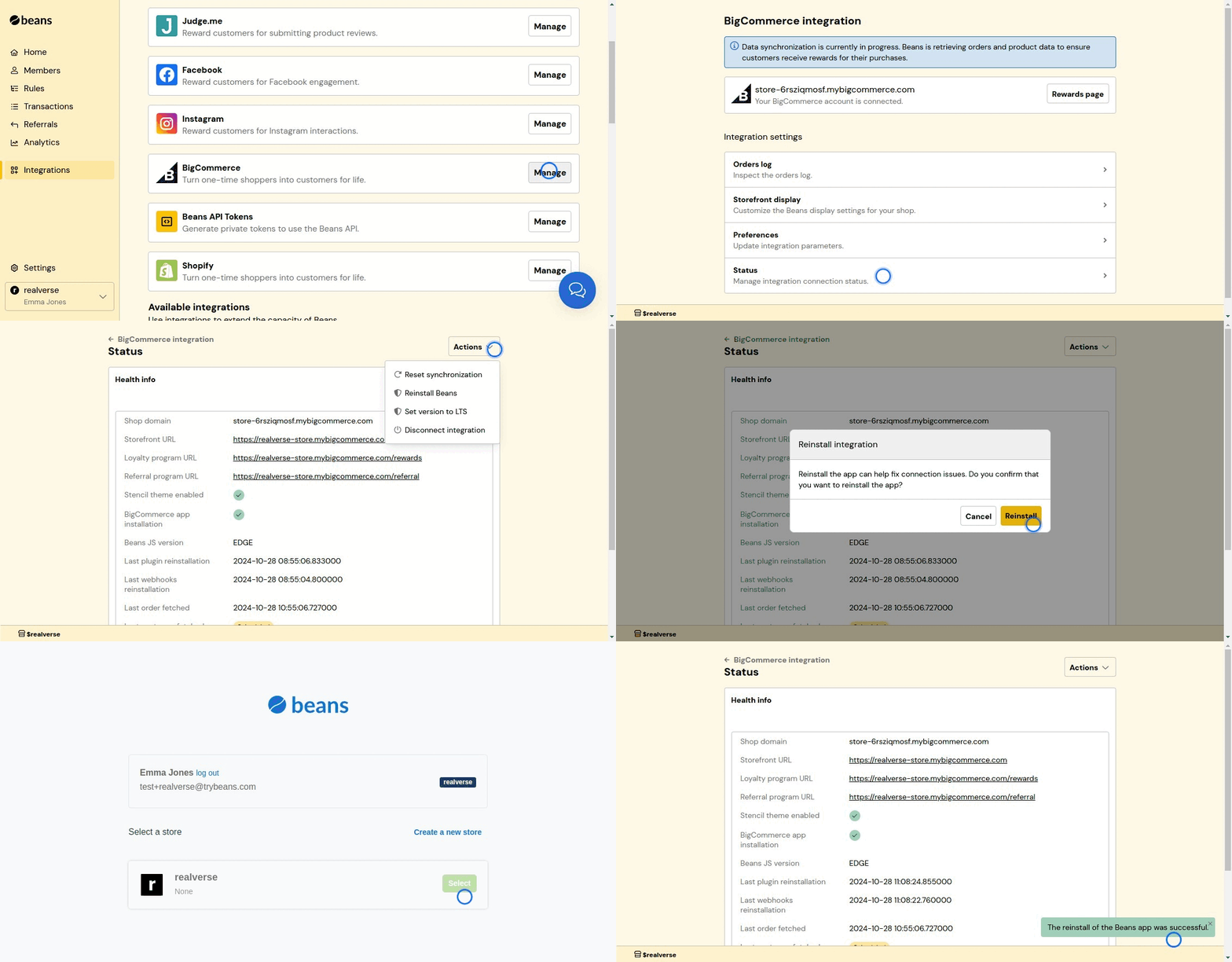 1. From the Beans admin dashboard, navigate to the BigCommerce integration home page.
2. Select **Status** in the integration navigation menu.
3. From the **Actions** dropdown on the top right, select **Reinstall Beans**.
## Rewards page
To improve the visibility of your rewards program and make it easier for customers to find,
we suggest adding a link to the rewards page in your main menu. Here's an article on how to do
it: [BigCommerce - Navigation Menu Options](https://support.bigcommerce.com/s/article/Web-Pages?language=en_US#navigation).
## Redemption
1. From the Beans admin dashboard, navigate to the BigCommerce integration home page.
2. Select **Status** in the integration navigation menu.
3. From the **Actions** dropdown on the top right, select **Reinstall Beans**.
## Rewards page
To improve the visibility of your rewards program and make it easier for customers to find,
we suggest adding a link to the rewards page in your main menu. Here's an article on how to do
it: [BigCommerce - Navigation Menu Options](https://support.bigcommerce.com/s/article/Web-Pages?language=en_US#navigation).
## Redemption
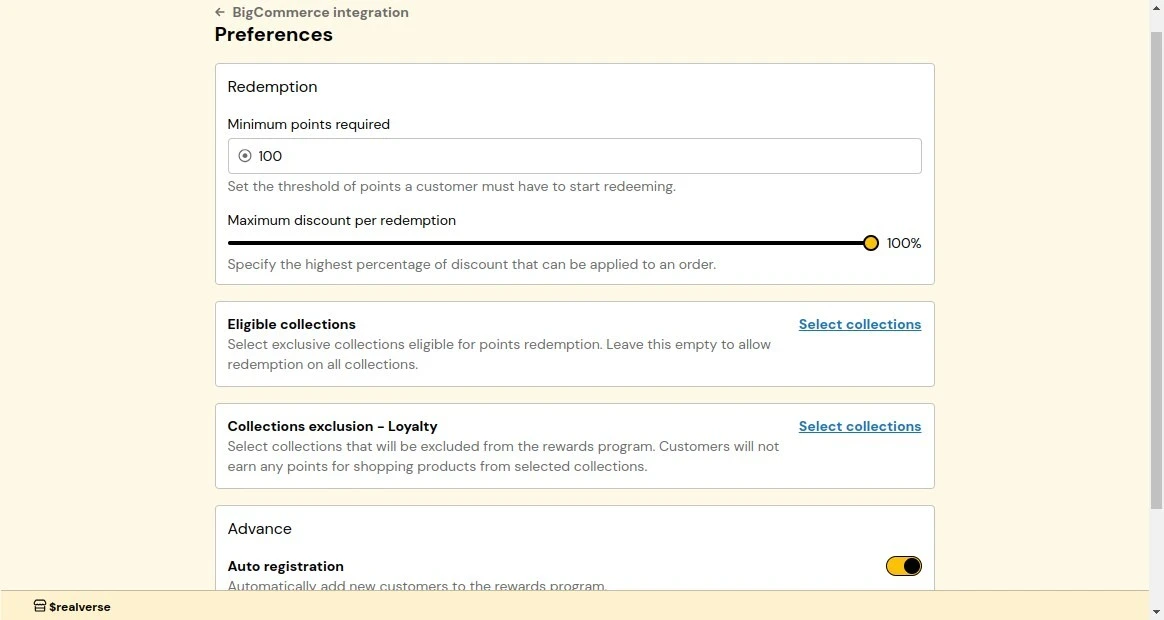 ### Minimum points required for redemption
Sets a minimum points threshold that customers must reach before redeeming rewards. By default,
customers need to accumulate at least 100 points before being eligible for redemption. You can
adjust this threshold higher to ensure meaningful program engagement and prevent inefficient redemptions.
For example, if you set the minimum to 500 points, customers would need to earn at least 500 points before
they can start redeeming rewards.
**How it works:**
1. From the BigCommerce integration dashboard, navigate to **Preferences**.
2. Locate the **Redemption** section and enter your desired minimum points threshold in the
**Minimum Points Required** field.
3. Click **Save** to apply changes.
### Minimum points required for redemption
Sets a minimum points threshold that customers must reach before redeeming rewards. By default,
customers need to accumulate at least 100 points before being eligible for redemption. You can
adjust this threshold higher to ensure meaningful program engagement and prevent inefficient redemptions.
For example, if you set the minimum to 500 points, customers would need to earn at least 500 points before
they can start redeeming rewards.
**How it works:**
1. From the BigCommerce integration dashboard, navigate to **Preferences**.
2. Locate the **Redemption** section and enter your desired minimum points threshold in the
**Minimum Points Required** field.
3. Click **Save** to apply changes.
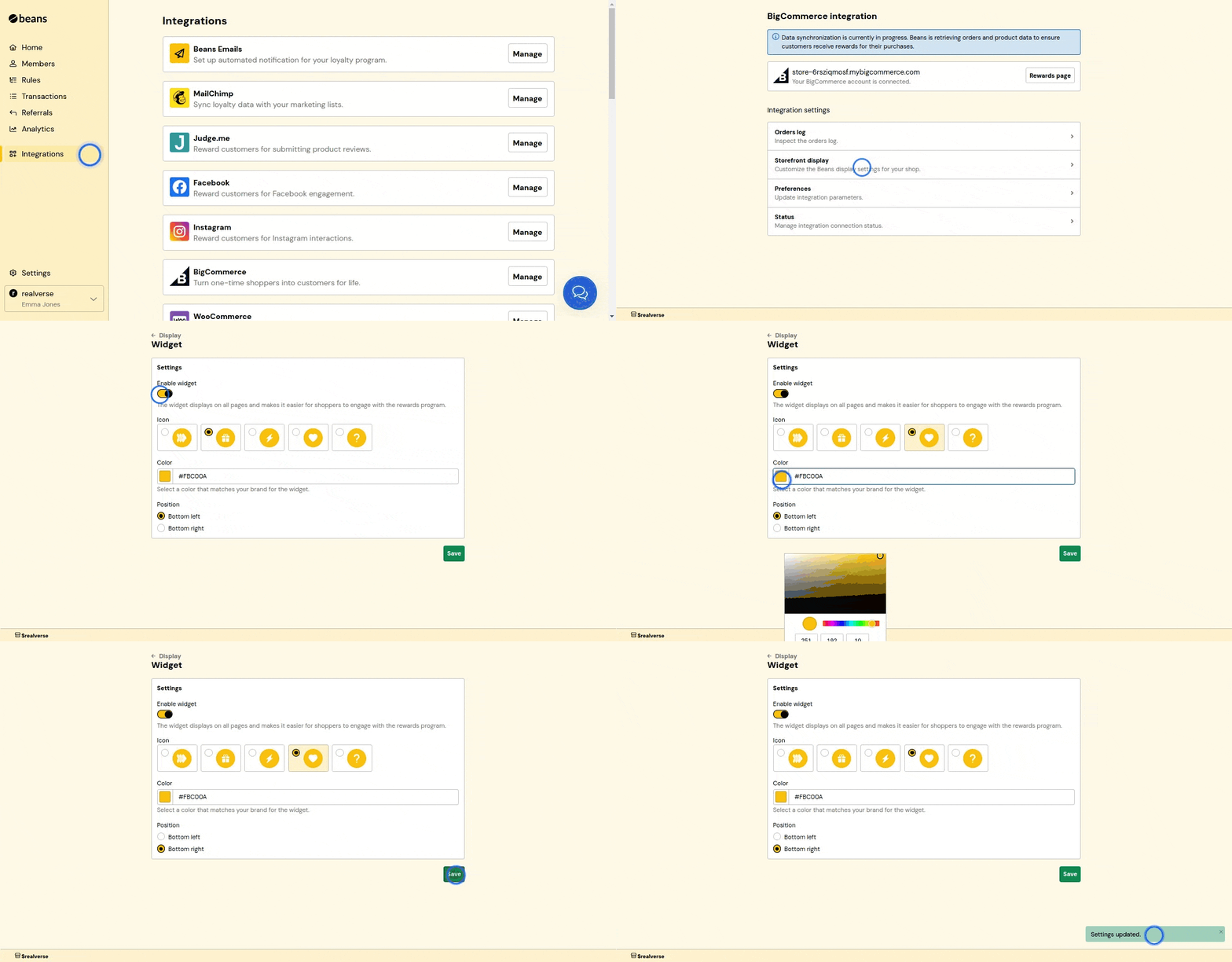 ### Rewards page
The rewards page is a dedicated section on your storefront that displays your rewards program details.
It allows customers to view their points balance, redeem rewards, and learn more about your program.
### Rewards page
The rewards page is a dedicated section on your storefront that displays your rewards program details.
It allows customers to view their points balance, redeem rewards, and learn more about your program.
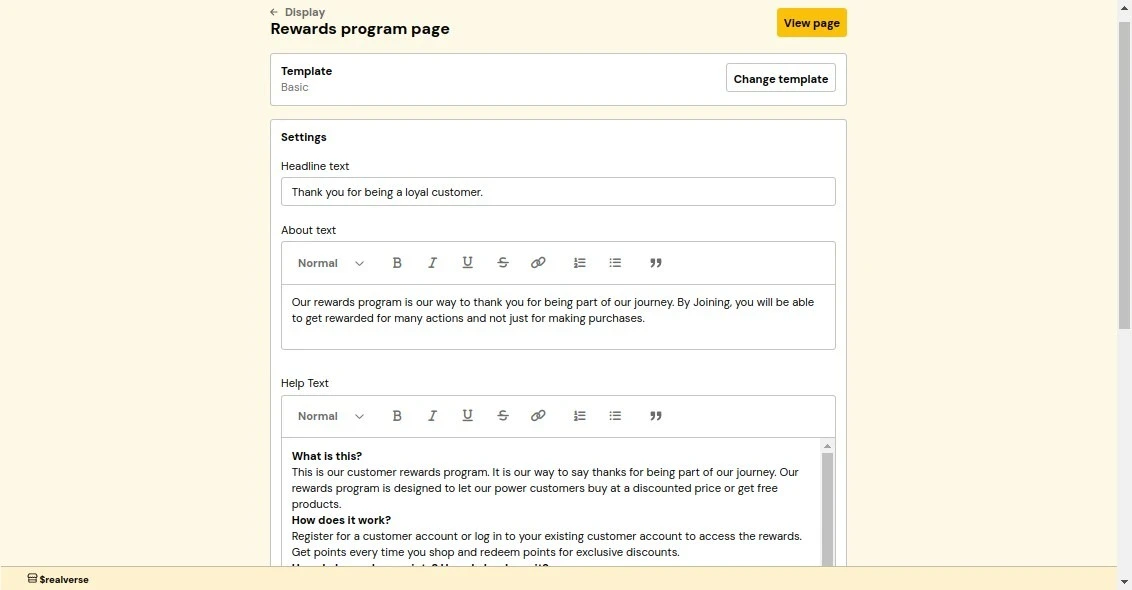 **How it works:**
1. From the BigCommerce integration dashboard, navigate to **Storefront display**.
2. Locate and click on **Rewards page**.
3. Customize the template and settings as needed.
4. Click **Save** to apply changes.
**Customization settings:**
* **Headline Text**: The main title displayed at the top of the rewards page to attract customer attention.
* **About Text**: A small block of text that explains your rewards program purpose and welcomes customers.
* **Help Text**: A FAQ-style text that explains your rewards program, including common questions like
"What is this?", "How does it work?", "How to redeem points?", and important terms and conditions.
* **Primary Color**: The main color used throughout the rewards page to maintain consistent branding with your store's theme.
* **Shop Now Link**: A direct link to the shopping page. It will be used as a call-to-action for customers to
start earning points.
* **Contrast Color**: A color that contrasts with your primary color, typically black or white, to ensure text readability.
### Referral page
The referral page is a dedicated section on your storefront that displays your referral program details.
It allows customers to view and share their referral link with friends.
**How it works:**
1. From the BigCommerce integration dashboard, navigate to **Storefront display**.
2. Locate and click on **Rewards page**.
3. Customize the template and settings as needed.
4. Click **Save** to apply changes.
**Customization settings:**
* **Headline Text**: The main title displayed at the top of the rewards page to attract customer attention.
* **About Text**: A small block of text that explains your rewards program purpose and welcomes customers.
* **Help Text**: A FAQ-style text that explains your rewards program, including common questions like
"What is this?", "How does it work?", "How to redeem points?", and important terms and conditions.
* **Primary Color**: The main color used throughout the rewards page to maintain consistent branding with your store's theme.
* **Shop Now Link**: A direct link to the shopping page. It will be used as a call-to-action for customers to
start earning points.
* **Contrast Color**: A color that contrasts with your primary color, typically black or white, to ensure text readability.
### Referral page
The referral page is a dedicated section on your storefront that displays your referral program details.
It allows customers to view and share their referral link with friends.
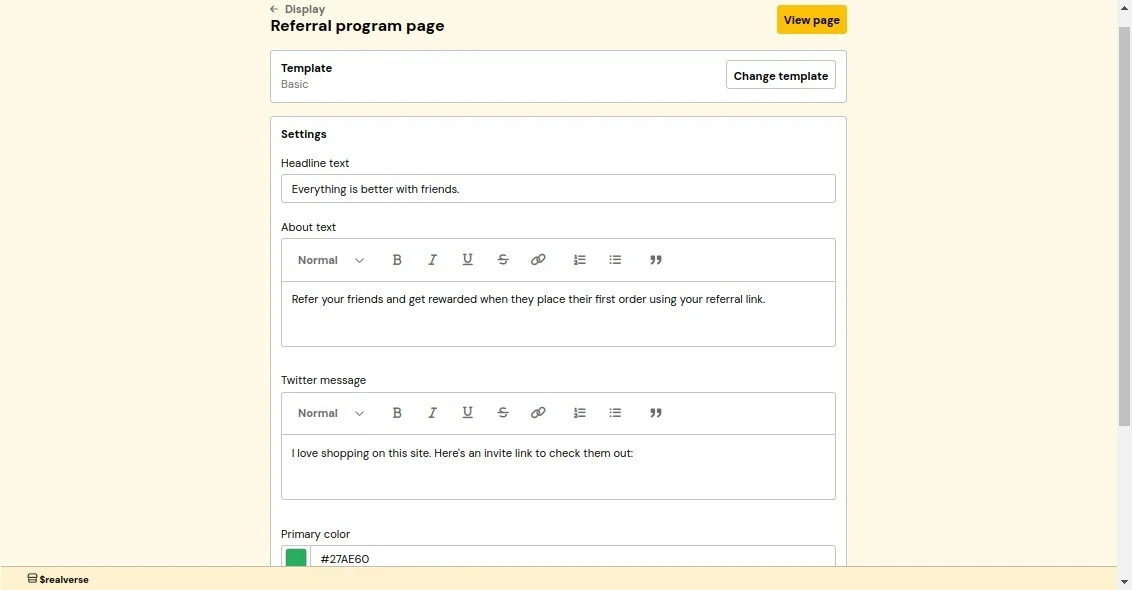 **How it works:**
1. From the BigCommerce integration dashboard, navigate to **Storefront display**.
2. Locate the **Referral page** section.
3. Customize the template and settings as needed.
4. Click **Save** to apply changes.
**Customization settings:**
* **Headline Text**: The main title displayed at the top of the referral page to attract customer attention.
* **About Text**: A small block of text that explains your referral program purpose and welcomes customers.
* **Twitter Message**: The default text that appears when customers share their referral link on Twitter.
* **Primary Color**: The main color used throughout the referral page to maintain consistent branding with your store's theme.
* **Contrast Color**: A color that contrasts with your primary color, typically black or white, to ensure text readability.
### Redemption button
The redemption button allows customers to redeem their rewards directly from the cart or checkout page.
By default, it is placed near the checkout call-to-action (CTA), allowing customers to apply their
rewards before completing a purchase.
**How it works:**
1. From the BigCommerce integration dashboard, navigate to **Storefront display**.
2. Locate the **Referral page** section.
3. Customize the template and settings as needed.
4. Click **Save** to apply changes.
**Customization settings:**
* **Headline Text**: The main title displayed at the top of the referral page to attract customer attention.
* **About Text**: A small block of text that explains your referral program purpose and welcomes customers.
* **Twitter Message**: The default text that appears when customers share their referral link on Twitter.
* **Primary Color**: The main color used throughout the referral page to maintain consistent branding with your store's theme.
* **Contrast Color**: A color that contrasts with your primary color, typically black or white, to ensure text readability.
### Redemption button
The redemption button allows customers to redeem their rewards directly from the cart or checkout page.
By default, it is placed near the checkout call-to-action (CTA), allowing customers to apply their
rewards before completing a purchase.
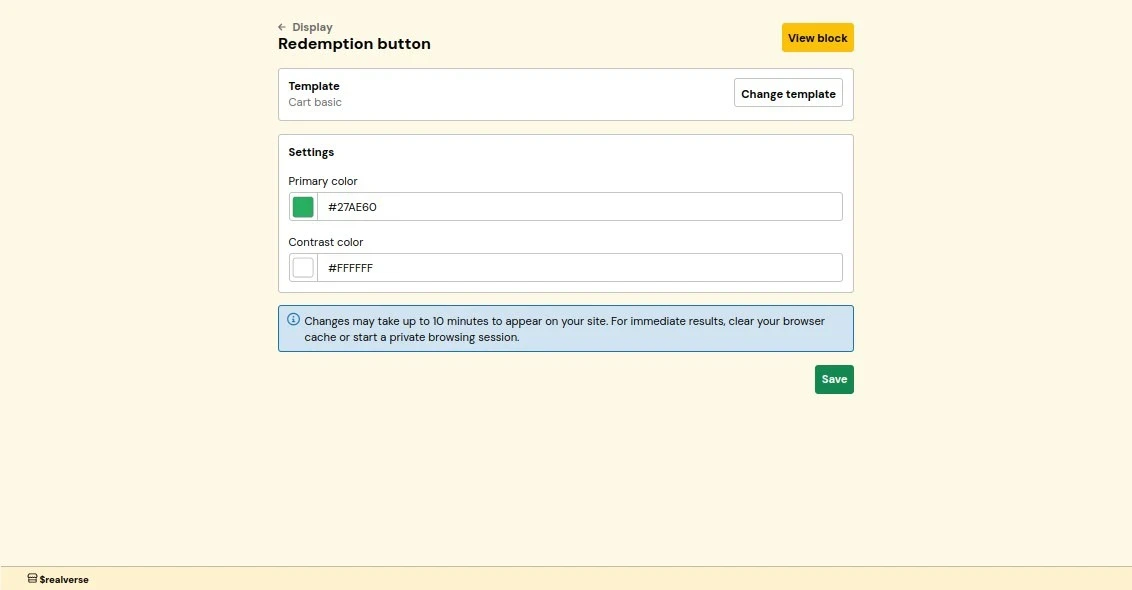 **How it works:**
1. From the BigCommerce integration dashboard, navigate to **Storefront display**.
2. Locate the **Redemption Button** section.
3. Customize the template and settings as needed.
4. Click **Save** to apply changes.
**Customization settings:**
* **Primary Color**: The button background color.
* **Contrast Color**: The button text color. It should contrast with your primary color. It is
recommended to use black or white to ensure text readability.
### Referral invitation popup
The referral invitation popup appears when someone visits a referral link, encouraging them to
join your rewards program using their unique link.
**How it works:**
1. From the BigCommerce integration dashboard, navigate to **Storefront display**.
2. Locate the **Redemption Button** section.
3. Customize the template and settings as needed.
4. Click **Save** to apply changes.
**Customization settings:**
* **Primary Color**: The button background color.
* **Contrast Color**: The button text color. It should contrast with your primary color. It is
recommended to use black or white to ensure text readability.
### Referral invitation popup
The referral invitation popup appears when someone visits a referral link, encouraging them to
join your rewards program using their unique link.
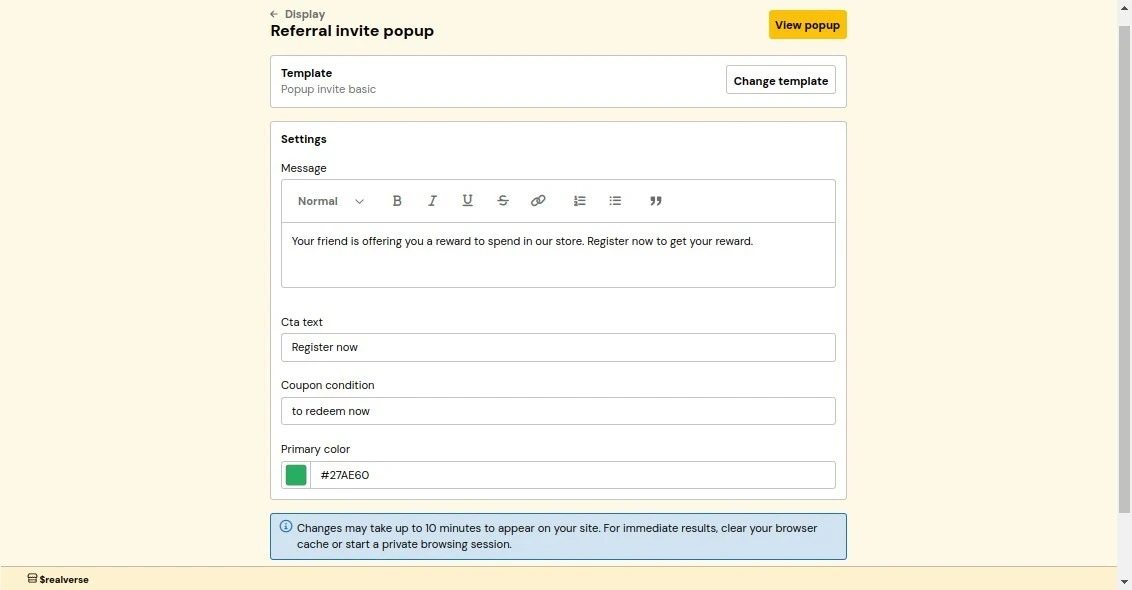 **How it works:**
1. From the BigCommerce integration dashboard, navigate to **Storefront display**.
2. Locate and click on **Referral Invitation Popup**.
3. Customize the template and settings as needed.
4. Click **Save** to apply changes.
**Customization settings:**
* **Message**: A message informing customers that they are being referred and inviting them
to sign up in order to get a reward.
* **Call-to-Action Text**: The text of the button to encourage customers to sign up.
* **Primary Color**: The popup's main color. It should match your brand colors.
### Referral reward popup
The referral reward popup notifies customers of successful referrals and encourages them to use their
rewards. This confirmation popup helps maintain engagement with your referral program.
**How it works:**
1. From the BigCommerce integration dashboard, navigate to **Storefront display**.
2. Locate and click on **Referral Invitation Popup**.
3. Customize the template and settings as needed.
4. Click **Save** to apply changes.
**Customization settings:**
* **Message**: A message informing customers that they are being referred and inviting them
to sign up in order to get a reward.
* **Call-to-Action Text**: The text of the button to encourage customers to sign up.
* **Primary Color**: The popup's main color. It should match your brand colors.
### Referral reward popup
The referral reward popup notifies customers of successful referrals and encourages them to use their
rewards. This confirmation popup helps maintain engagement with your referral program.
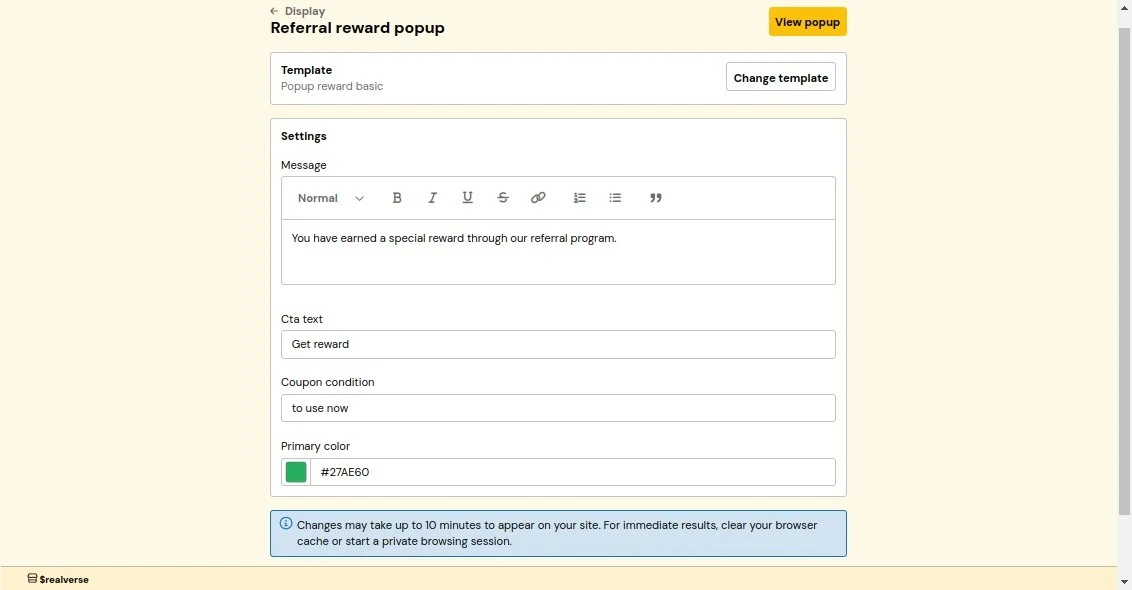 **How it works:**
1. From the BigCommerce integration dashboard, navigate to **Storefront display**.
2. Locate the **Referral Reward Popup** section.
3. Customize the template and settings as needed.
4. Click **Save** to apply changes.
**Customization settings:**
* **Message**: A confirmation message informing customers that their referral was successful.
* **Call-to-Action Text**: The text of the button to encourage customers to redeem their reward.
* **Primary Color**: The popup's main color. It should match your brand colors.
# Facebook
Source: https://docs.trybeans.com/integrations/facebook
Integrate Beans with Facebook to reward customers for liking your Facebook page
**How it works:**
1. From the BigCommerce integration dashboard, navigate to **Storefront display**.
2. Locate the **Referral Reward Popup** section.
3. Customize the template and settings as needed.
4. Click **Save** to apply changes.
**Customization settings:**
* **Message**: A confirmation message informing customers that their referral was successful.
* **Call-to-Action Text**: The text of the button to encourage customers to redeem their reward.
* **Primary Color**: The popup's main color. It should match your brand colors.
# Facebook
Source: https://docs.trybeans.com/integrations/facebook
Integrate Beans with Facebook to reward customers for liking your Facebook page
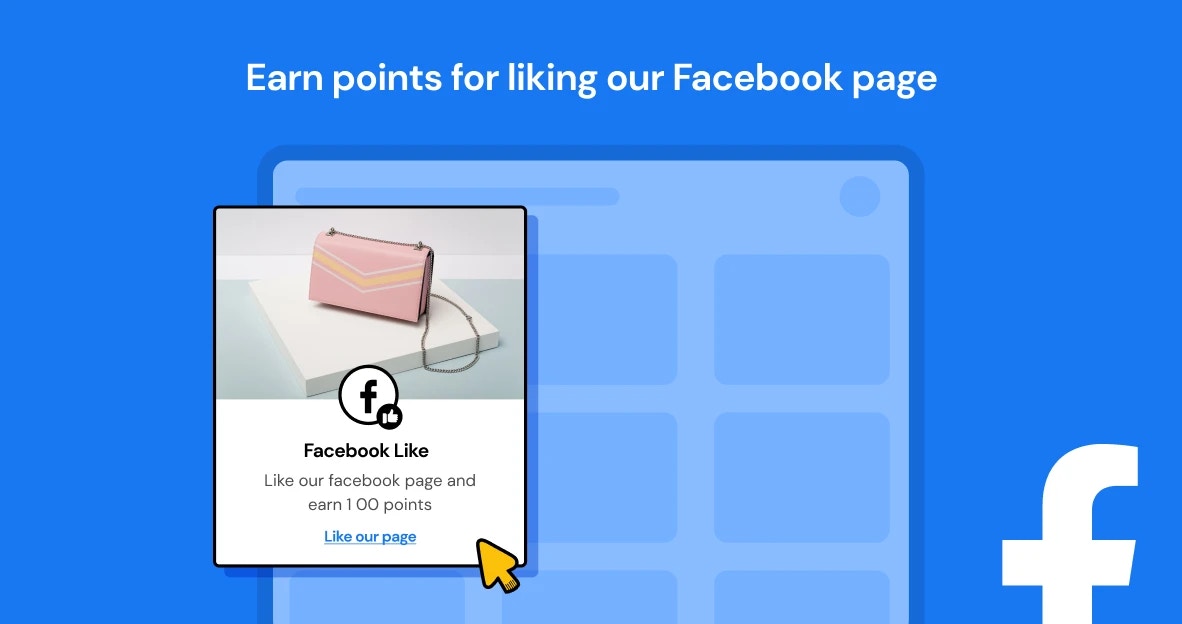 [Facebook](https://www.facebook.com/) is a global platform that connects people and brands through social interactions.
The [integration between Beans and Facebook](https://www.trybeans.com/integrations/trellis:facebook)
enables merchants to significantly increase their brand engagement by offering a
compelling incentive such as rewarding customers for liking the brand's page on Facebook.
This strategic collaboration empowers merchants to leverage social interactions to foster
customer loyalty and enhance their online presence.
## Setup
1. From the Beans admin, go to **Integrations**.
2. Locate **Facebook** in the list of available integrations.
3. Click on the **Connect** button and proceed as directed.
4. Grant Beans permission to interact with your Facebook account.
5. Select the Facebook page that you want to link to Beans.
## Rules
### Points for Facebook page like
This feature allows you to reward customers with loyalty points when they like your Facebook page.
It's an effective method to boost your Facebook page's visibility and engage customers with your brand on social media.
**How it works:** Once you enable this feature, customers can earn points by liking your Facebook page.
This applies to both new and existing followers, ensuring that all your customers have the opportunity to be rewarded.
**Important details:** Customers are rewarded with points only once for liking the page. The system ensures that points
are not awarded multiple times to the same customer, even if they unlike and re-like the page.
If a customer decides to unlike your page, the points previously awarded for liking the page will not be taken back.
## Status
This interface provides control over the status and data synchronization between Beans and Facebook,
offering options to disconnect the integration, or reset the connection as needed.
To access the status page:
1. Navigate to the Facebook integration home page
2. Click on **Status** in the integration navigation menu.
# Instagram
Source: https://docs.trybeans.com/integrations/instagram
Integrate Beans with Instagram to reward customers for following your Instagram account
[Facebook](https://www.facebook.com/) is a global platform that connects people and brands through social interactions.
The [integration between Beans and Facebook](https://www.trybeans.com/integrations/trellis:facebook)
enables merchants to significantly increase their brand engagement by offering a
compelling incentive such as rewarding customers for liking the brand's page on Facebook.
This strategic collaboration empowers merchants to leverage social interactions to foster
customer loyalty and enhance their online presence.
## Setup
1. From the Beans admin, go to **Integrations**.
2. Locate **Facebook** in the list of available integrations.
3. Click on the **Connect** button and proceed as directed.
4. Grant Beans permission to interact with your Facebook account.
5. Select the Facebook page that you want to link to Beans.
## Rules
### Points for Facebook page like
This feature allows you to reward customers with loyalty points when they like your Facebook page.
It's an effective method to boost your Facebook page's visibility and engage customers with your brand on social media.
**How it works:** Once you enable this feature, customers can earn points by liking your Facebook page.
This applies to both new and existing followers, ensuring that all your customers have the opportunity to be rewarded.
**Important details:** Customers are rewarded with points only once for liking the page. The system ensures that points
are not awarded multiple times to the same customer, even if they unlike and re-like the page.
If a customer decides to unlike your page, the points previously awarded for liking the page will not be taken back.
## Status
This interface provides control over the status and data synchronization between Beans and Facebook,
offering options to disconnect the integration, or reset the connection as needed.
To access the status page:
1. Navigate to the Facebook integration home page
2. Click on **Status** in the integration navigation menu.
# Instagram
Source: https://docs.trybeans.com/integrations/instagram
Integrate Beans with Instagram to reward customers for following your Instagram account
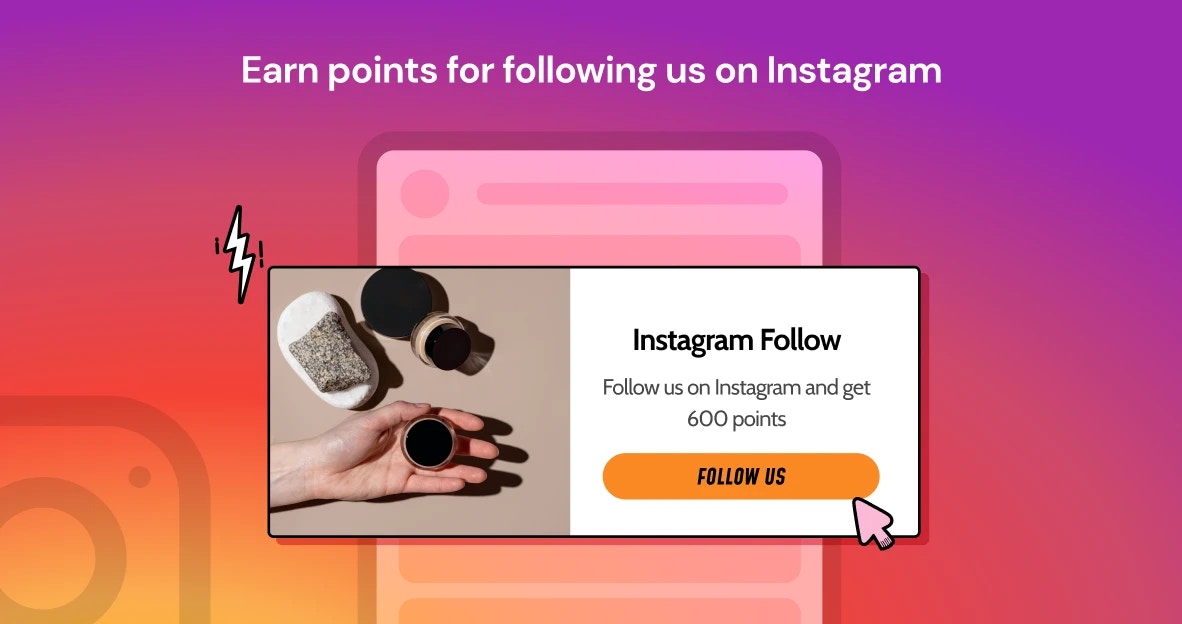 [Instagram](https://www.instagram.com/) is a widely-used platform that connects people and brands through visual content.
The [integration between Beans and Instagram](https://www.trybeans.com/integrations/trellis:instagram)
enables merchants to significantly boost their brand engagement by offering a
compelling incentive such as rewarding customers for following the brand's account on Instagram.
This innovative collaboration helps merchants capitalize on visual interactions
to build customer loyalty and elevate their online presence.
## Setup
1. From the Beans admin, go to **Integrations**.
2. Locate **Instagram** in the list of available integrations.
3. Click on the **Connect** button and proceed as directed.
4. Grant Beans permission to access your Instagram account.
## Rules
### Points for Instagram Follow
This feature allows you to reward customers with loyalty points
when they follow your Instagram page, enhancing engagement and growing your social media presence.
**How it works:** Once you enable this feature, customers can earn points by following your brand on Instagram.
This applies to both new and existing followers, ensuring all your customers have the opportunity to be rewarded.
**Important details:** Customers are rewarded with points only once for following the page.
The system ensures that points are not awarded multiple times to the same customer,
even if they unfollow and refollow the page. If a customer decides to unfollow your brand,
the points previously awarded for following will not be revoked.
## Status
This interface provides control over the status and data synchronization between Beans and Instagram,
offering options to disconnect the integration, or reset the connection as needed.
To access the status page:
1. Navigate to the Instagram integration home page
2. Click on **Status** in the integration navigation menu.
# Judge.me
Source: https://docs.trybeans.com/integrations/judgeme
Integrate Beans with Judge.me to reward customers for product reviews
[Instagram](https://www.instagram.com/) is a widely-used platform that connects people and brands through visual content.
The [integration between Beans and Instagram](https://www.trybeans.com/integrations/trellis:instagram)
enables merchants to significantly boost their brand engagement by offering a
compelling incentive such as rewarding customers for following the brand's account on Instagram.
This innovative collaboration helps merchants capitalize on visual interactions
to build customer loyalty and elevate their online presence.
## Setup
1. From the Beans admin, go to **Integrations**.
2. Locate **Instagram** in the list of available integrations.
3. Click on the **Connect** button and proceed as directed.
4. Grant Beans permission to access your Instagram account.
## Rules
### Points for Instagram Follow
This feature allows you to reward customers with loyalty points
when they follow your Instagram page, enhancing engagement and growing your social media presence.
**How it works:** Once you enable this feature, customers can earn points by following your brand on Instagram.
This applies to both new and existing followers, ensuring all your customers have the opportunity to be rewarded.
**Important details:** Customers are rewarded with points only once for following the page.
The system ensures that points are not awarded multiple times to the same customer,
even if they unfollow and refollow the page. If a customer decides to unfollow your brand,
the points previously awarded for following will not be revoked.
## Status
This interface provides control over the status and data synchronization between Beans and Instagram,
offering options to disconnect the integration, or reset the connection as needed.
To access the status page:
1. Navigate to the Instagram integration home page
2. Click on **Status** in the integration navigation menu.
# Judge.me
Source: https://docs.trybeans.com/integrations/judgeme
Integrate Beans with Judge.me to reward customers for product reviews
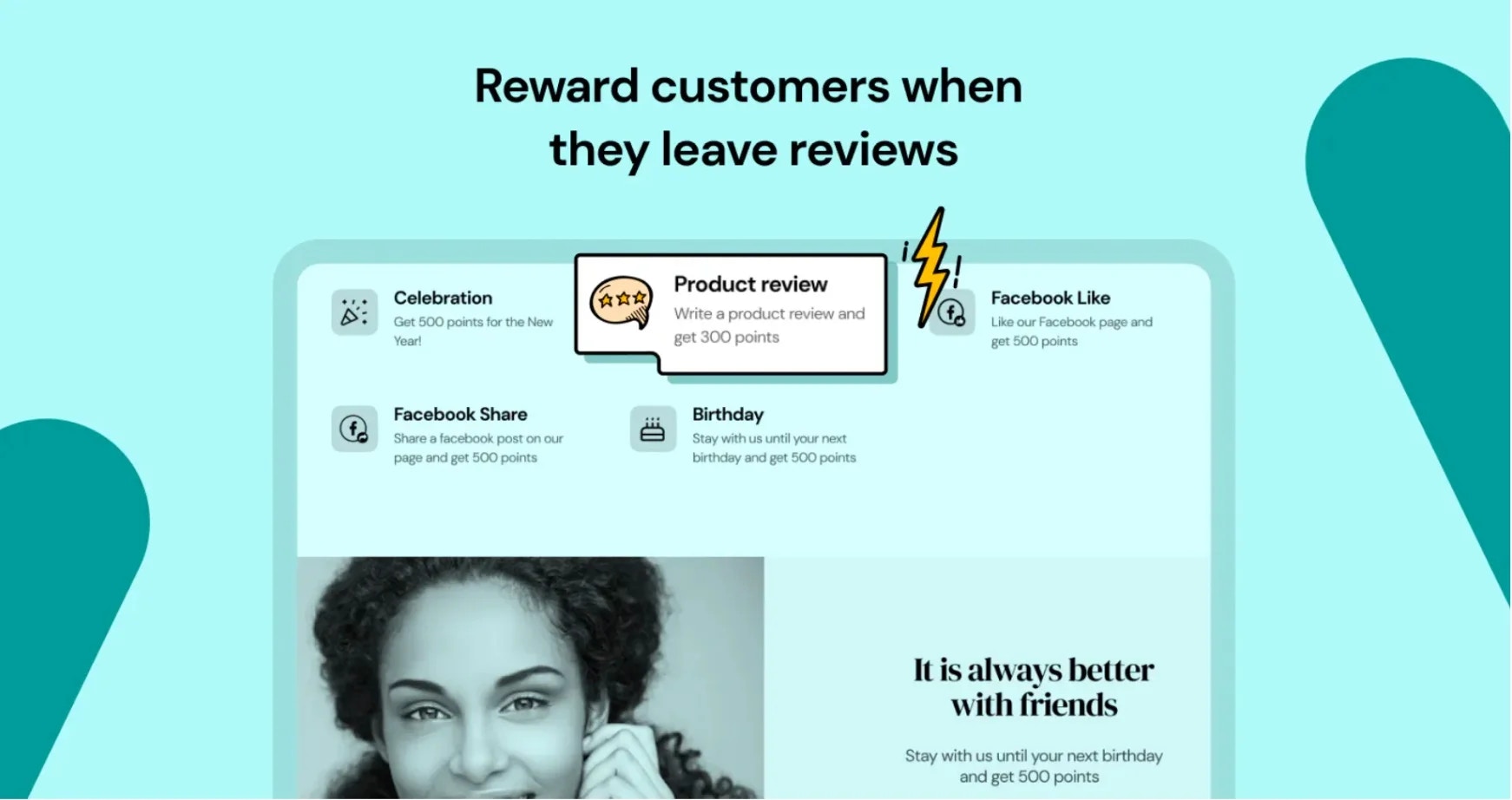 [Judge.me](https://judge.me/) is a platform designed for online merchants to gather and display product reviews.
The [integration between Beans and Judge.me](https://www.trybeans.com/integrations/trellis:judgeme)
empowers merchants to significantly boost
the number of post-purchase reviews by offering an enticing incentive:
loyalty points for each review submitted via Judge.me.
## Setup
1. From the Beans admin, go to **Integrations**.
2. Locate **Judge.me** in the list of available integrations.
3. Click on the **Connect** button and proceed as directed.
4. Enter the domain of your shop to either sign in to your existing Judge.me account or
to install the app if you haven't done so already.
5. Grant Beans permission to interact with your Judge.me account.
[Judge.me](https://judge.me/) is a platform designed for online merchants to gather and display product reviews.
The [integration between Beans and Judge.me](https://www.trybeans.com/integrations/trellis:judgeme)
empowers merchants to significantly boost
the number of post-purchase reviews by offering an enticing incentive:
loyalty points for each review submitted via Judge.me.
## Setup
1. From the Beans admin, go to **Integrations**.
2. Locate **Judge.me** in the list of available integrations.
3. Click on the **Connect** button and proceed as directed.
4. Enter the domain of your shop to either sign in to your existing Judge.me account or
to install the app if you haven't done so already.
5. Grant Beans permission to interact with your Judge.me account.
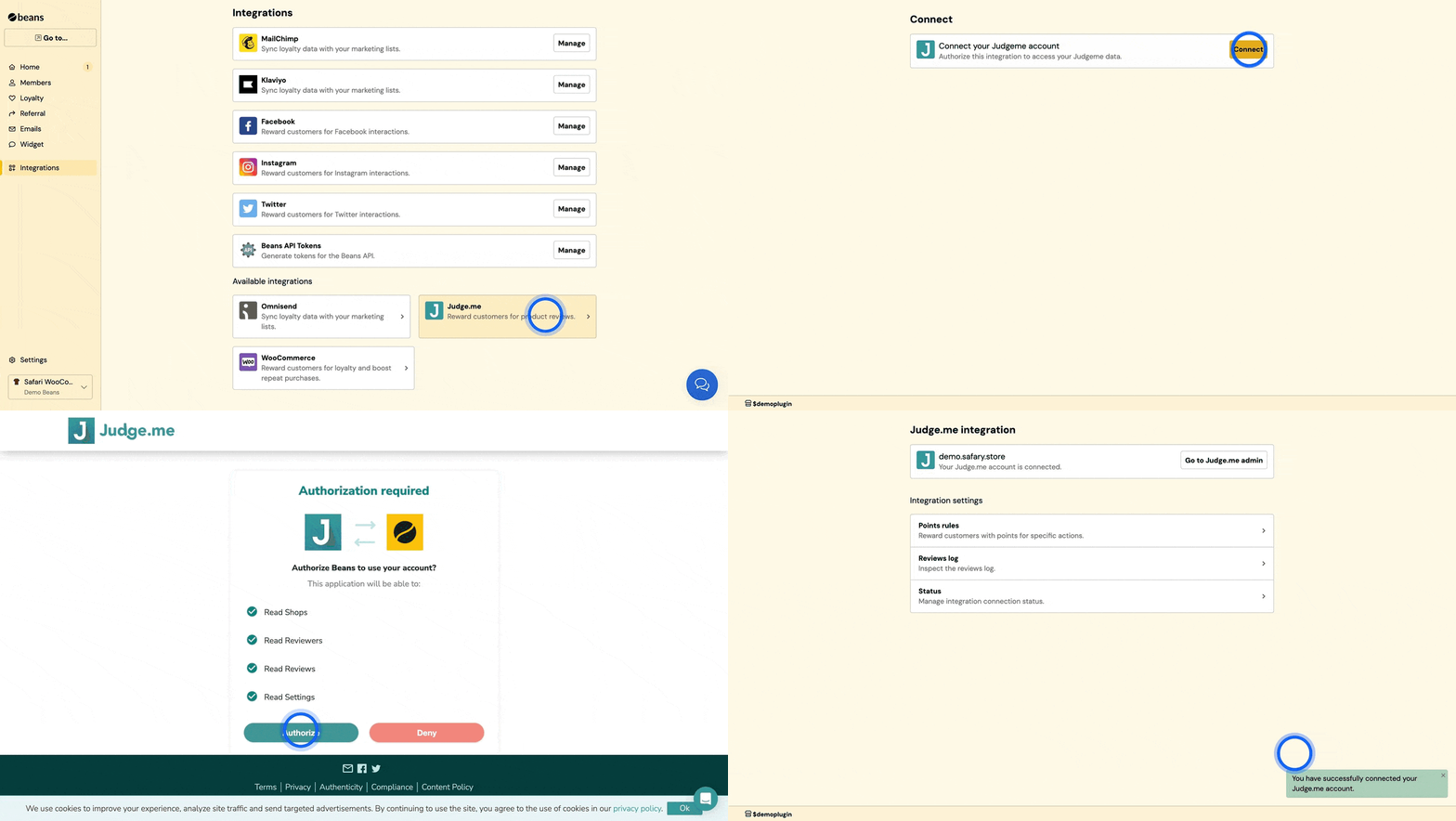 ## Rules
### Points for product reviews
This feature allows you to incentivize customers by awarding loyalty points when they post product reviews.
As a merchant, you have complete control over the reward frequency to suit your business model.
You can set specific frequency limits for awarding points, such as once per day,
once per week, or once per month. Alternatively, you may choose to impose no restrictions,
offering rewards for every review posted. This flexibility ensures you can encourage ongoing
engagement while managing the incentives effectively.
## Rules
### Points for product reviews
This feature allows you to incentivize customers by awarding loyalty points when they post product reviews.
As a merchant, you have complete control over the reward frequency to suit your business model.
You can set specific frequency limits for awarding points, such as once per day,
once per week, or once per month. Alternatively, you may choose to impose no restrictions,
offering rewards for every review posted. This flexibility ensures you can encourage ongoing
engagement while managing the incentives effectively.
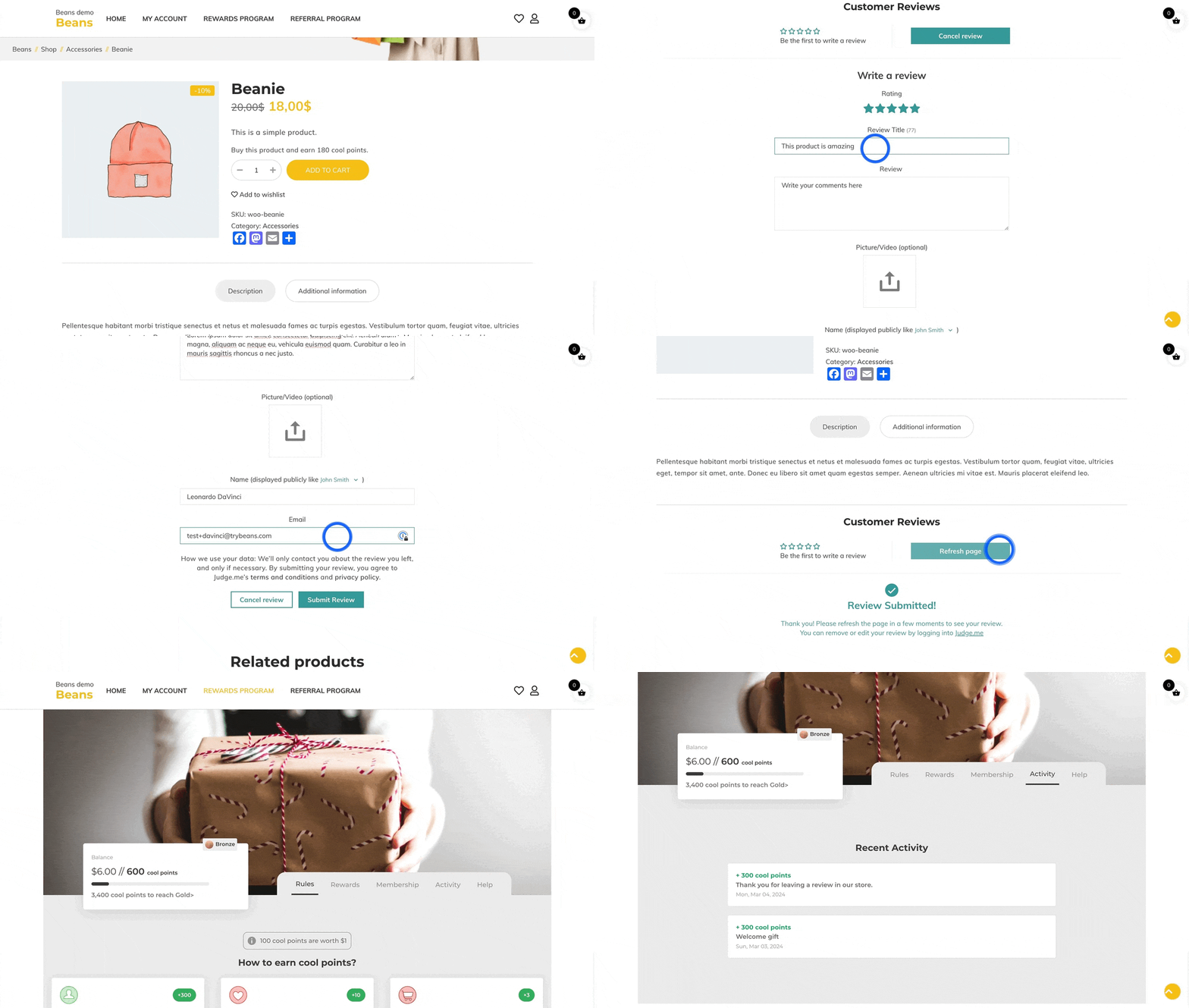 ### Points for product reviews with photos
Reward your customers more generously when they include photos with their product reviews.
This rule take precedence over the classic points for text-only reviews.
This is irrespective of which rule offers a higher point reward.
Consequently, it's advisable to assign a higher point value to reviews with photos
compared to text-only reviews, ensuring a more attractive incentive for customers
to share visually enriched feedback.
## Reviews log
The reviews log offers merchants a straightforward and efficient way to track the history of all rewarded reviews.
Within this log, merchants can quickly ascertain whether a shopper has been awarded points for their review and the
exact amount of points credited. Additionally, if a shopper has not received points for their review, the log
provides a detailed explanation, clarifying the reason behind the omission. This functionality ensures transparency
and ease in managing the rewards process for product reviews.
To access the logs page
1. Navigate to the Judge.me integration home page.
2. Click on **Review logs** in the integration navigation menu.
### Points for product reviews with photos
Reward your customers more generously when they include photos with their product reviews.
This rule take precedence over the classic points for text-only reviews.
This is irrespective of which rule offers a higher point reward.
Consequently, it's advisable to assign a higher point value to reviews with photos
compared to text-only reviews, ensuring a more attractive incentive for customers
to share visually enriched feedback.
## Reviews log
The reviews log offers merchants a straightforward and efficient way to track the history of all rewarded reviews.
Within this log, merchants can quickly ascertain whether a shopper has been awarded points for their review and the
exact amount of points credited. Additionally, if a shopper has not received points for their review, the log
provides a detailed explanation, clarifying the reason behind the omission. This functionality ensures transparency
and ease in managing the rewards process for product reviews.
To access the logs page
1. Navigate to the Judge.me integration home page.
2. Click on **Review logs** in the integration navigation menu.
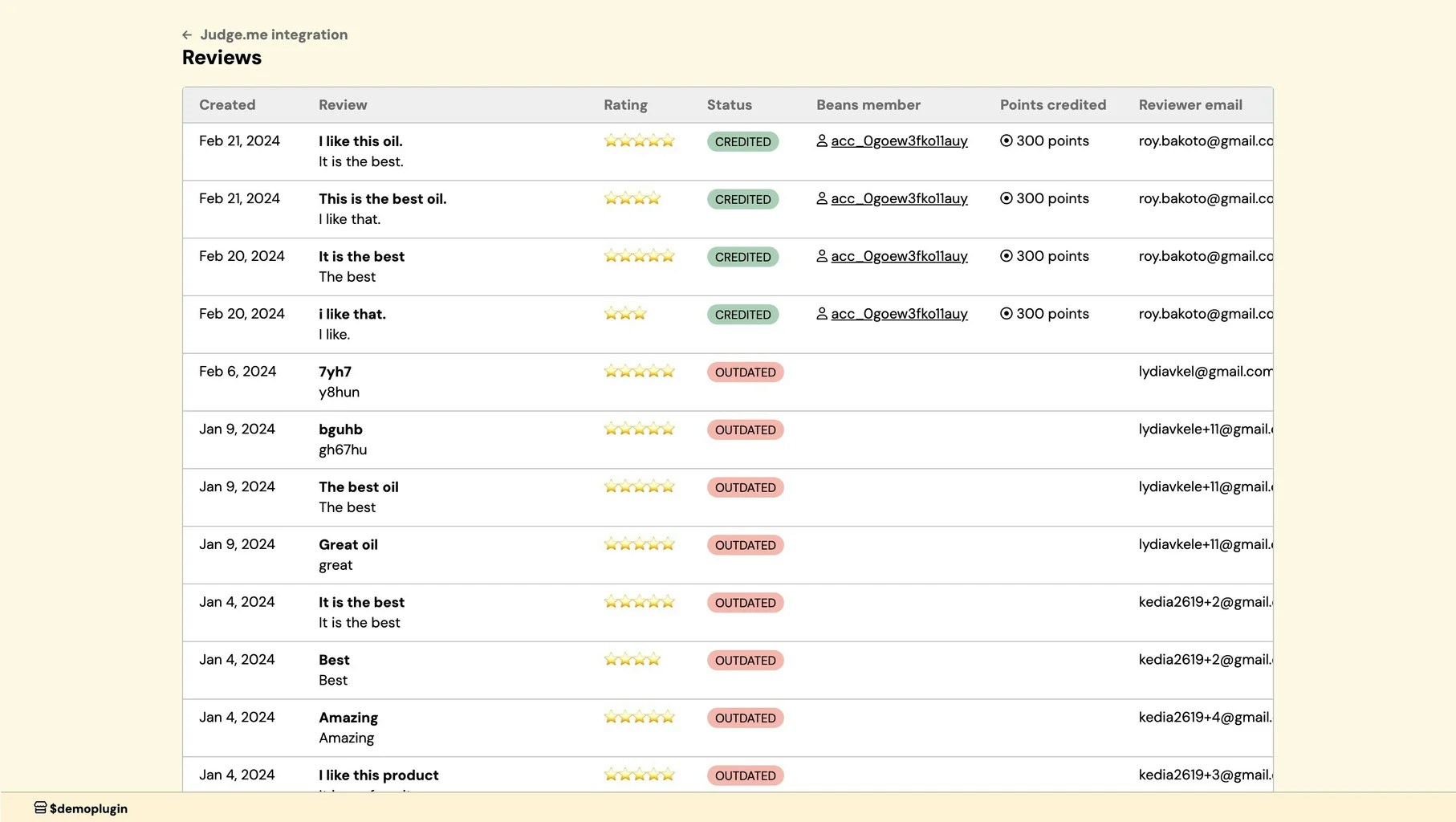 ## Status
This interface provides control over the status and data synchronization between Beans and Judge.me,
offering options to disconnect the integration, or reset the connection as needed.
To access the status page:
1. Navigate to the Judge.me integration home page
2. Click on **Status** in the integration navigation menu.
# Klaviyo
Source: https://docs.trybeans.com/integrations/klaviyo
Integrate Beans with Klaviyo to sync loyalty data with your email marketing
## Status
This interface provides control over the status and data synchronization between Beans and Judge.me,
offering options to disconnect the integration, or reset the connection as needed.
To access the status page:
1. Navigate to the Judge.me integration home page
2. Click on **Status** in the integration navigation menu.
# Klaviyo
Source: https://docs.trybeans.com/integrations/klaviyo
Integrate Beans with Klaviyo to sync loyalty data with your email marketing
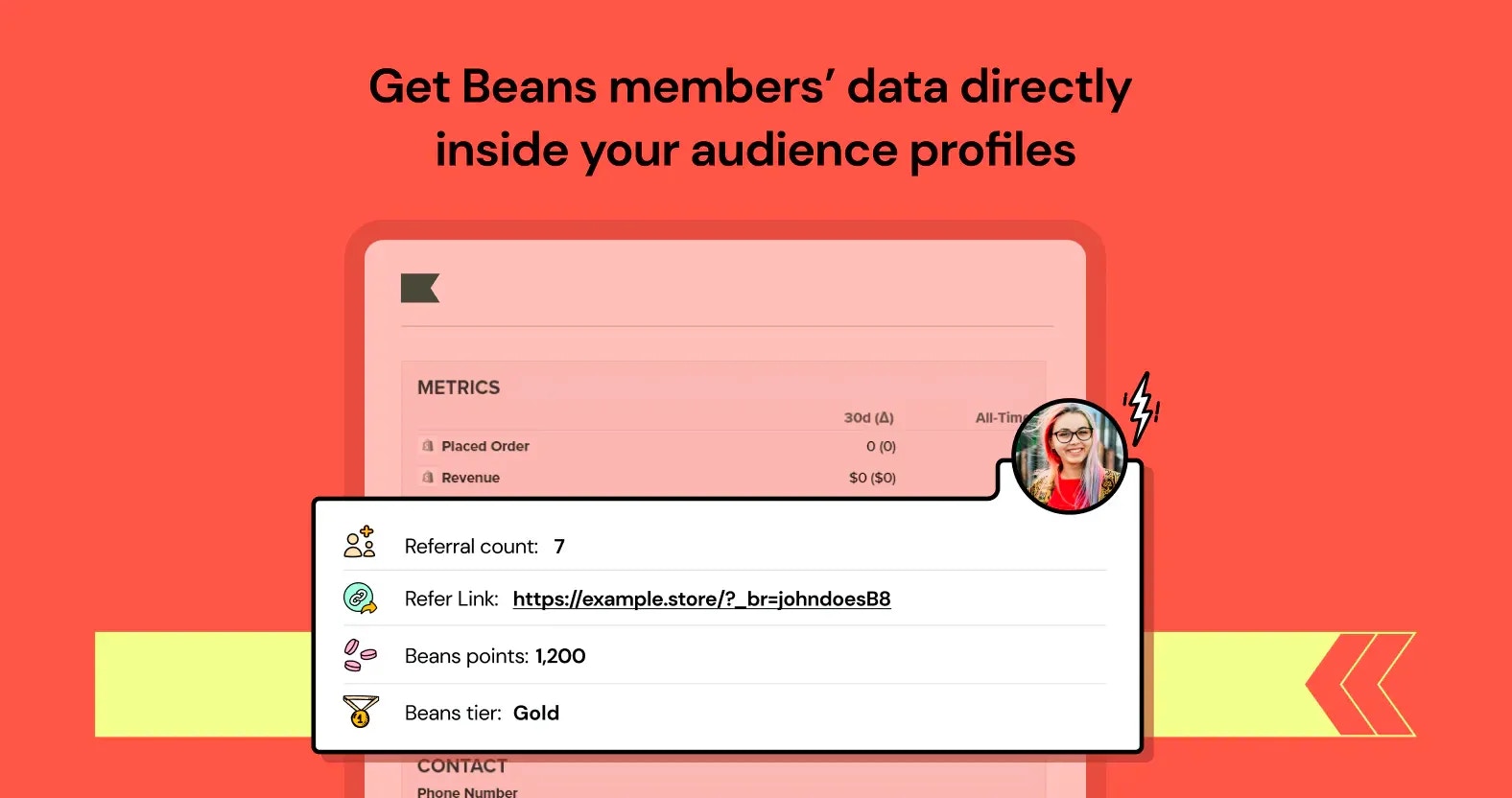 [Klaviyo](https://klaviyo.com/) is an email and sms automation platform that helps merchants
build advanced marketing flows. The
[Beans integration with Klaviyo](https://www.trybeans.com/integrations/trellis:klaviyo)
allows you to create personalized
emails for your rewards program and build segmented lists using rewards program data.
In addition, you can build custom email and sms flows based on rewards program events.
## Setup
1. From the Beans admin, go to **Integrations**.
2. Locate Klaviyo in the list of available integrations.
3. Click on the connect button and proceed as directed.
4. You will need to enter a **Klaviyo** **API key**.
5. Create a [**Klaviyo API Key**](https://help.klaviyo.com/hc/en-us/articles/7423954176283) with Full Access permission.
6. Copy and paste the Klaviyo **API key** into the designated field and click on Connect.
## Metrics
A metric indicates a specific type of event that occurred within the Beans app
and was subsequently synced to your Klaviyo account.
The following events are synced to your Klaviyo account.
[Klaviyo](https://klaviyo.com/) is an email and sms automation platform that helps merchants
build advanced marketing flows. The
[Beans integration with Klaviyo](https://www.trybeans.com/integrations/trellis:klaviyo)
allows you to create personalized
emails for your rewards program and build segmented lists using rewards program data.
In addition, you can build custom email and sms flows based on rewards program events.
## Setup
1. From the Beans admin, go to **Integrations**.
2. Locate Klaviyo in the list of available integrations.
3. Click on the connect button and proceed as directed.
4. You will need to enter a **Klaviyo** **API key**.
5. Create a [**Klaviyo API Key**](https://help.klaviyo.com/hc/en-us/articles/7423954176283) with Full Access permission.
6. Copy and paste the Klaviyo **API key** into the designated field and click on Connect.
## Metrics
A metric indicates a specific type of event that occurred within the Beans app
and was subsequently synced to your Klaviyo account.
The following events are synced to your Klaviyo account.
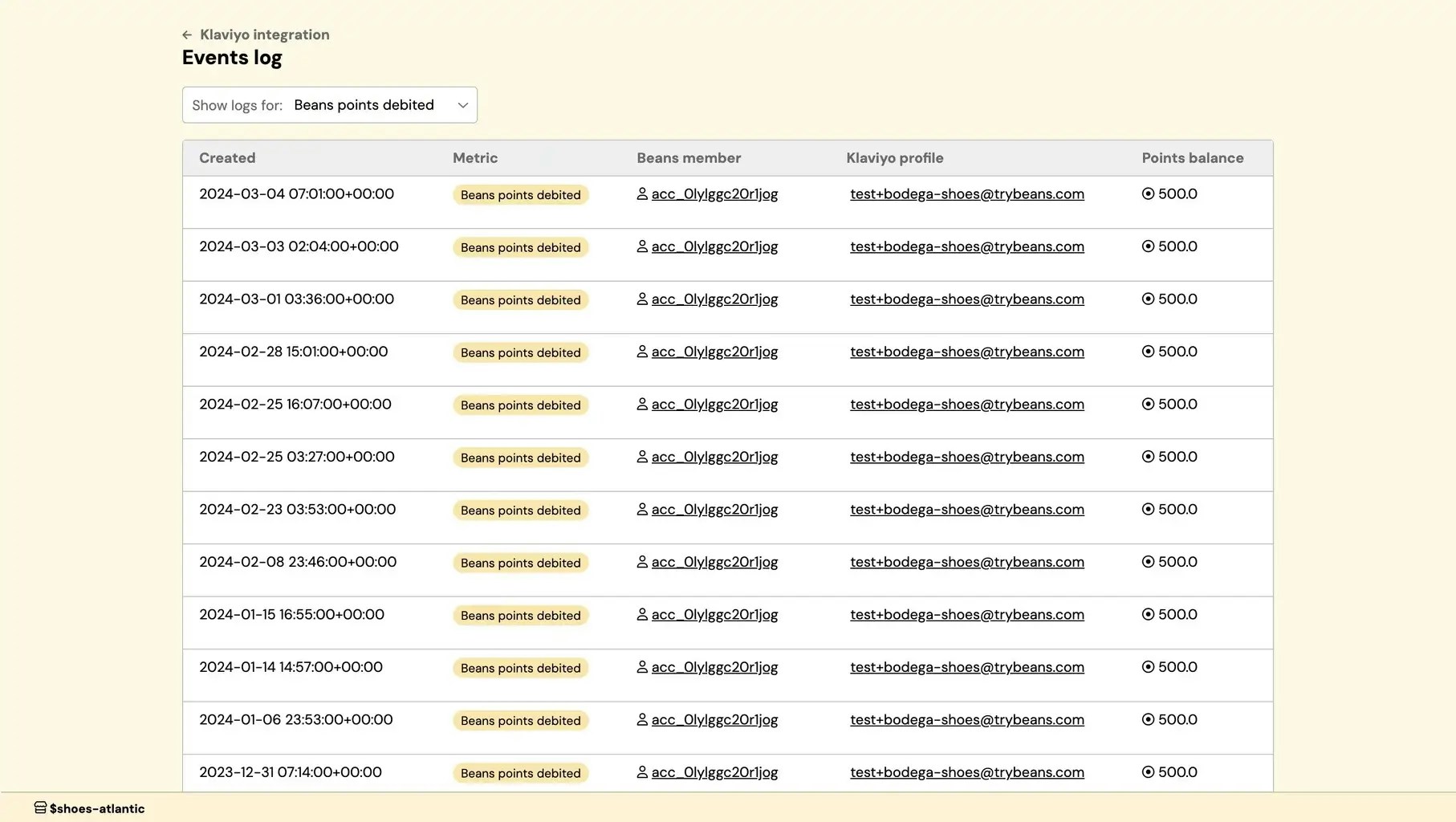 You can also view information about a specific event by
[checking a Profile activity log in the Klaviyo Dashboard](https://help.klaviyo.com/hc/en-us/articles/115005247088#h_01H93XCYWW5V0VAM8P1HCJXCS9).
You can also view information about a specific event by
[checking a Profile activity log in the Klaviyo Dashboard](https://help.klaviyo.com/hc/en-us/articles/115005247088#h_01H93XCYWW5V0VAM8P1HCJXCS9).
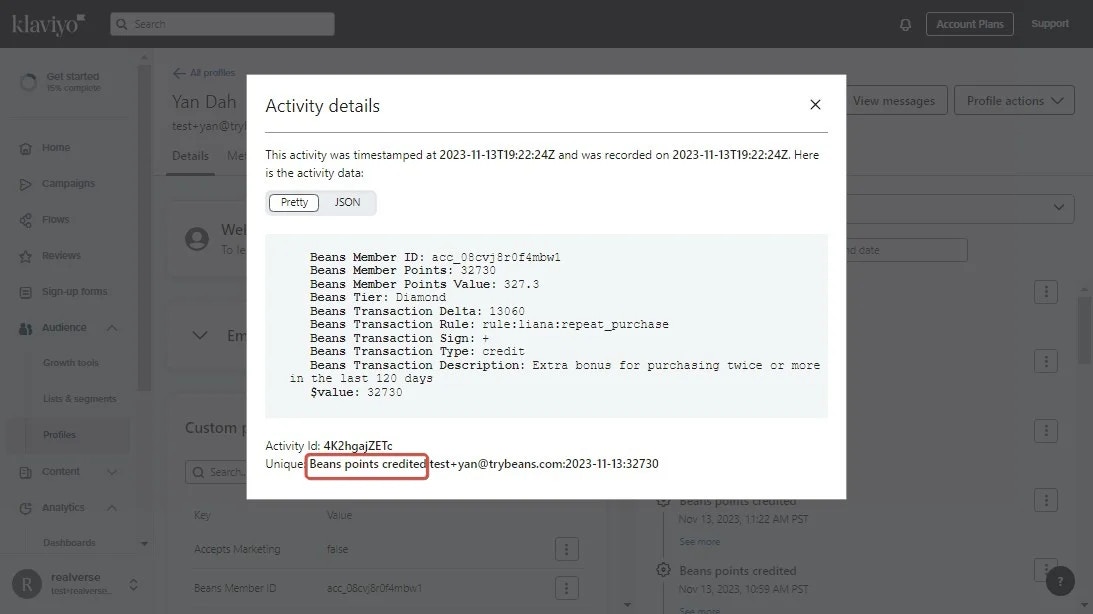 ## Status
This interface provides control over the status and data synchronization between Beans and Klaviyo,
offering options to disconnect the integration, or reset the connection as needed.
To access the status page:
1. Navigate to Klaviyo integration home page
2. Click on **Status** in the integration navigation menu.
### Reset synchronization
If you experience issues with data synchronization after reconnecting the integration between Beans and Klaviyo,
you can manually reset synchronization. This is useful since the integration only automatically resynchronizes
all data every 30 days, which may not suit your immediate needs.
To reset data synchronization:
1. From the Beans admin dashboard, navigate to the Klaviyo integration home page.
2. Select **Status** in the integration navigation menu.
3. Use the **Actions** dropdown at the top right to select **Reset synchronization**.
## Status
This interface provides control over the status and data synchronization between Beans and Klaviyo,
offering options to disconnect the integration, or reset the connection as needed.
To access the status page:
1. Navigate to Klaviyo integration home page
2. Click on **Status** in the integration navigation menu.
### Reset synchronization
If you experience issues with data synchronization after reconnecting the integration between Beans and Klaviyo,
you can manually reset synchronization. This is useful since the integration only automatically resynchronizes
all data every 30 days, which may not suit your immediate needs.
To reset data synchronization:
1. From the Beans admin dashboard, navigate to the Klaviyo integration home page.
2. Select **Status** in the integration navigation menu.
3. Use the **Actions** dropdown at the top right to select **Reset synchronization**.
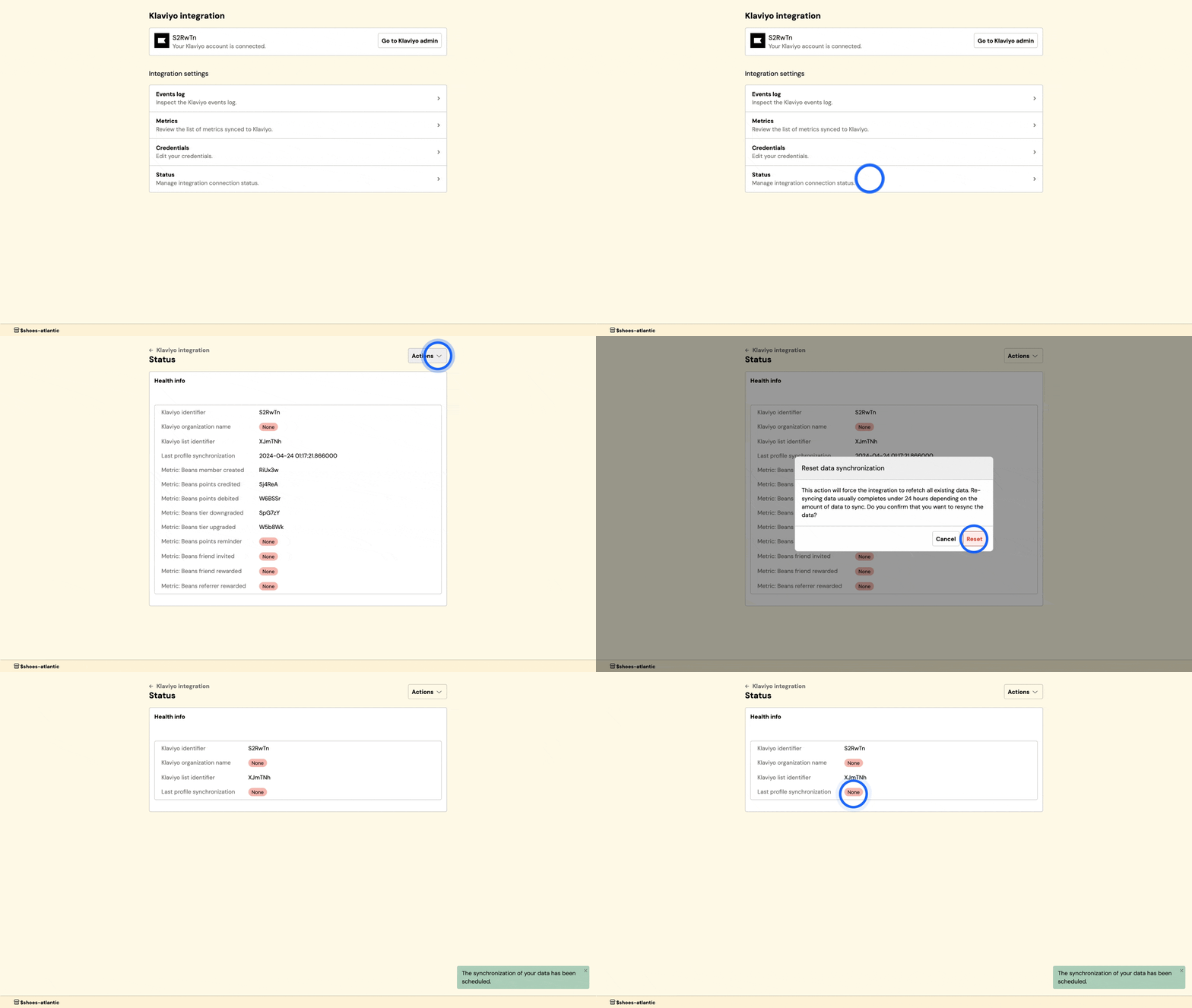 # Shopify
Source: https://docs.trybeans.com/integrations/shopify
Integrate Beans with your Shopify store.
# Shopify
Source: https://docs.trybeans.com/integrations/shopify
Integrate Beans with your Shopify store.
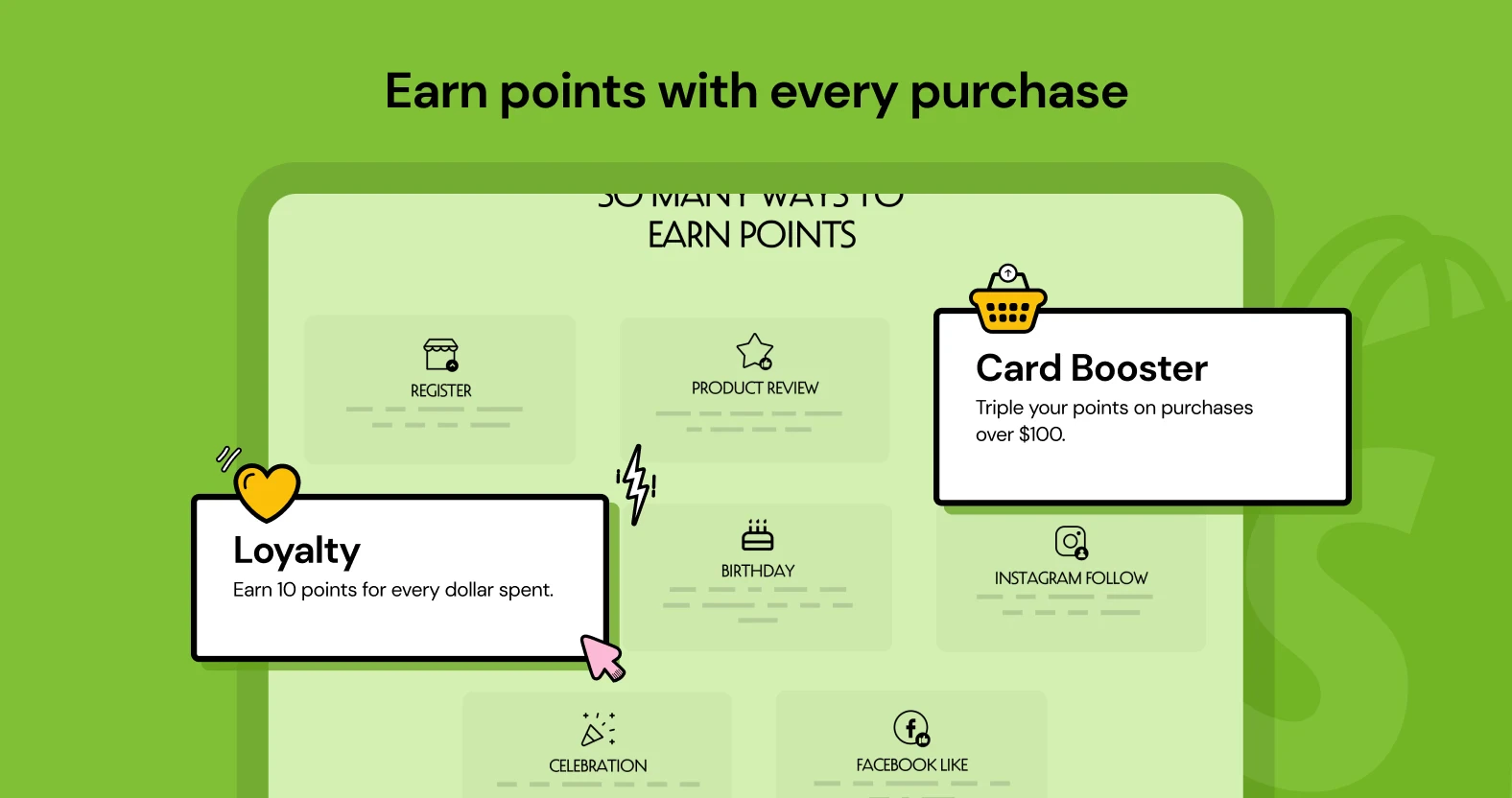 Shopify is a leading e-commerce platform that provides
merchants with the tools they need to sell products online efficiently.
[Integrating Beans with Shopify](https://www.trybeans.com/integrations/radix:shopify)
enhances this experience by enabling merchants to boost
customer loyalty through a rewards system. With Beans for Shopify, you can reward customers for their
purchases, encouraging repeat business and fostering a loyal customer base.
## Setup
To begin, install the [Beans app for Shopify](https://apps.shopify.com/beans)
through the Shopify App Store. Follow the
[Shopify guideline](https://help.shopify.com/en/manual/apps/installing-apps#install-through-the-shopify-app-store)
on how to install an app through the Shopify App Store.
## Customer accounts
In order to get the app to work as expected, it is required to enable customer accounts for your Shopify Store.
Shopify gives you the option to set customer accounts as disabled, optional or required.
Beans requires customer accounts to be set to optional or required.
Beans support both *Classic customer accounts* and *New customer accounts*.
Here is how to enable customer accounts with Shopify:
[Enable customer accounts](https://help.shopify.com/en/manual/checkout-settings/customer-accounts)
## Shopify OS 2.0
If you are using a Shopify Online Store 2.0 theme, it is essential to enable the Beans app in your Shopify theme.
The new Online Store 2.0 is an improvement released by Shopify to facilitate
full integration for app developers with a merchant's shop.
1. From the Shopify dashboard, go to your Themes page.
2. Locate the Current theme section and click on Customize.
3. Click on Theme Settings, go to the App Embed tab, then locate the Beans Ultimate app extension and switch it on.
Shopify is a leading e-commerce platform that provides
merchants with the tools they need to sell products online efficiently.
[Integrating Beans with Shopify](https://www.trybeans.com/integrations/radix:shopify)
enhances this experience by enabling merchants to boost
customer loyalty through a rewards system. With Beans for Shopify, you can reward customers for their
purchases, encouraging repeat business and fostering a loyal customer base.
## Setup
To begin, install the [Beans app for Shopify](https://apps.shopify.com/beans)
through the Shopify App Store. Follow the
[Shopify guideline](https://help.shopify.com/en/manual/apps/installing-apps#install-through-the-shopify-app-store)
on how to install an app through the Shopify App Store.
## Customer accounts
In order to get the app to work as expected, it is required to enable customer accounts for your Shopify Store.
Shopify gives you the option to set customer accounts as disabled, optional or required.
Beans requires customer accounts to be set to optional or required.
Beans support both *Classic customer accounts* and *New customer accounts*.
Here is how to enable customer accounts with Shopify:
[Enable customer accounts](https://help.shopify.com/en/manual/checkout-settings/customer-accounts)
## Shopify OS 2.0
If you are using a Shopify Online Store 2.0 theme, it is essential to enable the Beans app in your Shopify theme.
The new Online Store 2.0 is an improvement released by Shopify to facilitate
full integration for app developers with a merchant's shop.
1. From the Shopify dashboard, go to your Themes page.
2. Locate the Current theme section and click on Customize.
3. Click on Theme Settings, go to the App Embed tab, then locate the Beans Ultimate app extension and switch it on.
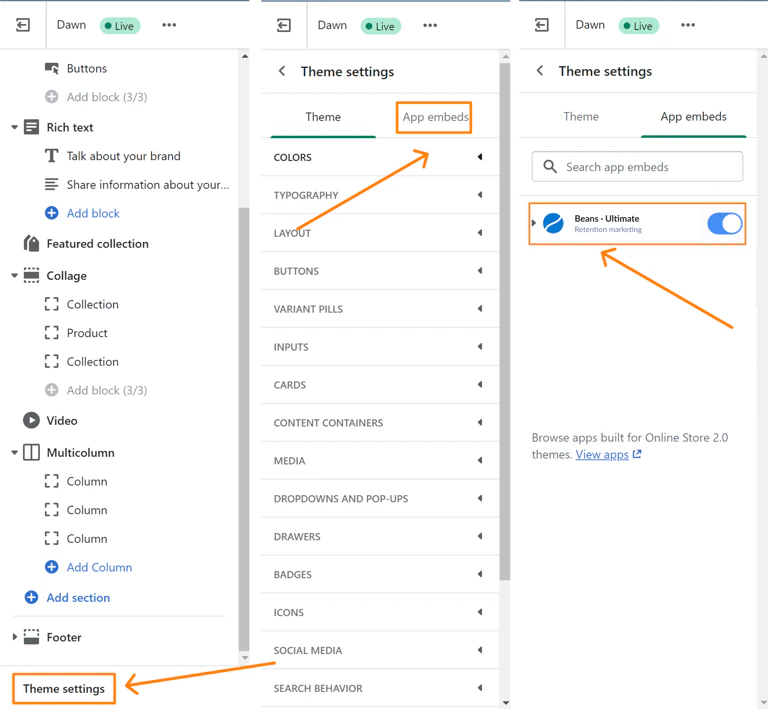 ## Rewards page
Beans automatically adds a rewards page to your shop.
By default, you can access the page at `https://example.myshopify.com/pages/rewards`, assuming
your website's full URL is `https://example.myshopify.com`.
The Shopify navigation tool let you dynamically set up a navigation menu for your website.
We recommend adding the link to the rewards program in the Main menu in order to make it easy for your customers to access.
Here is how to do: [Editing Shopify store menu](https://help.shopify.com/en/manual/sell-online/online-store/menus-and-links/editing-menus)
## Redemption
## Rewards page
Beans automatically adds a rewards page to your shop.
By default, you can access the page at `https://example.myshopify.com/pages/rewards`, assuming
your website's full URL is `https://example.myshopify.com`.
The Shopify navigation tool let you dynamically set up a navigation menu for your website.
We recommend adding the link to the rewards program in the Main menu in order to make it easy for your customers to access.
Here is how to do: [Editing Shopify store menu](https://help.shopify.com/en/manual/sell-online/online-store/menus-and-links/editing-menus)
## Redemption
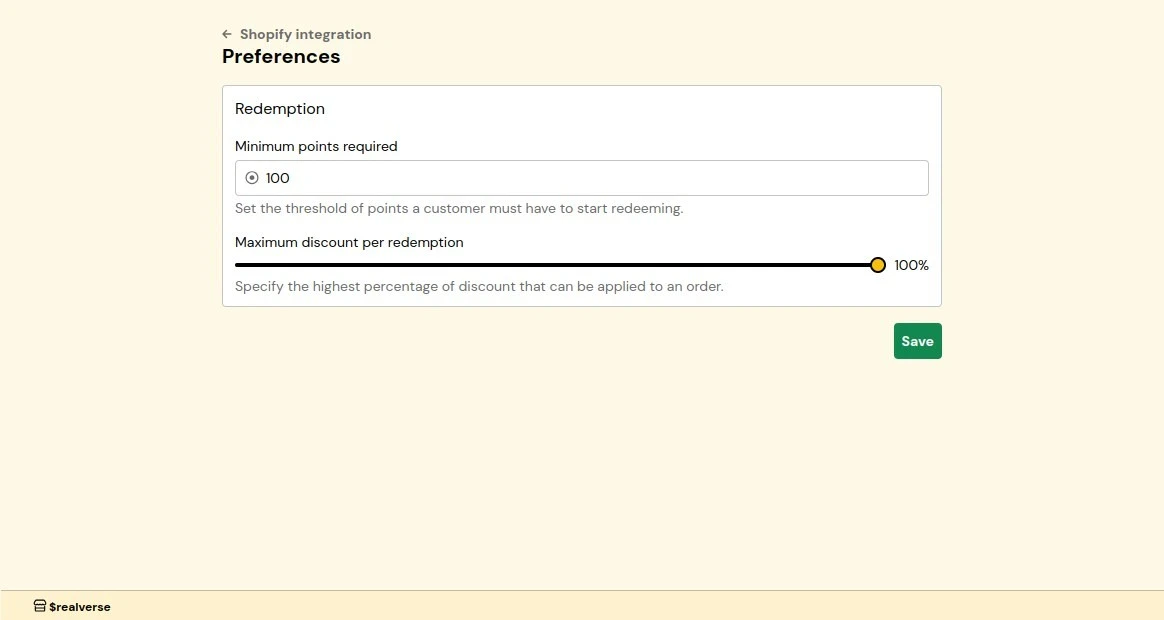 ### Minimum points required for redemption
Sets a minimum points threshold that customers must reach before redeeming rewards. By default,
customers need to accumulate at least 100 points before being eligible for redemption. You can
adjust this threshold higher to ensure meaningful program engagement and prevent inefficient redemptions.
For example, if you set the minimum to 500 points, customers would need to earn at least 500 points before
they can start redeeming rewards.
**How it works:**
1. From the Shopify integration dashboard, navigate to **Preferences**.
2. Locate the **Redemption** section and enter your desired minimum points threshold in the
**Minimum Points Required** field.
3. Click **Save** to apply changes.
### Minimum points required for redemption
Sets a minimum points threshold that customers must reach before redeeming rewards. By default,
customers need to accumulate at least 100 points before being eligible for redemption. You can
adjust this threshold higher to ensure meaningful program engagement and prevent inefficient redemptions.
For example, if you set the minimum to 500 points, customers would need to earn at least 500 points before
they can start redeeming rewards.
**How it works:**
1. From the Shopify integration dashboard, navigate to **Preferences**.
2. Locate the **Redemption** section and enter your desired minimum points threshold in the
**Minimum Points Required** field.
3. Click **Save** to apply changes.
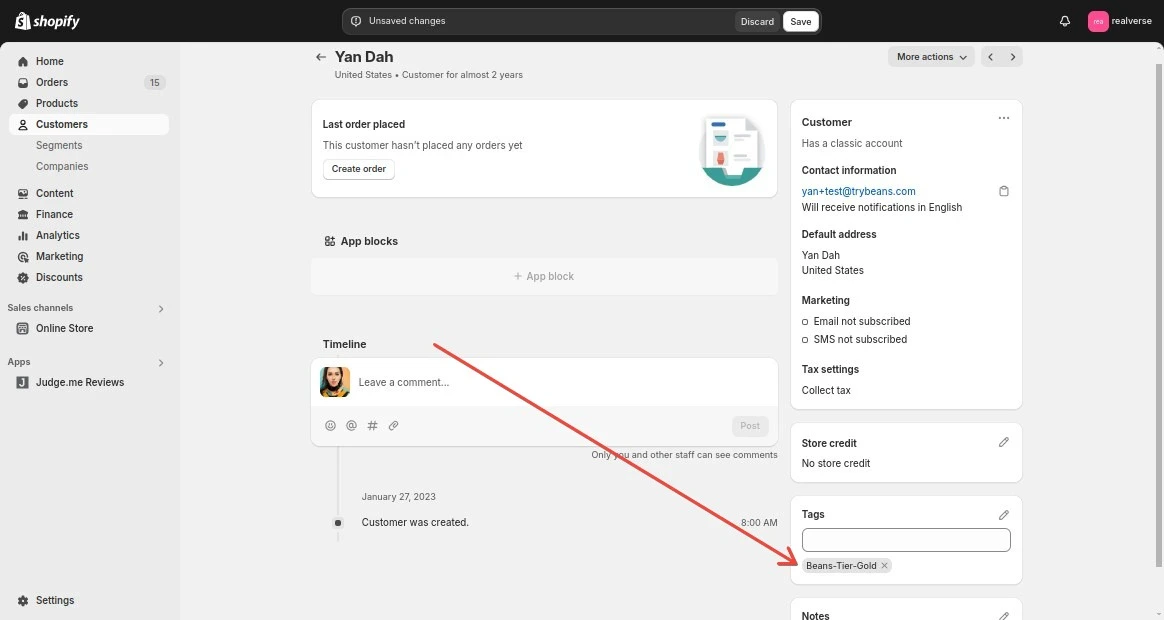 For example, if a customer reaches the Gold tier, they'll receive the tag **Beans-Tier-Gold** in their Shopify profile.
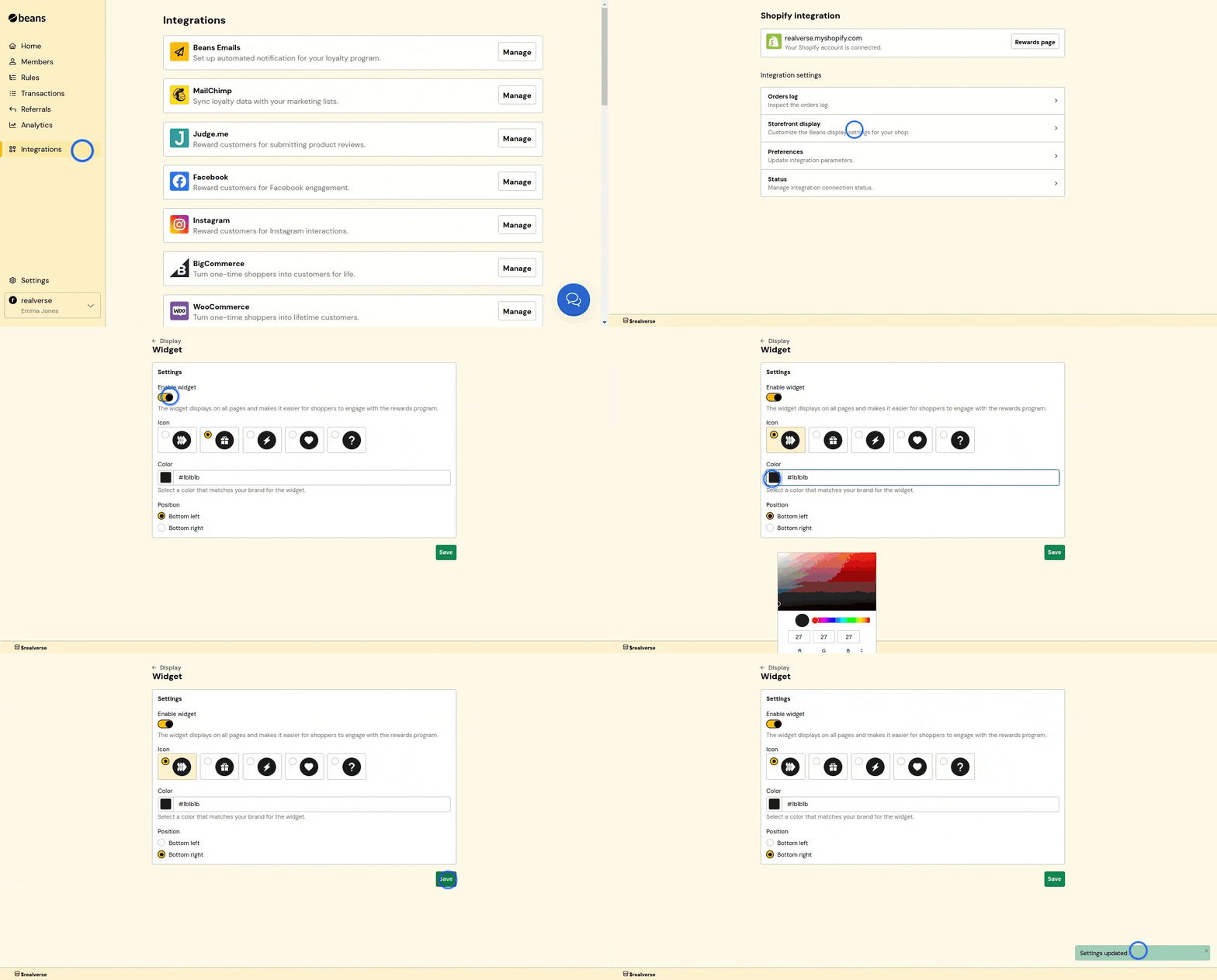 ### Rewards page
The rewards page is a dedicated section on your storefront that displays your rewards program details.
It allows customers to view their points balance, redeem rewards, and learn more about your program.
### Rewards page
The rewards page is a dedicated section on your storefront that displays your rewards program details.
It allows customers to view their points balance, redeem rewards, and learn more about your program.
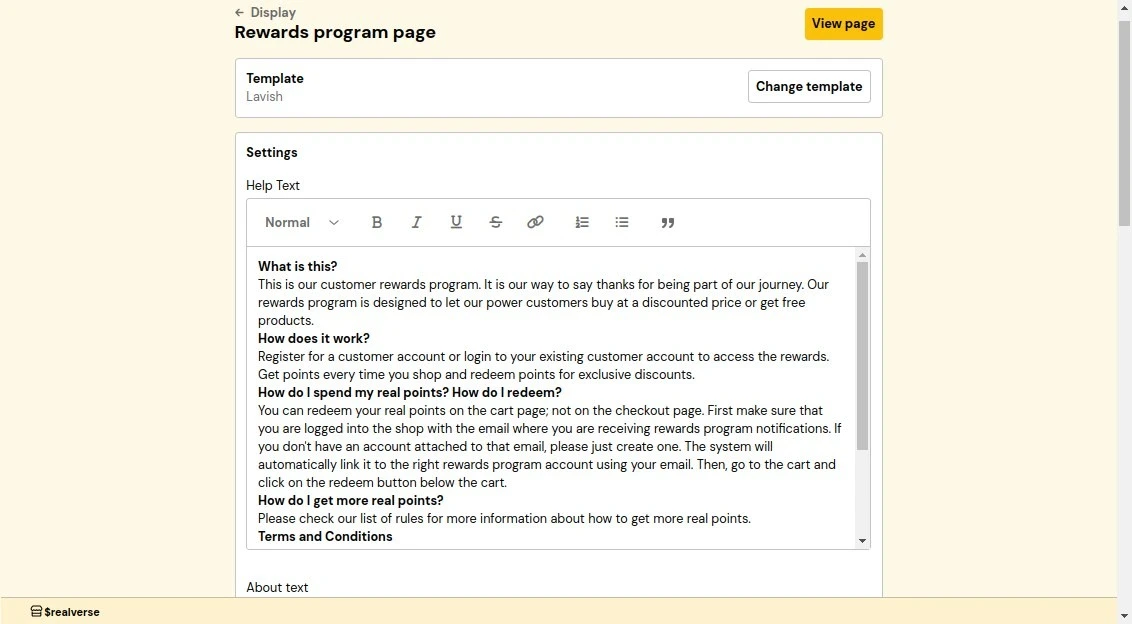 **How it works:**
1. From the Shopify integration dashboard, navigate to **Storefront display**.
2. Locate and click on **Rewards page**.
3. Customize the template and settings as needed.
4. Click **Save** to apply changes.
**Customization settings:**
* **Headline Text**: The main title displayed at the top of the rewards page to attract customer attention.
* **About Text**: A small block of text that explains your rewards program purpose and welcomes customers.
* **Help Text**: A FAQ-style text that explains your rewards program, including common questions like
"What is this?", "How does it work?", "How to redeem points?", and important terms and conditions.
* **Primary Color**: The main color used throughout the rewards page to maintain consistent branding with your store's theme.
* **Shop Now Link**: A direct link to the shopping page. It will be used as a call-to-action for customers to
start earning points.
* **Contrast Color**: A color that contrasts with your primary color, typically black or white, to ensure text readability.
### Referral page
The referral page is a dedicated section on your storefront that displays your referral program details.
It allows customers to view and share their referral link with friends.
**How it works:**
1. From the Shopify integration dashboard, navigate to **Storefront display**.
2. Locate and click on **Rewards page**.
3. Customize the template and settings as needed.
4. Click **Save** to apply changes.
**Customization settings:**
* **Headline Text**: The main title displayed at the top of the rewards page to attract customer attention.
* **About Text**: A small block of text that explains your rewards program purpose and welcomes customers.
* **Help Text**: A FAQ-style text that explains your rewards program, including common questions like
"What is this?", "How does it work?", "How to redeem points?", and important terms and conditions.
* **Primary Color**: The main color used throughout the rewards page to maintain consistent branding with your store's theme.
* **Shop Now Link**: A direct link to the shopping page. It will be used as a call-to-action for customers to
start earning points.
* **Contrast Color**: A color that contrasts with your primary color, typically black or white, to ensure text readability.
### Referral page
The referral page is a dedicated section on your storefront that displays your referral program details.
It allows customers to view and share their referral link with friends.
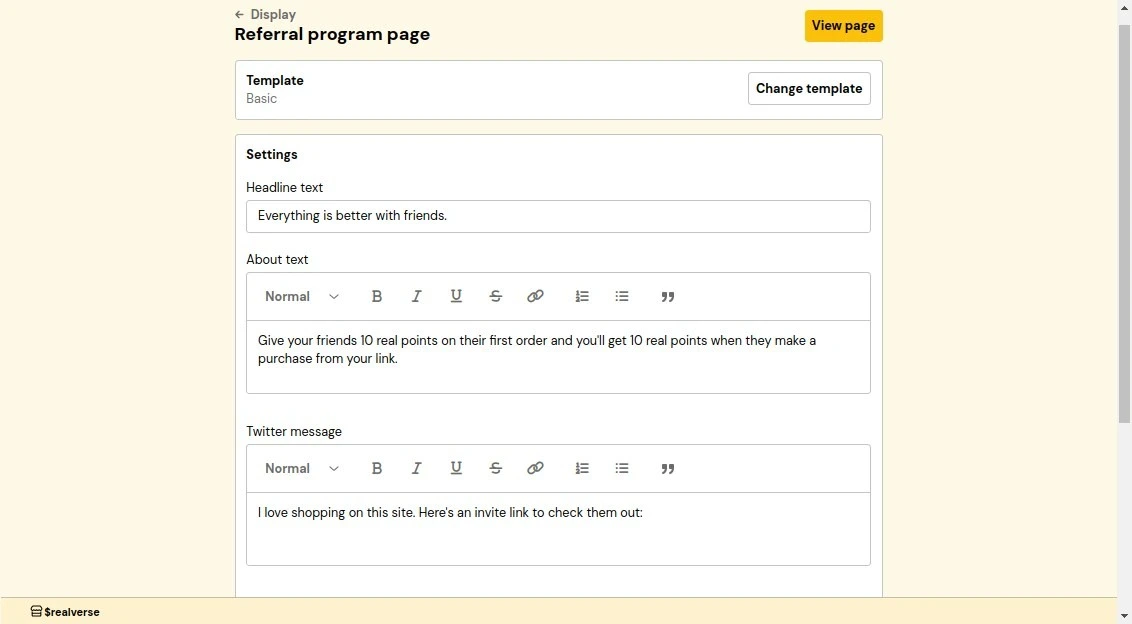 **How it works:**
1. From the Shopify integration dashboard, navigate to **Storefront display**.
2. Locate the **Referral page** section.
3. Customize the template and settings as needed.
4. Click **Save** to apply changes.
**Customization settings:**
* **Headline Text**: The main title displayed at the top of the referral page to attract customer attention.
* **About Text**: A small block of text that explains your referral program purpose and welcomes customers.
* **Twitter Message**: The default text that appears when customers share their referral link on Twitter.
* **Primary Color**: The main color used throughout the referral page to maintain consistent branding with your store's theme.
* **Contrast Color**: A color that contrasts with your primary color, typically black or white, to ensure text readability.
### Redemption button
The redemption button allows customers to redeem their rewards directly from the cart or checkout page.
By default, it is placed near the checkout call-to-action (CTA), allowing customers to apply their
rewards before completing a purchase.
**How it works:**
1. From the Shopify integration dashboard, navigate to **Storefront display**.
2. Locate the **Referral page** section.
3. Customize the template and settings as needed.
4. Click **Save** to apply changes.
**Customization settings:**
* **Headline Text**: The main title displayed at the top of the referral page to attract customer attention.
* **About Text**: A small block of text that explains your referral program purpose and welcomes customers.
* **Twitter Message**: The default text that appears when customers share their referral link on Twitter.
* **Primary Color**: The main color used throughout the referral page to maintain consistent branding with your store's theme.
* **Contrast Color**: A color that contrasts with your primary color, typically black or white, to ensure text readability.
### Redemption button
The redemption button allows customers to redeem their rewards directly from the cart or checkout page.
By default, it is placed near the checkout call-to-action (CTA), allowing customers to apply their
rewards before completing a purchase.
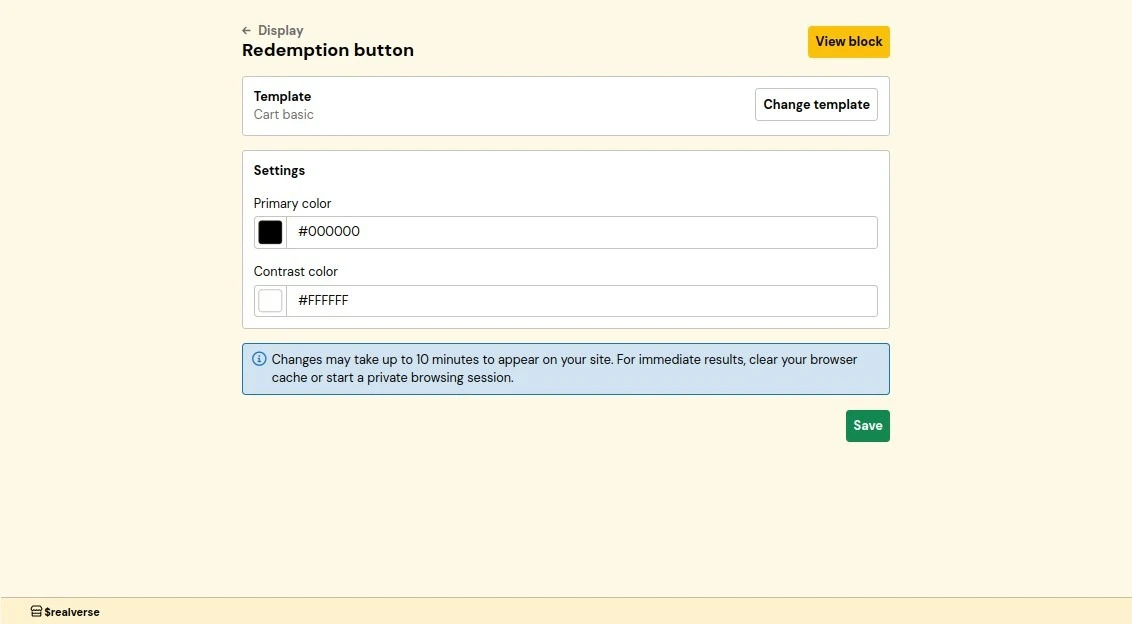 **How it works:**
1. From the Shopify integration dashboard, navigate to **Storefront display**.
2. Locate the **Redemption Button** section.
3. Customize the template and settings as needed.
4. Click **Save** to apply changes.
**Customization settings:**
* **Primary Color**: The button background color.
* **Contrast Color**: The button text color. It should contrast with your primary color. It is
recommended to use black or white to ensure text readability.
### Referral invitation popup
The referral invitation popup appears when someone visits a referral link, encouraging them to
join your rewards program using their unique link.
**How it works:**
1. From the Shopify integration dashboard, navigate to **Storefront display**.
2. Locate the **Redemption Button** section.
3. Customize the template and settings as needed.
4. Click **Save** to apply changes.
**Customization settings:**
* **Primary Color**: The button background color.
* **Contrast Color**: The button text color. It should contrast with your primary color. It is
recommended to use black or white to ensure text readability.
### Referral invitation popup
The referral invitation popup appears when someone visits a referral link, encouraging them to
join your rewards program using their unique link.
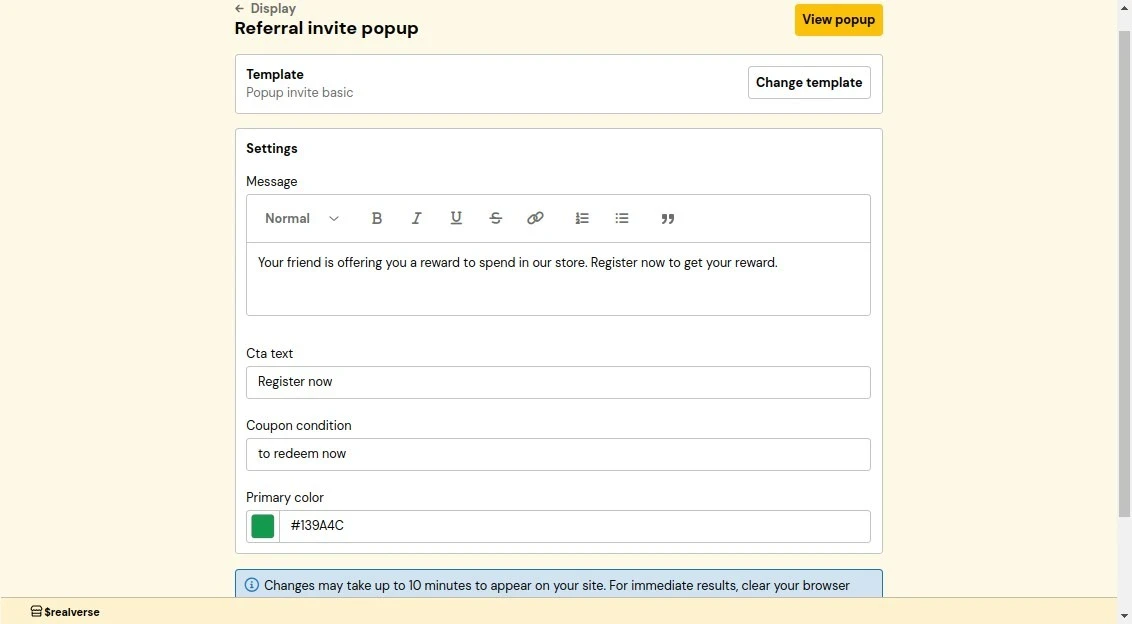 **How it works:**
1. From the Shopify integration dashboard, navigate to **Storefront display**.
2. Locate and click on **Referral Invitation Popup**.
3. Customize the template and settings as needed.
4. Click **Save** to apply changes.
**Customization settings:**
* **Message**: A message informing customers that they are being referred and inviting them
to sign up in order to get a reward.
* **Call-to-Action Text**: The text of the button to encourage customers to sign up.
* **Primary Color**: The popup's main color. It should match your brand colors.
### Referral reward popup
The referral reward popup notifies customers of successful referrals and encourages them to use their
rewards. This confirmation popup helps maintain engagement with your referral program.
**How it works:**
1. From the Shopify integration dashboard, navigate to **Storefront display**.
2. Locate and click on **Referral Invitation Popup**.
3. Customize the template and settings as needed.
4. Click **Save** to apply changes.
**Customization settings:**
* **Message**: A message informing customers that they are being referred and inviting them
to sign up in order to get a reward.
* **Call-to-Action Text**: The text of the button to encourage customers to sign up.
* **Primary Color**: The popup's main color. It should match your brand colors.
### Referral reward popup
The referral reward popup notifies customers of successful referrals and encourages them to use their
rewards. This confirmation popup helps maintain engagement with your referral program.
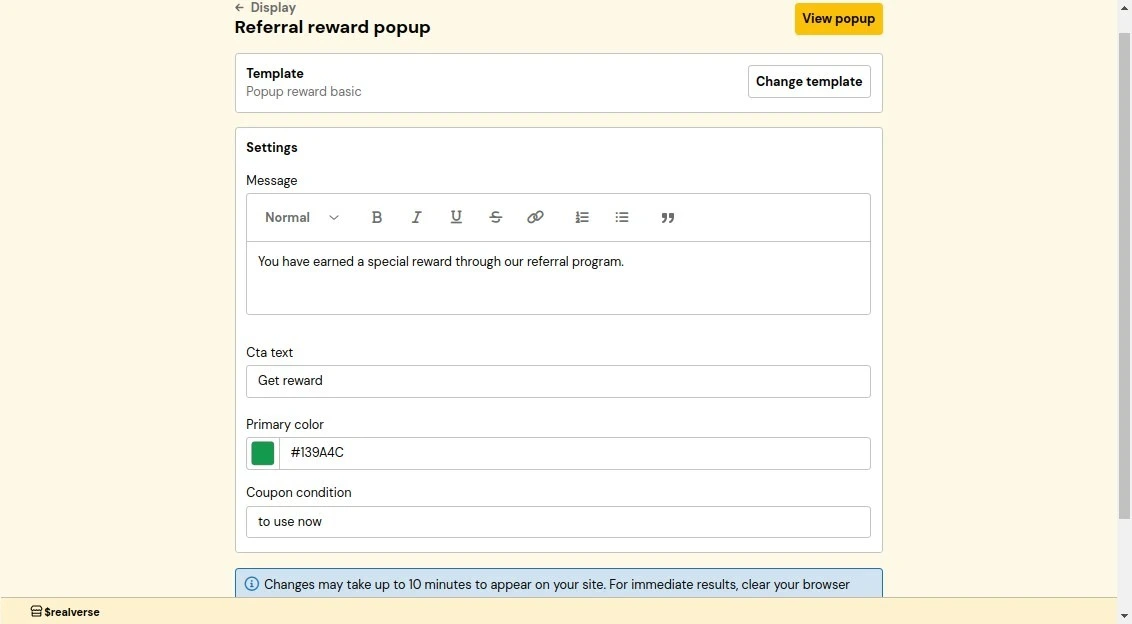 **How it works:**
1. From the Shopify integration dashboard, navigate to **Storefront display**.
2. Locate the **Referral Reward Popup** section.
3. Customize the template and settings as needed.
4. Click **Save** to apply changes.
**Customization settings:**
* **Message**: A confirmation message informing customers that their referral was successful.
* **Call-to-Action Text**: The text of the button to encourage customers to redeem their reward.
* **Primary Color**: The popup's main color. It should match your brand colors.
## Reinstall
If you suspect the Beans plugin isn't properly installed on your Shopify site,
Beans provides a straightforward solution to address this without any negative side effects.
1. From the Beans admin dashboard, navigate to the Shopify integration home page.
2. Select **Status** in the integration navigation menu.
3. From the **Actions** dropdown on the top right, select **Reinstall Beans**.
## Uninstall Beans from Shopify
Follow these steps to completely remove Beans from your Shopify store:
**How it works:**
1. From the Shopify integration dashboard, navigate to **Storefront display**.
2. Locate the **Referral Reward Popup** section.
3. Customize the template and settings as needed.
4. Click **Save** to apply changes.
**Customization settings:**
* **Message**: A confirmation message informing customers that their referral was successful.
* **Call-to-Action Text**: The text of the button to encourage customers to redeem their reward.
* **Primary Color**: The popup's main color. It should match your brand colors.
## Reinstall
If you suspect the Beans plugin isn't properly installed on your Shopify site,
Beans provides a straightforward solution to address this without any negative side effects.
1. From the Beans admin dashboard, navigate to the Shopify integration home page.
2. Select **Status** in the integration navigation menu.
3. From the **Actions** dropdown on the top right, select **Reinstall Beans**.
## Uninstall Beans from Shopify
Follow these steps to completely remove Beans from your Shopify store:
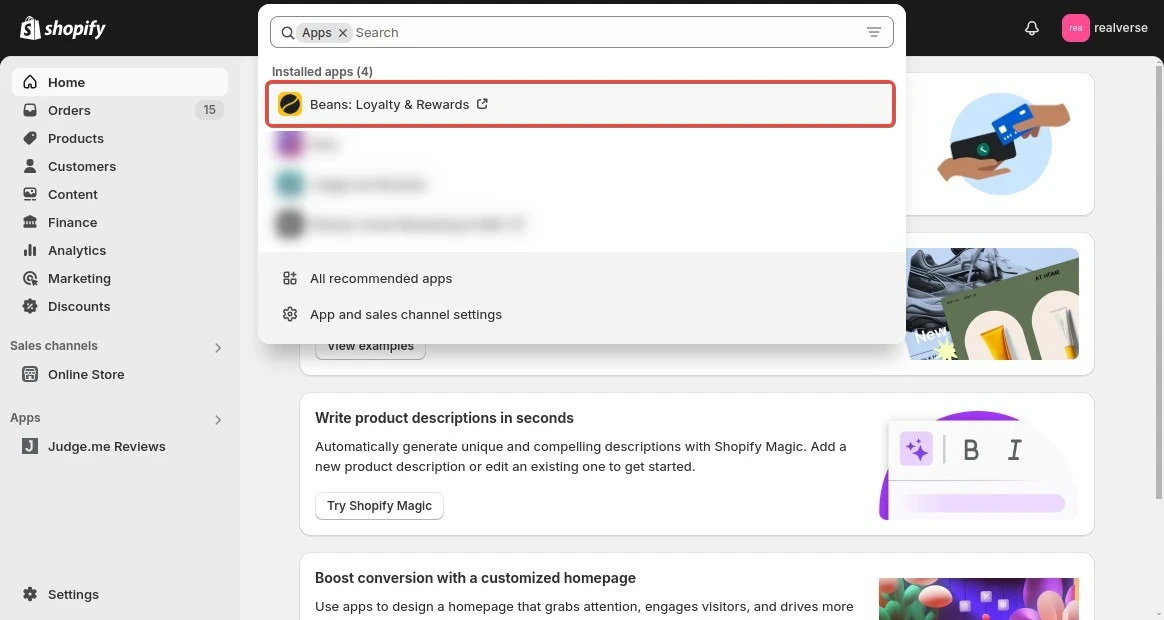 1. From your Shopify admin, go to **Apps**.
2. Find Beans in your installed apps list.
3. Click **Delete** to remove the application.
4. Remove the automatically created program pages:
* Go to **Online Store > Pages**
* Find and delete the "Rewards Program" page
* Find and delete the "Referral Program" page
5. Remove the Beans authentication code:
* Go to **Online Store > Themes**
* Click **Actions > Edit code**
* Open the `theme.liquid` file
* Find and delete the following snippet:
```js theme={null}
```
# API Tokens
Source: https://docs.trybeans.com/integrations/tokenify
Generate and manage API authentication credentials.
1. From your Shopify admin, go to **Apps**.
2. Find Beans in your installed apps list.
3. Click **Delete** to remove the application.
4. Remove the automatically created program pages:
* Go to **Online Store > Pages**
* Find and delete the "Rewards Program" page
* Find and delete the "Referral Program" page
5. Remove the Beans authentication code:
* Go to **Online Store > Themes**
* Click **Actions > Edit code**
* Open the `theme.liquid` file
* Find and delete the following snippet:
```js theme={null}
```
# API Tokens
Source: https://docs.trybeans.com/integrations/tokenify
Generate and manage API authentication credentials.
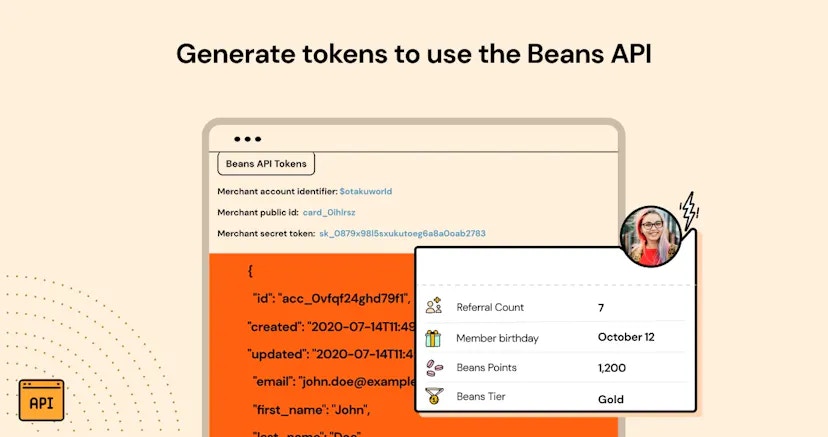 Beans API Tokens is a utility that lets merchants generate and manage API authentication credentials.
It's designed to help merchants:
* Integrate Beans with their existing tech stack
* Create custom business logic with Beans data
* Access Beans data through the Beans API for analytics and automation
Beans API Tokens is a utility that lets merchants generate and manage API authentication credentials.
It's designed to help merchants:
* Integrate Beans with their existing tech stack
* Create custom business logic with Beans data
* Access Beans data through the Beans API for analytics and automation
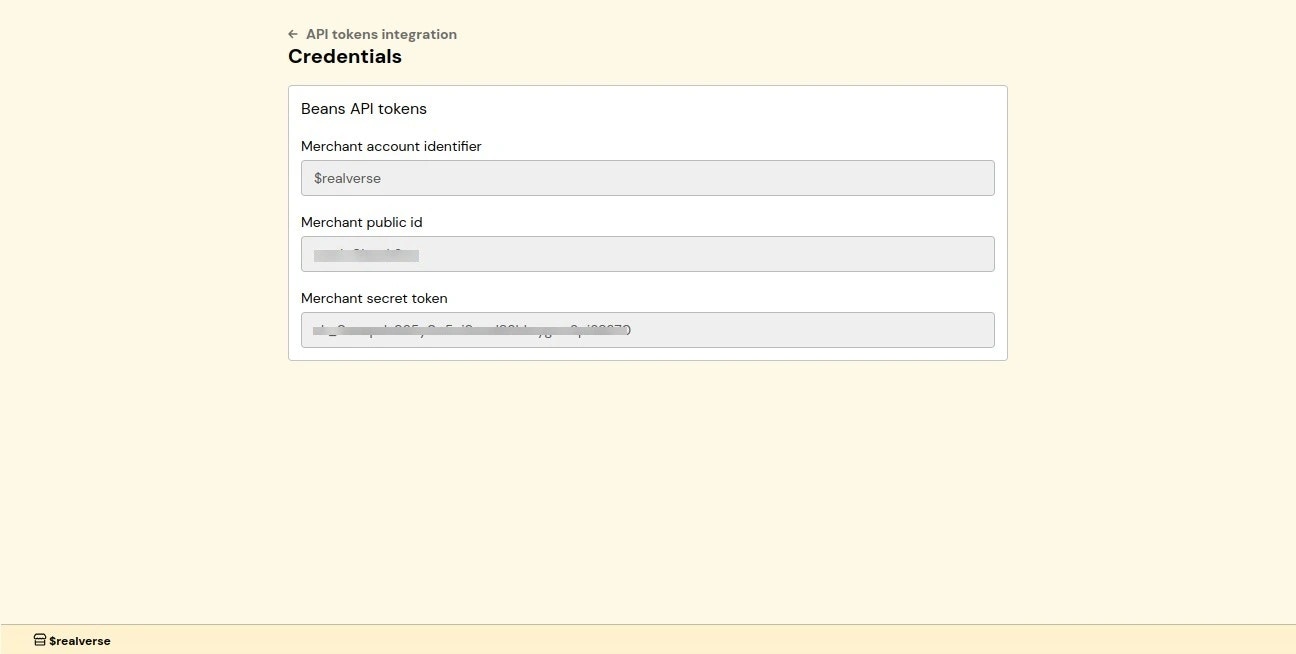 ## Example
Here is an example of how to use the API to access Beans data.
```bash theme={null}
curl -u "
## Example
Here is an example of how to use the API to access Beans data.
```bash theme={null}
curl -u "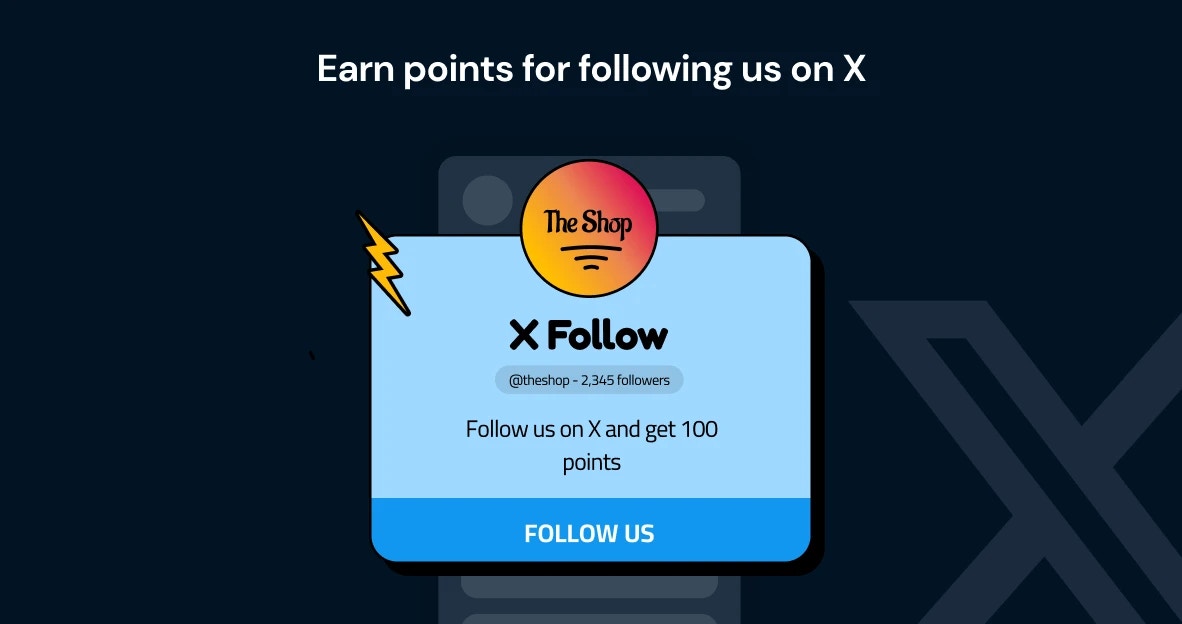 [Twitter](https://www.twitter.com/), also known as the X platform, is a dynamic platform that
connects people and brands through real-time conversations and updates.
The [integration between Beans and Twitter](https://www.trybeans.com/integrations/trellis:twitter) allows
merchants to significantly boost their brand engagement by offering an attractive incentive:
rewarding customers for following the brand’s Twitter account. This strategic collaboration helps merchants
leverage social interactions to build customer loyalty and enhance their online presence.
## Setup
1. From the Beans admin, go to **Integrations**.
2. Locate **Twitter** in the list of available integrations.
3. Click on the **Connect** button and proceed as directed.
4. Grant Beans permission to access your Twitter account.
## Rules
### Points for Twitter Follow
This feature allows you to reward customers with loyalty points
when they follow your Twitter page, enhancing engagement and growing your social media presence.
**How it works:** Once you enable this feature, customers can earn points by following your brand on Twitter.
This applies to both new and existing followers, ensuring all your customers have the opportunity to be rewarded.
**Important details:** Customers are rewarded with points only once for following the page.
The system ensures that points are not awarded multiple times to the same customer,
even if they unfollow and refollow the page. If a customer decides to unfollow your brand,
the points previously awarded for following will not be revoked.
## Status
This interface provides control over the status and data synchronization between Beans and Twitter,
offering options to disconnect the integration, or reset the connection as needed.
To access the status page:
1. Navigate to the Twitter integration home page
2. Click on **Status** in the integration navigation menu.
# WooCommerce
Source: https://docs.trybeans.com/integrations/woocommerce
Integrate Beans with your WooCommerce store.
[Twitter](https://www.twitter.com/), also known as the X platform, is a dynamic platform that
connects people and brands through real-time conversations and updates.
The [integration between Beans and Twitter](https://www.trybeans.com/integrations/trellis:twitter) allows
merchants to significantly boost their brand engagement by offering an attractive incentive:
rewarding customers for following the brand’s Twitter account. This strategic collaboration helps merchants
leverage social interactions to build customer loyalty and enhance their online presence.
## Setup
1. From the Beans admin, go to **Integrations**.
2. Locate **Twitter** in the list of available integrations.
3. Click on the **Connect** button and proceed as directed.
4. Grant Beans permission to access your Twitter account.
## Rules
### Points for Twitter Follow
This feature allows you to reward customers with loyalty points
when they follow your Twitter page, enhancing engagement and growing your social media presence.
**How it works:** Once you enable this feature, customers can earn points by following your brand on Twitter.
This applies to both new and existing followers, ensuring all your customers have the opportunity to be rewarded.
**Important details:** Customers are rewarded with points only once for following the page.
The system ensures that points are not awarded multiple times to the same customer,
even if they unfollow and refollow the page. If a customer decides to unfollow your brand,
the points previously awarded for following will not be revoked.
## Status
This interface provides control over the status and data synchronization between Beans and Twitter,
offering options to disconnect the integration, or reset the connection as needed.
To access the status page:
1. Navigate to the Twitter integration home page
2. Click on **Status** in the integration navigation menu.
# WooCommerce
Source: https://docs.trybeans.com/integrations/woocommerce
Integrate Beans with your WooCommerce store.
 WooCommerce is an open-source e-commerce platform designed to provide merchants
with the tools they need to sell products online effectively.
[Integrating Beans with WooCommerce](https://www.trybeans.com/integrations/radix:woocommerce)
enhances this experience by enabling merchants
to boost customer loyalty through a rewards system. With Beans for WooCommerce,
you can reward customers for their purchases,
encouraging repeat business and fostering a loyal customer base.
## Setup
To begin, install the [Beans plugin for WooCommerce](https://wordpress.org/plugins/beans-woocommerce-loyalty-rewards/)
from the WordPress plugin repository. Follow the
[WordPress guideline](https://wordpress.org/documentation/article/manage-plugins/) for plugin installation.
After installation, activate the plugin and connect Beans to your shop using the setup instructions.
To manually connect Beans to your WooCommerce store, follow these steps:
WooCommerce is an open-source e-commerce platform designed to provide merchants
with the tools they need to sell products online effectively.
[Integrating Beans with WooCommerce](https://www.trybeans.com/integrations/radix:woocommerce)
enhances this experience by enabling merchants
to boost customer loyalty through a rewards system. With Beans for WooCommerce,
you can reward customers for their purchases,
encouraging repeat business and fostering a loyal customer base.
## Setup
To begin, install the [Beans plugin for WooCommerce](https://wordpress.org/plugins/beans-woocommerce-loyalty-rewards/)
from the WordPress plugin repository. Follow the
[WordPress guideline](https://wordpress.org/documentation/article/manage-plugins/) for plugin installation.
After installation, activate the plugin and connect Beans to your shop using the setup instructions.
To manually connect Beans to your WooCommerce store, follow these steps:
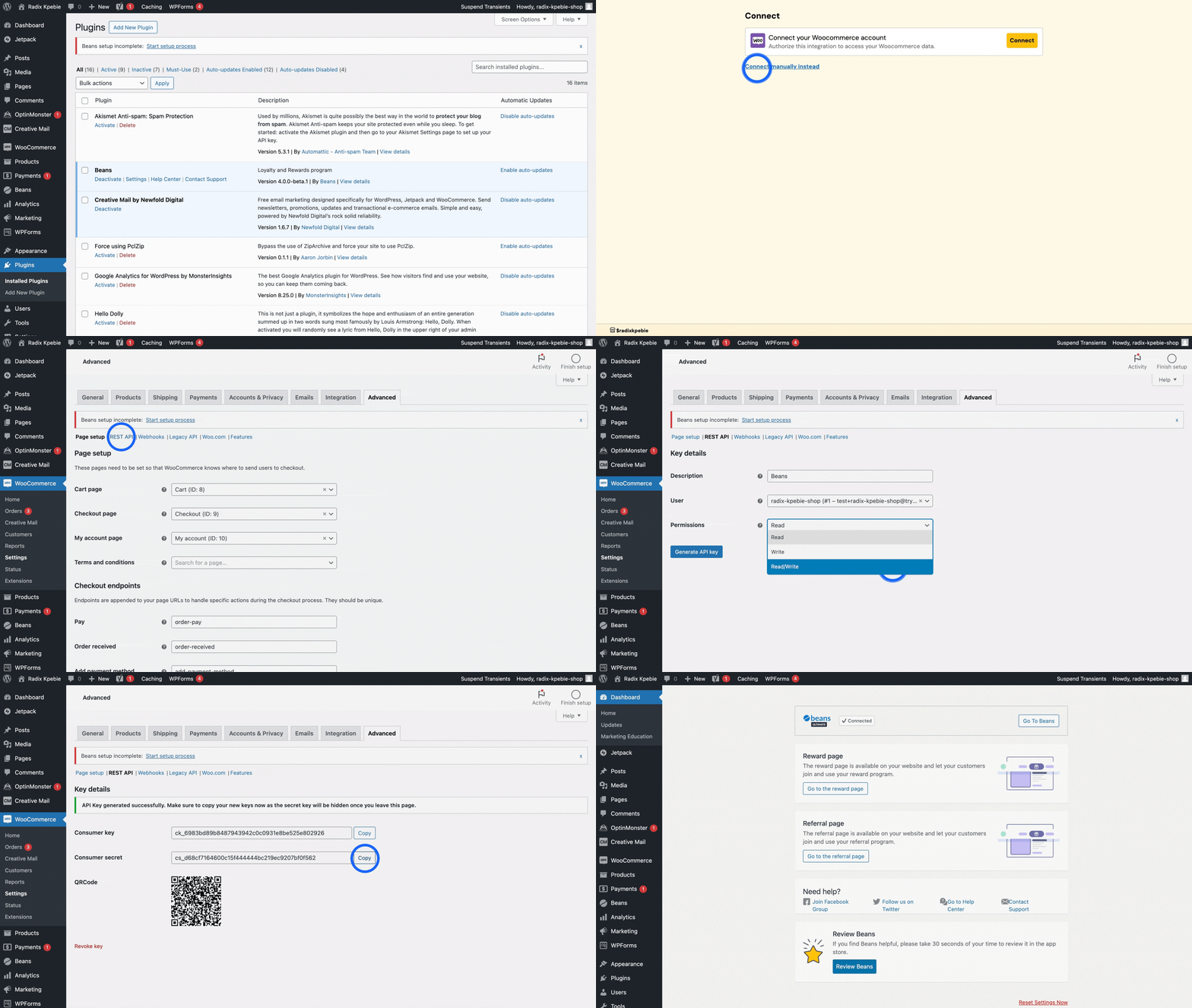 1. Navigate to the plugins management page in your WordPress admin.
2. Find **Beans** and select **settings**.
3. On the Beans admin page within WordPress, follow the prompts and click **Connect**.
4. Select your Beans account or create a new one. If you already have one, log in.
5. Once on the connect page, choose **Connect manually**.
6. Provide WooCommerce API keys as instructed.
7. In WordPress admin, go to **WooCommerce > Settings > Advanced > REST API**.
8. Select **Add key** to create a new key for Beans.
9. Fill out the form: name the key, choose the primary admin as the user, and set permissions to **Read/Write**.
10. Generate and copy the API Key.
11. Paste the keys into the Beans interface form field.
12. Click **Connect** to complete the process.
## Rewards page
The Beans plugin for WooCommerce automatically adds a rewards page to your shop.
By default, you can access the page at `https://myshop.com/rewards-program`, assuming
your website's full URL is `https://myshop.com`.
To display the rewards program page, Beans uses the shortcode `[beans_page]`.
This makes it very easy to edit the page if necessary.
It is recommended to add the link to your rewards program in the main menu to make it easy for your customers to access.
Here is how to do it: [How to Add Navigation Menu in WordPress](https://www.wpbeginner.com/beginners-guide/how-to-add-navigation-menu-in-wordpress-beginners-guide/)
1. Navigate to the plugins management page in your WordPress admin.
2. Find **Beans** and select **settings**.
3. On the Beans admin page within WordPress, follow the prompts and click **Connect**.
4. Select your Beans account or create a new one. If you already have one, log in.
5. Once on the connect page, choose **Connect manually**.
6. Provide WooCommerce API keys as instructed.
7. In WordPress admin, go to **WooCommerce > Settings > Advanced > REST API**.
8. Select **Add key** to create a new key for Beans.
9. Fill out the form: name the key, choose the primary admin as the user, and set permissions to **Read/Write**.
10. Generate and copy the API Key.
11. Paste the keys into the Beans interface form field.
12. Click **Connect** to complete the process.
## Rewards page
The Beans plugin for WooCommerce automatically adds a rewards page to your shop.
By default, you can access the page at `https://myshop.com/rewards-program`, assuming
your website's full URL is `https://myshop.com`.
To display the rewards program page, Beans uses the shortcode `[beans_page]`.
This makes it very easy to edit the page if necessary.
It is recommended to add the link to your rewards program in the main menu to make it easy for your customers to access.
Here is how to do it: [How to Add Navigation Menu in WordPress](https://www.wpbeginner.com/beginners-guide/how-to-add-navigation-menu-in-wordpress-beginners-guide/)
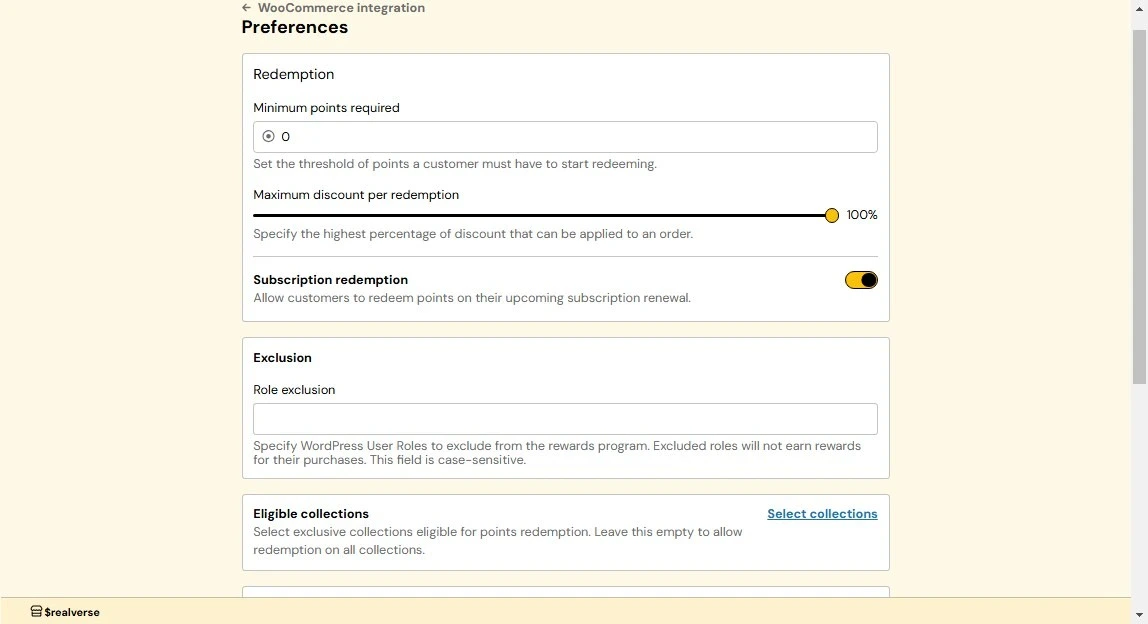 ### Minimum points required for redemption
Sets a minimum points threshold that customers must reach before redeeming rewards. By default,
customers need to accumulate at least 100 points before being eligible for redemption. You can
adjust this threshold higher to ensure meaningful program engagement and prevent inefficient redemptions.
For example, if you set the minimum to 500 points, customers would need to earn at least 500 points before
they can start redeeming rewards.
**How it works:**
1. From the WooCommerce integration dashboard, navigate to **Preferences**.
2. Locate the **Redemption** section and enter your desired minimum points threshold in the
**Minimum Points Required** field.
3. Click **Save** to apply changes.
### Minimum points required for redemption
Sets a minimum points threshold that customers must reach before redeeming rewards. By default,
customers need to accumulate at least 100 points before being eligible for redemption. You can
adjust this threshold higher to ensure meaningful program engagement and prevent inefficient redemptions.
For example, if you set the minimum to 500 points, customers would need to earn at least 500 points before
they can start redeeming rewards.
**How it works:**
1. From the WooCommerce integration dashboard, navigate to **Preferences**.
2. Locate the **Redemption** section and enter your desired minimum points threshold in the
**Minimum Points Required** field.
3. Click **Save** to apply changes.
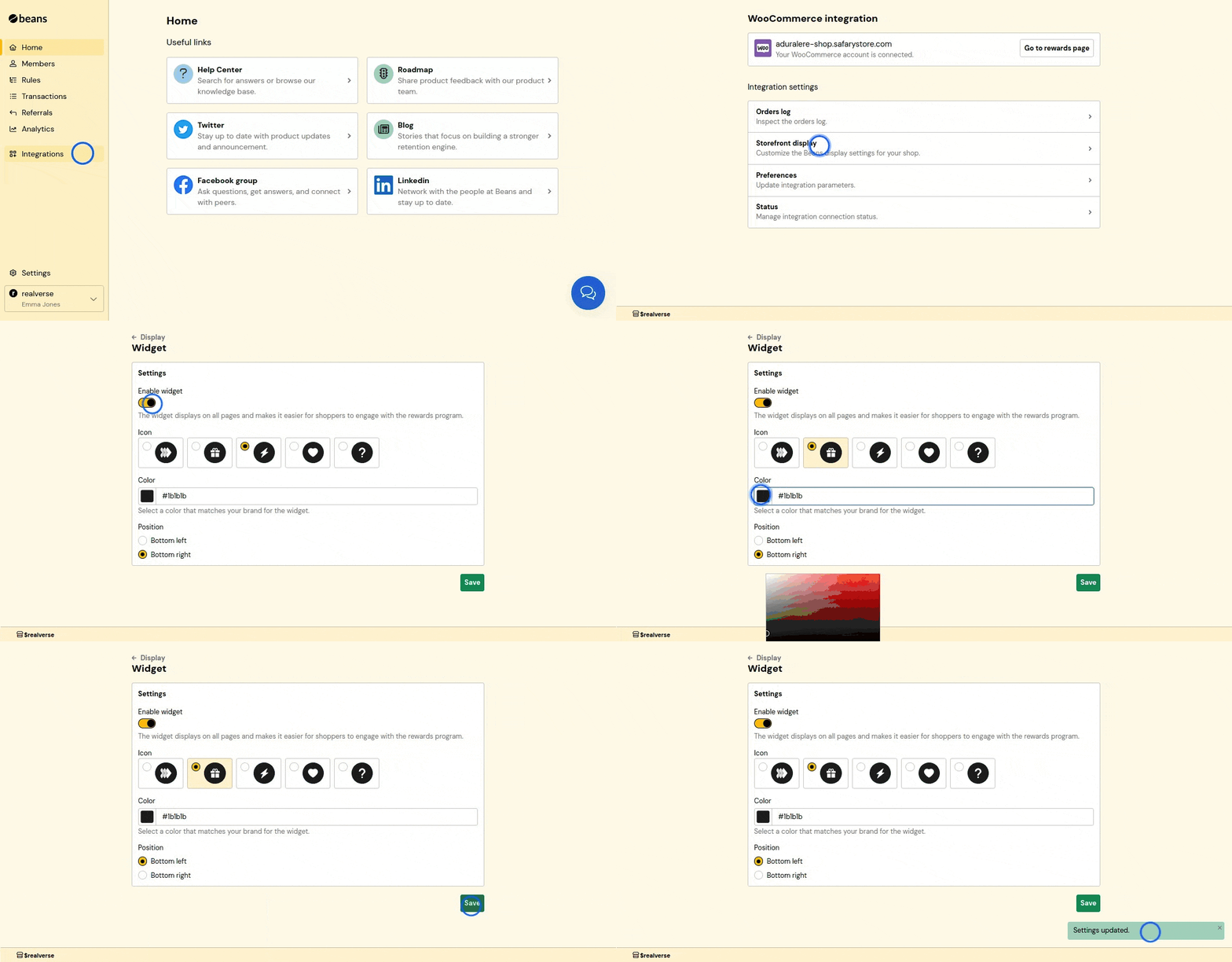 ### Rewards page
The rewards page is a dedicated section on your storefront that displays your rewards program details.
It allows customers to view their points balance, redeem rewards, and learn more about your program.
### Rewards page
The rewards page is a dedicated section on your storefront that displays your rewards program details.
It allows customers to view their points balance, redeem rewards, and learn more about your program.
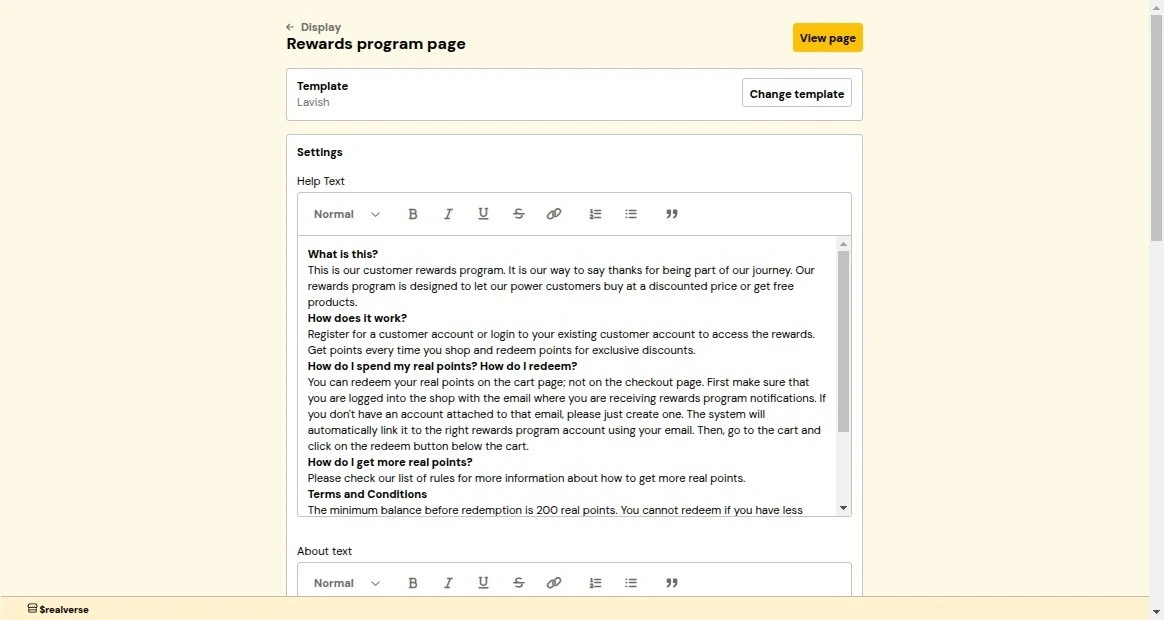 **How it works:**
1. From the WooCommerce integration dashboard, navigate to **Storefront display**.
2. Locate and click on **Rewards page**.
3. Customize the template and settings as needed.
4. Click **Save** to apply changes.
**Customization settings:**
* **Headline Text**: The main title displayed at the top of the rewards page to attract customer attention.
* **About Text**: A small block of text that explains your rewards program purpose and welcomes customers.
* **Help Text**: A FAQ-style text that explains your rewards program, including common questions like
"What is this?", "How does it work?", "How to redeem points?", and important terms and conditions.
* **Primary Color**: The main color used throughout the rewards page to maintain consistent branding with your store's theme.
* **Shop Now Link**: A direct link to the shopping page. It will be used as a call-to-action for customers to
start earning points.
* **Contrast Color**: A color that contrasts with your primary color, typically black or white, to ensure text readability.
### Referral page
The referral page is a dedicated section on your storefront that displays your referral program details.
It allows customers to view and share their referral link with friends.
**How it works:**
1. From the WooCommerce integration dashboard, navigate to **Storefront display**.
2. Locate and click on **Rewards page**.
3. Customize the template and settings as needed.
4. Click **Save** to apply changes.
**Customization settings:**
* **Headline Text**: The main title displayed at the top of the rewards page to attract customer attention.
* **About Text**: A small block of text that explains your rewards program purpose and welcomes customers.
* **Help Text**: A FAQ-style text that explains your rewards program, including common questions like
"What is this?", "How does it work?", "How to redeem points?", and important terms and conditions.
* **Primary Color**: The main color used throughout the rewards page to maintain consistent branding with your store's theme.
* **Shop Now Link**: A direct link to the shopping page. It will be used as a call-to-action for customers to
start earning points.
* **Contrast Color**: A color that contrasts with your primary color, typically black or white, to ensure text readability.
### Referral page
The referral page is a dedicated section on your storefront that displays your referral program details.
It allows customers to view and share their referral link with friends.
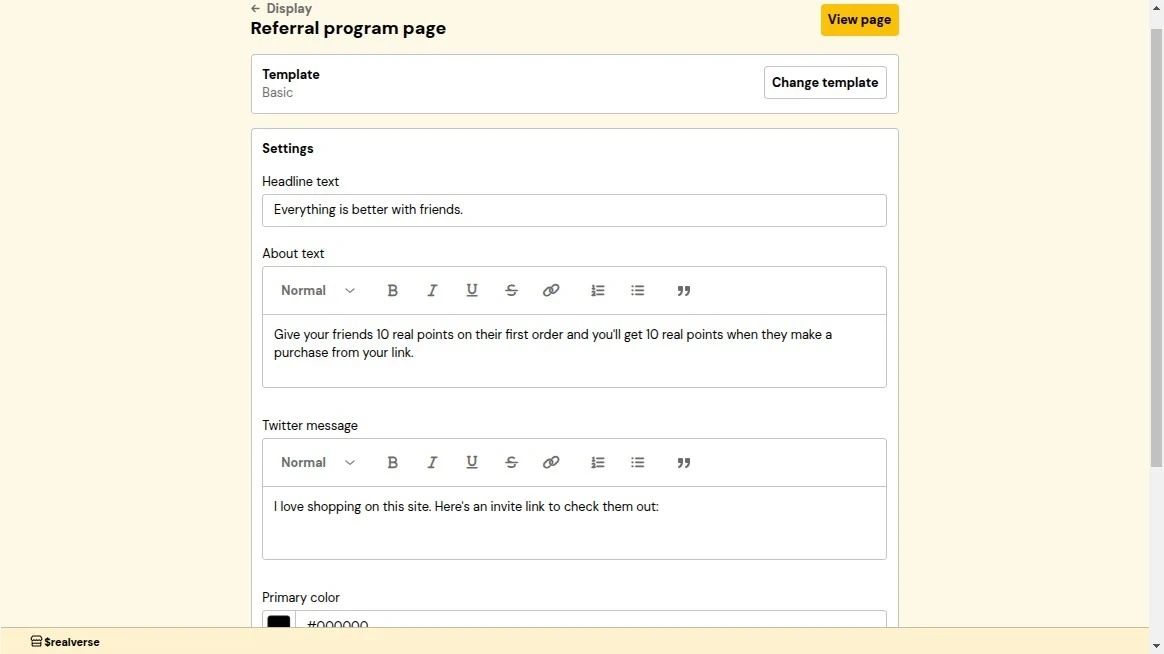 **How it works:**
1. From the WooCommerce integration dashboard, navigate to **Storefront display**.
2. Locate the **Referral page** section.
3. Customize the template and settings as needed.
4. Click **Save** to apply changes.
**Customization settings:**
* **Headline Text**: The main title displayed at the top of the referral page to attract customer attention.
* **About Text**: A small block of text that explains your referral program purpose and welcomes customers.
* **Twitter Message**: The default text that appears when customers share their referral link on Twitter.
* **Primary Color**: The main color used throughout the referral page to maintain consistent branding with your store's theme.
* **Contrast Color**: A color that contrasts with your primary color, typically black or white, to ensure text readability.
### Redemption button
The redemption button allows customers to redeem their rewards directly from the cart or checkout page.
By default, it is placed near the checkout call-to-action (CTA), allowing customers to apply their
rewards before completing a purchase.
**How it works:**
1. From the WooCommerce integration dashboard, navigate to **Storefront display**.
2. Locate the **Referral page** section.
3. Customize the template and settings as needed.
4. Click **Save** to apply changes.
**Customization settings:**
* **Headline Text**: The main title displayed at the top of the referral page to attract customer attention.
* **About Text**: A small block of text that explains your referral program purpose and welcomes customers.
* **Twitter Message**: The default text that appears when customers share their referral link on Twitter.
* **Primary Color**: The main color used throughout the referral page to maintain consistent branding with your store's theme.
* **Contrast Color**: A color that contrasts with your primary color, typically black or white, to ensure text readability.
### Redemption button
The redemption button allows customers to redeem their rewards directly from the cart or checkout page.
By default, it is placed near the checkout call-to-action (CTA), allowing customers to apply their
rewards before completing a purchase.
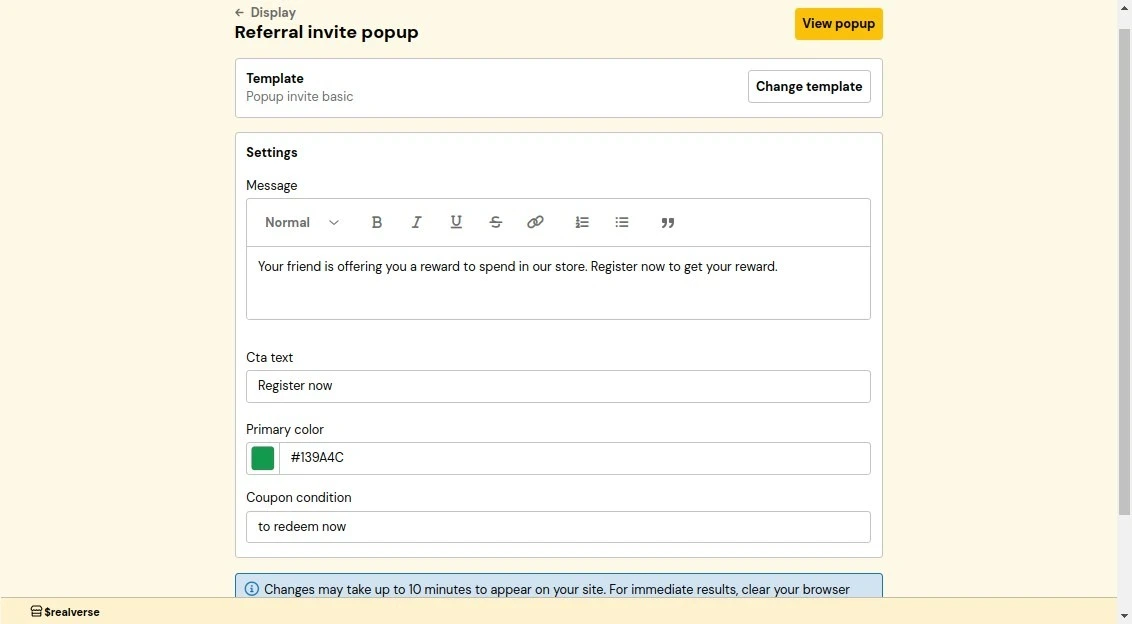 **How it works:**
1. From the WooCommerce integration dashboard, navigate to **Storefront display**.
2. Locate the **Redemption Button** section.
3. Customize the template and settings as needed.
4. Click **Save** to apply changes.
**Customization settings:**
* **Primary Color**: The button background color.
* **Contrast Color**: The button text color. It should contrast with your primary color. It is
recommended to use black or white to ensure text readability.
### Referral invitation popup
The referral invitation popup appears when someone visits a referral link, encouraging them to
join your rewards program using their unique link.
**How it works:**
1. From the WooCommerce integration dashboard, navigate to **Storefront display**.
2. Locate the **Redemption Button** section.
3. Customize the template and settings as needed.
4. Click **Save** to apply changes.
**Customization settings:**
* **Primary Color**: The button background color.
* **Contrast Color**: The button text color. It should contrast with your primary color. It is
recommended to use black or white to ensure text readability.
### Referral invitation popup
The referral invitation popup appears when someone visits a referral link, encouraging them to
join your rewards program using their unique link.
 **How it works:**
1. From the WooCommerce integration dashboard, navigate to **Storefront display**.
2. Locate and click on **Referral Invitation Popup**.
3. Customize the template and settings as needed.
4. Click **Save** to apply changes.
**Customization settings:**
* **Message**: A message informing customers that they are being referred and inviting them
to sign up in order to get a reward.
* **Call-to-Action Text**: The text of the button to encourage customers to sign up.
* **Primary Color**: The popup's main color. It should match your brand colors.
### Referral reward popup
The referral reward popup notifies customers of successful referrals and encourages them to use their
rewards. This confirmation popup helps maintain engagement with your referral program.
**How it works:**
1. From the WooCommerce integration dashboard, navigate to **Storefront display**.
2. Locate and click on **Referral Invitation Popup**.
3. Customize the template and settings as needed.
4. Click **Save** to apply changes.
**Customization settings:**
* **Message**: A message informing customers that they are being referred and inviting them
to sign up in order to get a reward.
* **Call-to-Action Text**: The text of the button to encourage customers to sign up.
* **Primary Color**: The popup's main color. It should match your brand colors.
### Referral reward popup
The referral reward popup notifies customers of successful referrals and encourages them to use their
rewards. This confirmation popup helps maintain engagement with your referral program.
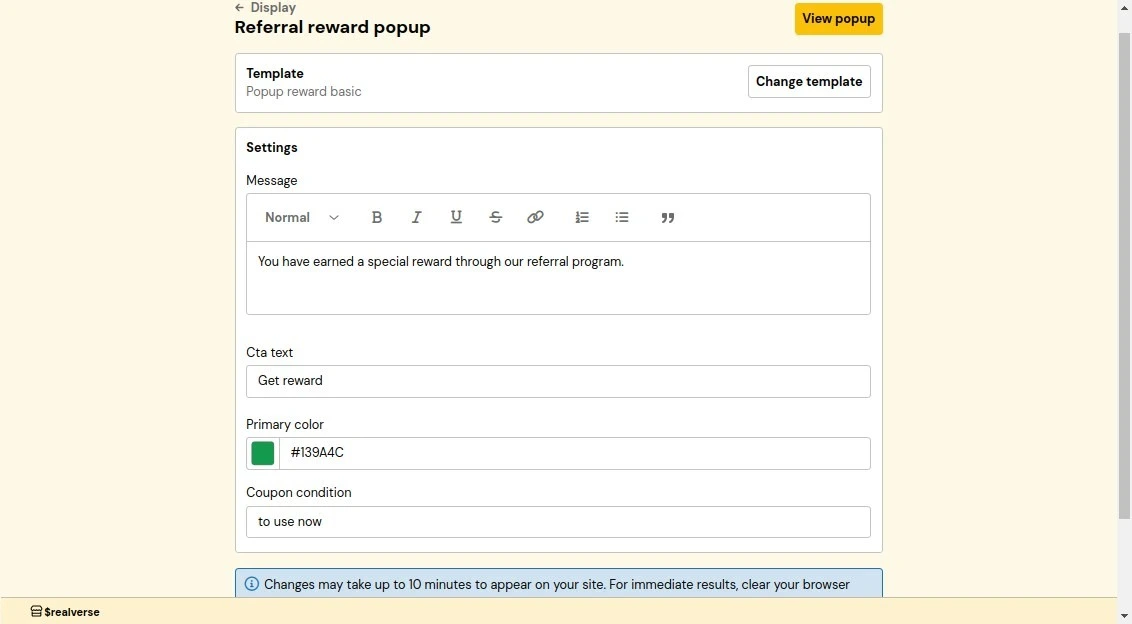 **How it works:**
1. From the WooCommerce integration dashboard, navigate to **Storefront display**.
2. Locate the **Referral Reward Popup** section.
3. Customize the template and settings as needed.
4. Click **Save** to apply changes.
**Customization settings:**
* **Message**: A confirmation message informing customers that their referral was successful.
* **Call-to-Action Text**: The text of the button to encourage customers to redeem their reward.
* **Primary Color**: The popup's main color. It should match your brand colors.
## Reinstall
If you suspect the Beans plugin isn't properly installed on your WordPress site,
Beans provides a straightforward solution to address this without any negative side effects.
**How it works:**
1. From the WooCommerce integration dashboard, navigate to **Storefront display**.
2. Locate the **Referral Reward Popup** section.
3. Customize the template and settings as needed.
4. Click **Save** to apply changes.
**Customization settings:**
* **Message**: A confirmation message informing customers that their referral was successful.
* **Call-to-Action Text**: The text of the button to encourage customers to redeem their reward.
* **Primary Color**: The popup's main color. It should match your brand colors.
## Reinstall
If you suspect the Beans plugin isn't properly installed on your WordPress site,
Beans provides a straightforward solution to address this without any negative side effects.
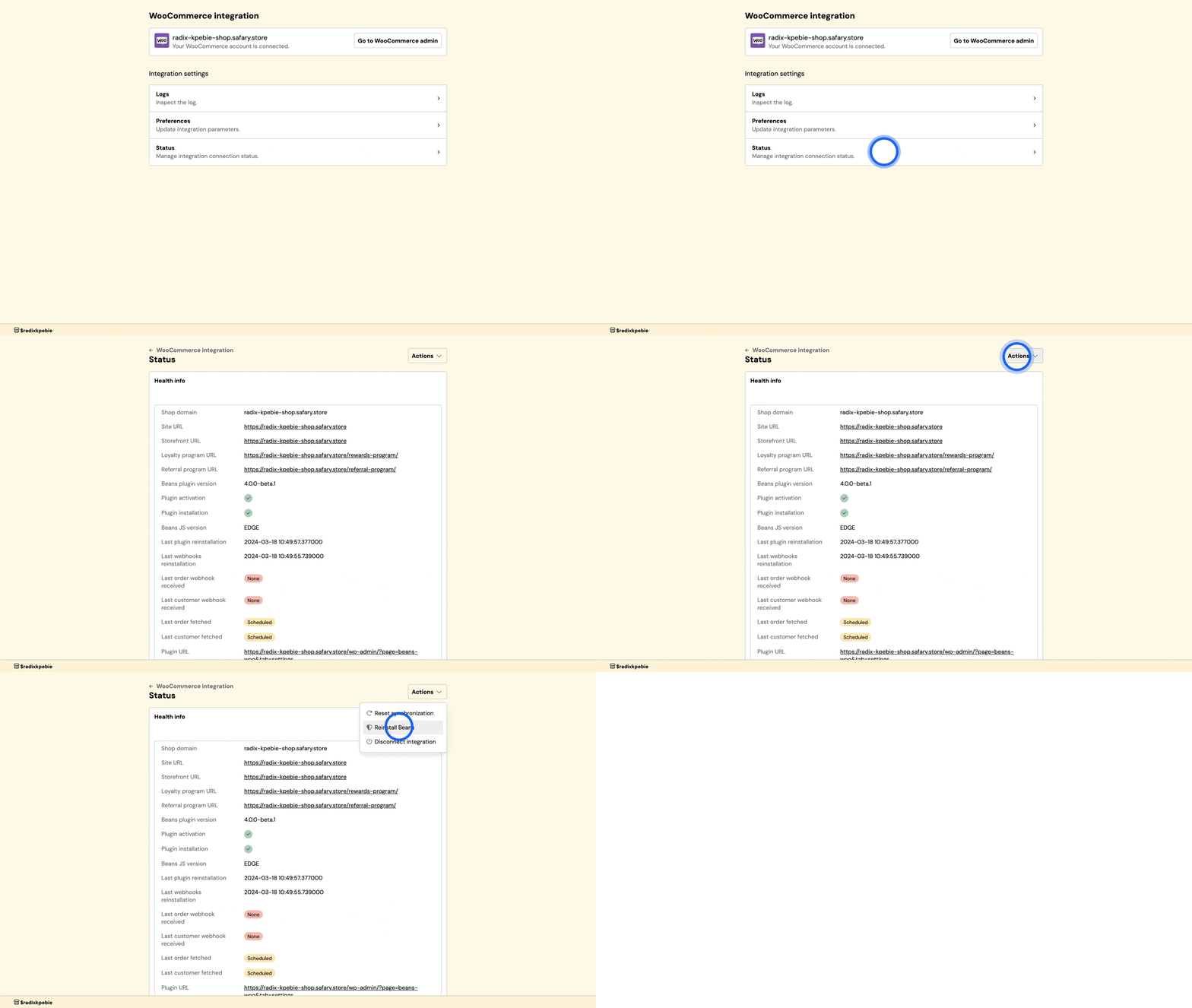 1. From the Beans admin dashboard, navigate to the WooCommerce integration home page.
2. Select **Status** in the integration navigation menu.
3. From the **Actions** dropdown on the top right, select **Reinstall Beans**.
## Troubleshooting
### Issues with connecting Beans
Beans uses the WooCommerce API to access your store data. Here are the most common reasons why you might experience
issues with connecting Beans to your store.
* **Password-protected store**: To connect Beans to your store,
you might need to temporarily disable password protection for your store.
* **"coming soon" or "site under construction" plugin that restricts public access**:
This will block API access, which is essential for our application.
To resolve this, temporarily disable the plugin to allow connection, then reactivate it afterward.
* **Incorrect API keys**: Please double-check your API keys to ensure they are correct.
* **Invalid SSL certificate**: Beans use SSL to securely connect to your store.
If your SSL certificate is invalid, you might need to renew it.
* **Cache plugin**: If you have a cache management plugin that strips the "Authorization" header,
try disabling the plugin to see if it resolves the issue.
* **Incorrect permalinks**: Ensure that your
[WordPress permalinks](https://wordpress.org/documentation/article/customize-permalinks/#pretty-permalinks)
are set to a pretty permalink structure. The recommended setting is `/%postname%/`.
* **Outdated WordPress or WooCommerce version**: Update your WordPress and WooCommerce to the latest versions.
* **Localhost**: If you're using localhost, you need to install Beans on a live server
or use a localtunnel URL such as [ngrok](https://ngrok.com/) to connect to your store.
* **Invalid WordPress site location**: WordPress must be installed at the root level of your domain or subdomain.
For example, if you're developing a store at `www.example.com/dev/`, our server will attempt to connect
to `www.example.com`. To avoid this issue, install the development store on a subdomain like the `dev.example.com`
# Analytics
Source: https://docs.trybeans.com/manage/admin/analytics
Analyze and get insight into your transactions.
The Beans analytics page provides valuable insights into the performance of your rewards program. It
offers detailed metrics on various aspects of customer engagement and program effectiveness, helping you
make informed decisions to optimize your strategy.
To access the Analytics page, follow these steps:
1. From the Beans admin dashboard, navigate to the **Analytics** page.
2. Review the metrics displayed.
3. Use the filter options to adjust the time period and gain specific insights into your program's
performance.
## Metrics
In addition to insights on the usage of the rules, the analytics page helps track key metrics such as:
* **New members enrolled**: This metric shows the number of new customers who
have enrolled in your rewards program over a specified
period. It helps you understand the growth and reach of your program, allowing you to assess the
effectiveness of your marketing and engagement efforts.
* **Number of daily redemptions**: Track how frequently customers are redeeming
their points on a daily basis. This metric provides insights
into customer engagement and the attractiveness of your redemption options. High redemption rates can
indicate strong customer interest and satisfaction with the rewards offered.
* **Loyalty revenue**: Loyalty revenue includes orders where customers have used points for redemptions.
This metric helps you quantify the financial contribution of your rewards program to overall sales.
Analyzing loyalty revenue can assist in evaluating the return on investment (ROI) of your loyalty initiatives.
* **Referral revenue**: This metric tracks the revenue generated from customer referrals. It includes
sales made by new customers who were referred to your business through your rewards program. Analyzing
referral revenue helps you assess the effectiveness of your referral program, understand its impact on
customer acquisition, and calculate the return on investment for referral incentives.
* **Referral orders count**: This metric displays the total number of orders placed by referred customers.
It helps you gauge the effectiveness of your referral program in driving actual purchases, allowing you
to assess the conversion rate of referred customers into paying customers.
* **Referred customers count**: This metric shows the number of new customers who have joined your
platform through referrals. It provides insight into how well your referral program is attracting new
customers, helping you evaluate its success in expanding your customer base.
* **Invitation sent count**: This metric tracks the number of referral invitations sent by your existing
customers. It helps you understand how actively your customers are participating in the referral
program and can indicate the program's popularity among your customer base.
# GDPR
Source: https://docs.trybeans.com/manage/admin/gdpr
Learn how Beans ensures GDPR compliance.
Beans prioritizes data protection and maintains full compliance with the EU General Data Protection Regulation (GDPR). We've built our platform with privacy at its core to protect both your business and your customers' data.
## How we protect your data
**Customer data management**
Beans provides tools to help you fulfill customer data rights requests. You can easily export customer data and permanently delete it when requested. We automatically expire visitor data after 9 months of inactivity to minimize data storage and maintain GDPR compliance.
**Security measures**
We encrypt all data at rest and in transit. Our team performs regular security audits and maintains strict access controls.
**Data Processing Agreement**
Our Data Processing Agreement (DPA) clearly outlines our commitment to data protection. This agreement details how we process data, our security measures, and both parties' responsibilities under GDPR.
**International data transfers**
Beans is certified under the EU-US Data Privacy Framework for compliant international data transfers.
**Vendor management**
We ensure all vendors meet our data protection standards and maintain Data Processing Agreements with them.
# History
Source: https://docs.trybeans.com/manage/admin/history
Review all transactions history.
The History section in the Beans app provides merchants with a comprehensive record of every transaction
that occurs in their Beans account for every customer. This feature allows for detailed tracking and
management of customer interactions with the rewards program.
It offers a full history of all transactions, including points earned, redeemed, and
expired. Merchants can filter transactions by type, allowing for a better review of specific transaction
types. This helps in analyzing customer behavior and the effectiveness of different reward strategies.
It can be used to get insight into customer activity and reward program performance.
To access the history of transactions, follow these steps:
1. From the Beans admin dashboard, navigate to the **History** page.
2. Use the filter options to narrow down the transactions by type.
3. Review the transaction details and gain insights into customer behavior.
### Managing transactions
It is important to note that recorded transactions cannot be edited or erased unless the customer's account
is deleted. This ensures the integrity of the transaction history and provides an accurate record of all
customer interactions.
### Member-specific transactions
To view a list of specific transactions for a member, go directly to their profile through the **Members**
section. This allows for a focused review of an individual customer's transaction history, making it easier
to manage and address any issues.
# Integrations
Source: https://docs.trybeans.com/manage/admin/integrations
Integrate Beans with third party applications.
Integrations are connections between the Beans app and other software applications or services.
These integrations enable the seamless flow of data and functionality between Beans and third-party systems,
enhancing the capabilities of your rewards program.
By integrating Beans with these systems, you can automate rewards,
track customer actions, and improve the overall efficiency of your rewards program.
The most common types of integrations are:
* **E-commerce Platforms**: Connect Beans with platforms
like [Shopify](/integrations/shopify) and [WooCommerce](/integrations/woocommerce) to automate reward
points for purchases.
* **POS (Point of Sale) Systems**: Integrate with electronic POS systems
such as [Square](/integrations/square), [Shopify POS](/integrations/shopifypos),
and [Clover](/integrations/clover) to reward customers
for in-store purchases and ensure a seamless omnichannel experience.
* **Email Marketing Tools**: Integrate with services
like [Klaviyo](/integrations/klaviyo) and [Mailchimp](/integrations/mailchimp) to send personalized reward
updates and promotions.
* **Product Review Systems**: Integrate with tools like
[Judge.me](/integrations/judgeme) to reward customers for leaving product reviews.
* **Social Media Platforms**: Connect with [Facebook](/integrations/facebook),
[Instagram](/integrations/instagra,), and [Twitter](/integrations/twitter) to reward customers for social
media interactions.
### Install an integration
1. From the Beans admin dashboard, navigate to the **Integrations** page.
2. Browse the list of available integrations and select the one you want to install.
3. Click the **Install**.
4. Follow the on-screen instructions to complete the installation process. This may include providing
API keys or logging into your account for the service you are integrating.
### Uninstall an integration
1. From the Beans admin dashboard, navigate to the **Integrations** page.
2. Select the integration you want to uninstall in the list of installed integrations.
3. From the integration home page, navigate to **Status** page.
4. From the top right click on **Actions > Uninstall**.
5. Confirm that you want to uninstall the integration.
### Verify an integration status
To ensure an integration functions properly, it is crucial to confirm that it is well connected to the
third-party application. Multiple issues can affect the integration's functionality, such as revoked API keys,
expired authorization, third-party API updates, or service unavailability. Visit the integration status page
for a comprehensive analysis of the connection state.
1. From the Beans admin dashboard, navigate to the **Integrations** page.
2. Select the integration you want to monitor from the list of installed integrations.
3. From the integration home page, navigate to the **Status** page.
4. If the status indicator shows an error or warning, consider reinstalling the integration.
# Members
Source: https://docs.trybeans.com/manage/admin/members
List, search, add, edit, activate, deactivate, delete, or adjust balance for a member.
## Add a member
The easiest way to automatically add customers to your rewards program is to
[integrate Beans](/integrations) with your eCommerce platform, POS, or CMS.
This ensures that customers are automatically enrolled
through any platform you are currently using to manage your orders.
However, there are instances where you may want to manually add a customer to the rewards program.
This can be handy on specific occasions.
Members added to the rewards program will receive the welcome email if you have set it up.
1. From the Beans admin dashboard, navigate to the **Members** page.
2. From the top right, click on **Add member**.
3. Enter the **first name**, **last name** and **email** of the member that you want to add to the rewards program.
4. Click on **Add member** button to confirm.
1. From the Beans admin dashboard, navigate to the WooCommerce integration home page.
2. Select **Status** in the integration navigation menu.
3. From the **Actions** dropdown on the top right, select **Reinstall Beans**.
## Troubleshooting
### Issues with connecting Beans
Beans uses the WooCommerce API to access your store data. Here are the most common reasons why you might experience
issues with connecting Beans to your store.
* **Password-protected store**: To connect Beans to your store,
you might need to temporarily disable password protection for your store.
* **"coming soon" or "site under construction" plugin that restricts public access**:
This will block API access, which is essential for our application.
To resolve this, temporarily disable the plugin to allow connection, then reactivate it afterward.
* **Incorrect API keys**: Please double-check your API keys to ensure they are correct.
* **Invalid SSL certificate**: Beans use SSL to securely connect to your store.
If your SSL certificate is invalid, you might need to renew it.
* **Cache plugin**: If you have a cache management plugin that strips the "Authorization" header,
try disabling the plugin to see if it resolves the issue.
* **Incorrect permalinks**: Ensure that your
[WordPress permalinks](https://wordpress.org/documentation/article/customize-permalinks/#pretty-permalinks)
are set to a pretty permalink structure. The recommended setting is `/%postname%/`.
* **Outdated WordPress or WooCommerce version**: Update your WordPress and WooCommerce to the latest versions.
* **Localhost**: If you're using localhost, you need to install Beans on a live server
or use a localtunnel URL such as [ngrok](https://ngrok.com/) to connect to your store.
* **Invalid WordPress site location**: WordPress must be installed at the root level of your domain or subdomain.
For example, if you're developing a store at `www.example.com/dev/`, our server will attempt to connect
to `www.example.com`. To avoid this issue, install the development store on a subdomain like the `dev.example.com`
# Analytics
Source: https://docs.trybeans.com/manage/admin/analytics
Analyze and get insight into your transactions.
The Beans analytics page provides valuable insights into the performance of your rewards program. It
offers detailed metrics on various aspects of customer engagement and program effectiveness, helping you
make informed decisions to optimize your strategy.
To access the Analytics page, follow these steps:
1. From the Beans admin dashboard, navigate to the **Analytics** page.
2. Review the metrics displayed.
3. Use the filter options to adjust the time period and gain specific insights into your program's
performance.
## Metrics
In addition to insights on the usage of the rules, the analytics page helps track key metrics such as:
* **New members enrolled**: This metric shows the number of new customers who
have enrolled in your rewards program over a specified
period. It helps you understand the growth and reach of your program, allowing you to assess the
effectiveness of your marketing and engagement efforts.
* **Number of daily redemptions**: Track how frequently customers are redeeming
their points on a daily basis. This metric provides insights
into customer engagement and the attractiveness of your redemption options. High redemption rates can
indicate strong customer interest and satisfaction with the rewards offered.
* **Loyalty revenue**: Loyalty revenue includes orders where customers have used points for redemptions.
This metric helps you quantify the financial contribution of your rewards program to overall sales.
Analyzing loyalty revenue can assist in evaluating the return on investment (ROI) of your loyalty initiatives.
* **Referral revenue**: This metric tracks the revenue generated from customer referrals. It includes
sales made by new customers who were referred to your business through your rewards program. Analyzing
referral revenue helps you assess the effectiveness of your referral program, understand its impact on
customer acquisition, and calculate the return on investment for referral incentives.
* **Referral orders count**: This metric displays the total number of orders placed by referred customers.
It helps you gauge the effectiveness of your referral program in driving actual purchases, allowing you
to assess the conversion rate of referred customers into paying customers.
* **Referred customers count**: This metric shows the number of new customers who have joined your
platform through referrals. It provides insight into how well your referral program is attracting new
customers, helping you evaluate its success in expanding your customer base.
* **Invitation sent count**: This metric tracks the number of referral invitations sent by your existing
customers. It helps you understand how actively your customers are participating in the referral
program and can indicate the program's popularity among your customer base.
# GDPR
Source: https://docs.trybeans.com/manage/admin/gdpr
Learn how Beans ensures GDPR compliance.
Beans prioritizes data protection and maintains full compliance with the EU General Data Protection Regulation (GDPR). We've built our platform with privacy at its core to protect both your business and your customers' data.
## How we protect your data
**Customer data management**
Beans provides tools to help you fulfill customer data rights requests. You can easily export customer data and permanently delete it when requested. We automatically expire visitor data after 9 months of inactivity to minimize data storage and maintain GDPR compliance.
**Security measures**
We encrypt all data at rest and in transit. Our team performs regular security audits and maintains strict access controls.
**Data Processing Agreement**
Our Data Processing Agreement (DPA) clearly outlines our commitment to data protection. This agreement details how we process data, our security measures, and both parties' responsibilities under GDPR.
**International data transfers**
Beans is certified under the EU-US Data Privacy Framework for compliant international data transfers.
**Vendor management**
We ensure all vendors meet our data protection standards and maintain Data Processing Agreements with them.
# History
Source: https://docs.trybeans.com/manage/admin/history
Review all transactions history.
The History section in the Beans app provides merchants with a comprehensive record of every transaction
that occurs in their Beans account for every customer. This feature allows for detailed tracking and
management of customer interactions with the rewards program.
It offers a full history of all transactions, including points earned, redeemed, and
expired. Merchants can filter transactions by type, allowing for a better review of specific transaction
types. This helps in analyzing customer behavior and the effectiveness of different reward strategies.
It can be used to get insight into customer activity and reward program performance.
To access the history of transactions, follow these steps:
1. From the Beans admin dashboard, navigate to the **History** page.
2. Use the filter options to narrow down the transactions by type.
3. Review the transaction details and gain insights into customer behavior.
### Managing transactions
It is important to note that recorded transactions cannot be edited or erased unless the customer's account
is deleted. This ensures the integrity of the transaction history and provides an accurate record of all
customer interactions.
### Member-specific transactions
To view a list of specific transactions for a member, go directly to their profile through the **Members**
section. This allows for a focused review of an individual customer's transaction history, making it easier
to manage and address any issues.
# Integrations
Source: https://docs.trybeans.com/manage/admin/integrations
Integrate Beans with third party applications.
Integrations are connections between the Beans app and other software applications or services.
These integrations enable the seamless flow of data and functionality between Beans and third-party systems,
enhancing the capabilities of your rewards program.
By integrating Beans with these systems, you can automate rewards,
track customer actions, and improve the overall efficiency of your rewards program.
The most common types of integrations are:
* **E-commerce Platforms**: Connect Beans with platforms
like [Shopify](/integrations/shopify) and [WooCommerce](/integrations/woocommerce) to automate reward
points for purchases.
* **POS (Point of Sale) Systems**: Integrate with electronic POS systems
such as [Square](/integrations/square), [Shopify POS](/integrations/shopifypos),
and [Clover](/integrations/clover) to reward customers
for in-store purchases and ensure a seamless omnichannel experience.
* **Email Marketing Tools**: Integrate with services
like [Klaviyo](/integrations/klaviyo) and [Mailchimp](/integrations/mailchimp) to send personalized reward
updates and promotions.
* **Product Review Systems**: Integrate with tools like
[Judge.me](/integrations/judgeme) to reward customers for leaving product reviews.
* **Social Media Platforms**: Connect with [Facebook](/integrations/facebook),
[Instagram](/integrations/instagra,), and [Twitter](/integrations/twitter) to reward customers for social
media interactions.
### Install an integration
1. From the Beans admin dashboard, navigate to the **Integrations** page.
2. Browse the list of available integrations and select the one you want to install.
3. Click the **Install**.
4. Follow the on-screen instructions to complete the installation process. This may include providing
API keys or logging into your account for the service you are integrating.
### Uninstall an integration
1. From the Beans admin dashboard, navigate to the **Integrations** page.
2. Select the integration you want to uninstall in the list of installed integrations.
3. From the integration home page, navigate to **Status** page.
4. From the top right click on **Actions > Uninstall**.
5. Confirm that you want to uninstall the integration.
### Verify an integration status
To ensure an integration functions properly, it is crucial to confirm that it is well connected to the
third-party application. Multiple issues can affect the integration's functionality, such as revoked API keys,
expired authorization, third-party API updates, or service unavailability. Visit the integration status page
for a comprehensive analysis of the connection state.
1. From the Beans admin dashboard, navigate to the **Integrations** page.
2. Select the integration you want to monitor from the list of installed integrations.
3. From the integration home page, navigate to the **Status** page.
4. If the status indicator shows an error or warning, consider reinstalling the integration.
# Members
Source: https://docs.trybeans.com/manage/admin/members
List, search, add, edit, activate, deactivate, delete, or adjust balance for a member.
## Add a member
The easiest way to automatically add customers to your rewards program is to
[integrate Beans](/integrations) with your eCommerce platform, POS, or CMS.
This ensures that customers are automatically enrolled
through any platform you are currently using to manage your orders.
However, there are instances where you may want to manually add a customer to the rewards program.
This can be handy on specific occasions.
Members added to the rewards program will receive the welcome email if you have set it up.
1. From the Beans admin dashboard, navigate to the **Members** page.
2. From the top right, click on **Add member**.
3. Enter the **first name**, **last name** and **email** of the member that you want to add to the rewards program.
4. Click on **Add member** button to confirm.
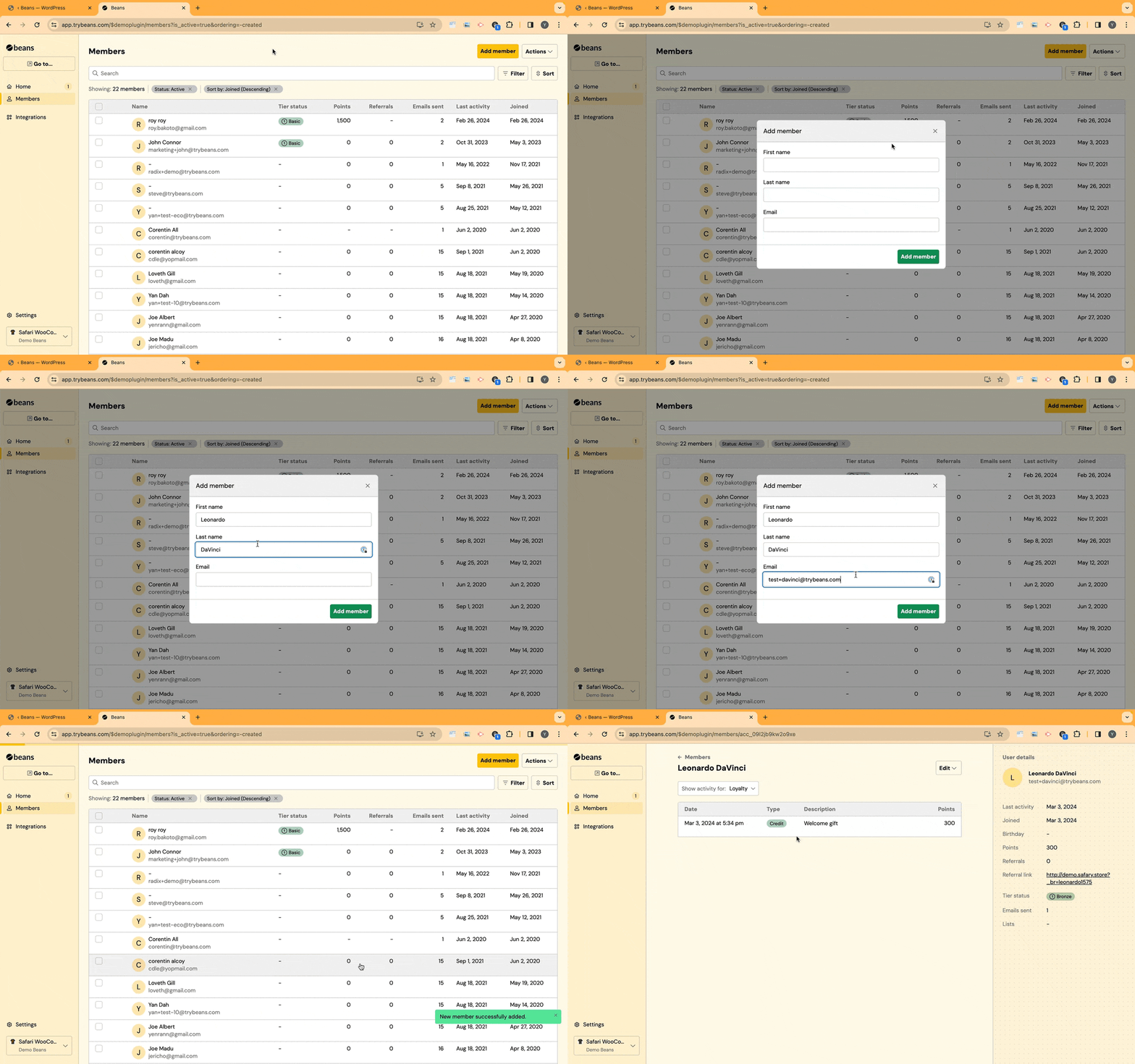 ## Adjust a member's balance
Beans features a powerful automated rules engine that allows you to automatically
reward customers when they perform an action. Occasionally,
you may want to manually credit or debit a customer's Beans account.
1. From the Beans admin dashboard, navigate to the **Members** page.
2. Find the member whose balance you want to adjust and open their profile.
3. From the Edit dropdown menu on the top right, click on **Adjust balance**.
4. In the **Points** field, enter a positive amount to give the customer extra points,
or enter a negative amount to subtract points from the customer's balance.
5. In the **Description** field, enter a reason for the manual transaction.
This description will be visible to the customer.
## Update profile
Customers who join the rewards program can manage their own information.
However, there are instances where customer information may become outdated,
and the customer might forget to update it. In such cases, you can manually update the customer's profile.
1. From the Beans admin dashboard, navigate to the **Members** page.
2. Find the member whose information you want to update and open their profile.
3. From the Edit dropdown menu on the top right, click on **Update profile**.
4. Edit the customer's information as needed.
5. Click on **Update profile** to save the changes.
## Update email addresses
Beans allows customers to receive points to the same account,
regardless of which email they use at checkout.
This is ideal for customers with multiple email addresses.
1. From the Beans admin dashboard, navigate to the **Members** page.
2. Find the member whose information you want to update and open their profile.
3. From the Edit dropdown menu on the top right, click on **Email addresses**.
4. Click on **Add new email address**.
5. Provide the new email address and click on save.
6. Repeat the steps as many times as needed.
## Deactivate a member
Deactivating a member is a reversible way to prevent a customer from benefiting from the rewards program.
It effectively blacklists the member, stopping them from receiving emails, earning points, spending points,
referring friends, and accessing their earned rewards. No data will be deleted, and you can reactivate
the account later if needed. Even when a member is deactivated, their transaction history remains accessible.
When a customer chooses to opt out of the rewards program or reports rewards program notifications as spam,
their account is automatically deactivated.
1. From the Beans admin dashboard, navigate to the **Members** page.
2. Find the member that you want to deactivate and open their profile.
3. From the Edit dropdown menu on the top right, click on **Deactivate account**.
4. Confirm the deactivation.
## Reactivate a member
All members are active by default. You would only need to reactivate a member,
if their account was previously deactivated.
1. From the Beans admin dashboard, navigate to the **Members** page.
2. Search the member that you want to reactivate using their email address and open their profile.
3. From the top right, click on **Reactivate account**.
## Delete a member
Deleting a member is a radical solution that effectively erases all the customer data in
the system including their transaction history. This action is irreversible. It is recommended
to use the member deactivation option instead.
1. From the Beans admin dashboard, navigate to the **Members** page.
2. Find the member that you want to deactivate and open their profile.
3. From the Edit dropdown menu on the top right, click on **Delete member**.
4. Confirm the deletion.
## List, filter, and search members
To view all the members of your rewards program, navigate to the **Members** page from the Beans admin dashboard.
**Filter Members:** Use the filter option on the top right to filter the
list of members by activation status and points value.
**Search Members:** Use the search bar at the top to find a specific customer
by id, name, email address, or phone number.
## Perform bulk actions
Bulk actions are a productivity shortcut that allows you to edit multiple customer accounts simultaneously.
Supported bulk actions include [deactivating members](#deactivate-a-member),
[reactivating members](#reactivate-a-member), and [deleting members](#delete-a-member).
1. From the Beans admin go to the **Members** page.
2. Using the checkboxes on the left end of the member listing, select the members you want to perform the action on.
3. Select the desired action from the available options.
4. Confirm the action.
## Import members
## Adjust a member's balance
Beans features a powerful automated rules engine that allows you to automatically
reward customers when they perform an action. Occasionally,
you may want to manually credit or debit a customer's Beans account.
1. From the Beans admin dashboard, navigate to the **Members** page.
2. Find the member whose balance you want to adjust and open their profile.
3. From the Edit dropdown menu on the top right, click on **Adjust balance**.
4. In the **Points** field, enter a positive amount to give the customer extra points,
or enter a negative amount to subtract points from the customer's balance.
5. In the **Description** field, enter a reason for the manual transaction.
This description will be visible to the customer.
## Update profile
Customers who join the rewards program can manage their own information.
However, there are instances where customer information may become outdated,
and the customer might forget to update it. In such cases, you can manually update the customer's profile.
1. From the Beans admin dashboard, navigate to the **Members** page.
2. Find the member whose information you want to update and open their profile.
3. From the Edit dropdown menu on the top right, click on **Update profile**.
4. Edit the customer's information as needed.
5. Click on **Update profile** to save the changes.
## Update email addresses
Beans allows customers to receive points to the same account,
regardless of which email they use at checkout.
This is ideal for customers with multiple email addresses.
1. From the Beans admin dashboard, navigate to the **Members** page.
2. Find the member whose information you want to update and open their profile.
3. From the Edit dropdown menu on the top right, click on **Email addresses**.
4. Click on **Add new email address**.
5. Provide the new email address and click on save.
6. Repeat the steps as many times as needed.
## Deactivate a member
Deactivating a member is a reversible way to prevent a customer from benefiting from the rewards program.
It effectively blacklists the member, stopping them from receiving emails, earning points, spending points,
referring friends, and accessing their earned rewards. No data will be deleted, and you can reactivate
the account later if needed. Even when a member is deactivated, their transaction history remains accessible.
When a customer chooses to opt out of the rewards program or reports rewards program notifications as spam,
their account is automatically deactivated.
1. From the Beans admin dashboard, navigate to the **Members** page.
2. Find the member that you want to deactivate and open their profile.
3. From the Edit dropdown menu on the top right, click on **Deactivate account**.
4. Confirm the deactivation.
## Reactivate a member
All members are active by default. You would only need to reactivate a member,
if their account was previously deactivated.
1. From the Beans admin dashboard, navigate to the **Members** page.
2. Search the member that you want to reactivate using their email address and open their profile.
3. From the top right, click on **Reactivate account**.
## Delete a member
Deleting a member is a radical solution that effectively erases all the customer data in
the system including their transaction history. This action is irreversible. It is recommended
to use the member deactivation option instead.
1. From the Beans admin dashboard, navigate to the **Members** page.
2. Find the member that you want to deactivate and open their profile.
3. From the Edit dropdown menu on the top right, click on **Delete member**.
4. Confirm the deletion.
## List, filter, and search members
To view all the members of your rewards program, navigate to the **Members** page from the Beans admin dashboard.
**Filter Members:** Use the filter option on the top right to filter the
list of members by activation status and points value.
**Search Members:** Use the search bar at the top to find a specific customer
by id, name, email address, or phone number.
## Perform bulk actions
Bulk actions are a productivity shortcut that allows you to edit multiple customer accounts simultaneously.
Supported bulk actions include [deactivating members](#deactivate-a-member),
[reactivating members](#reactivate-a-member), and [deleting members](#delete-a-member).
1. From the Beans admin go to the **Members** page.
2. Using the checkboxes on the left end of the member listing, select the members you want to perform the action on.
3. Select the desired action from the available options.
4. Confirm the action.
## Import members
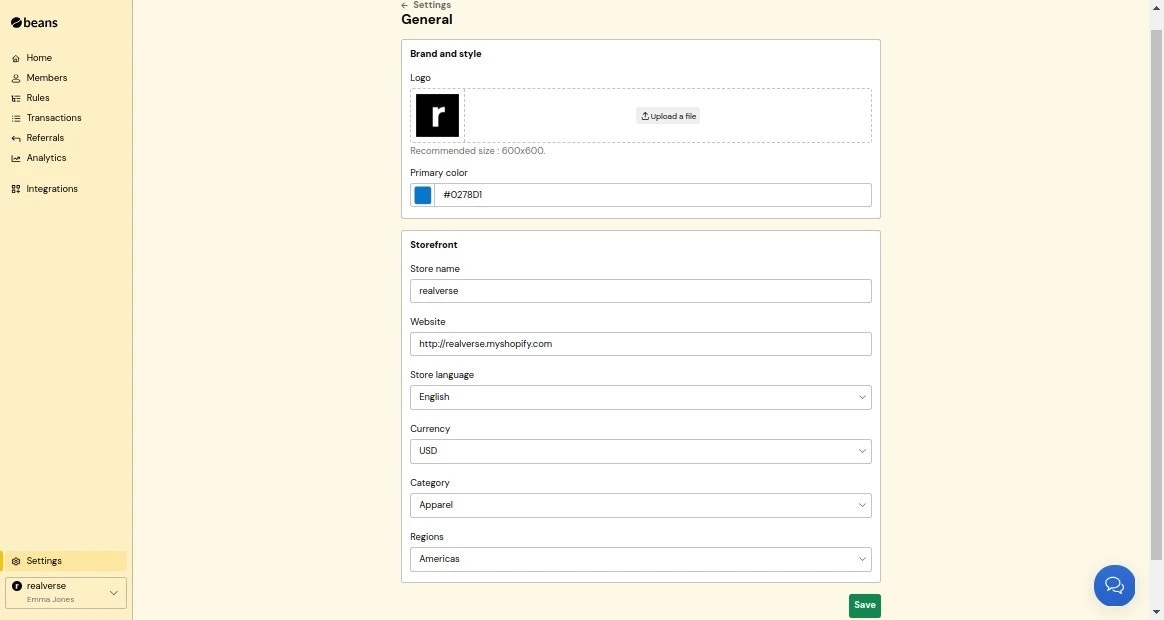 ## Profile
Edit your personal information including your email address, first name, and last name.
## Profile
Edit your personal information including your email address, first name, and last name.
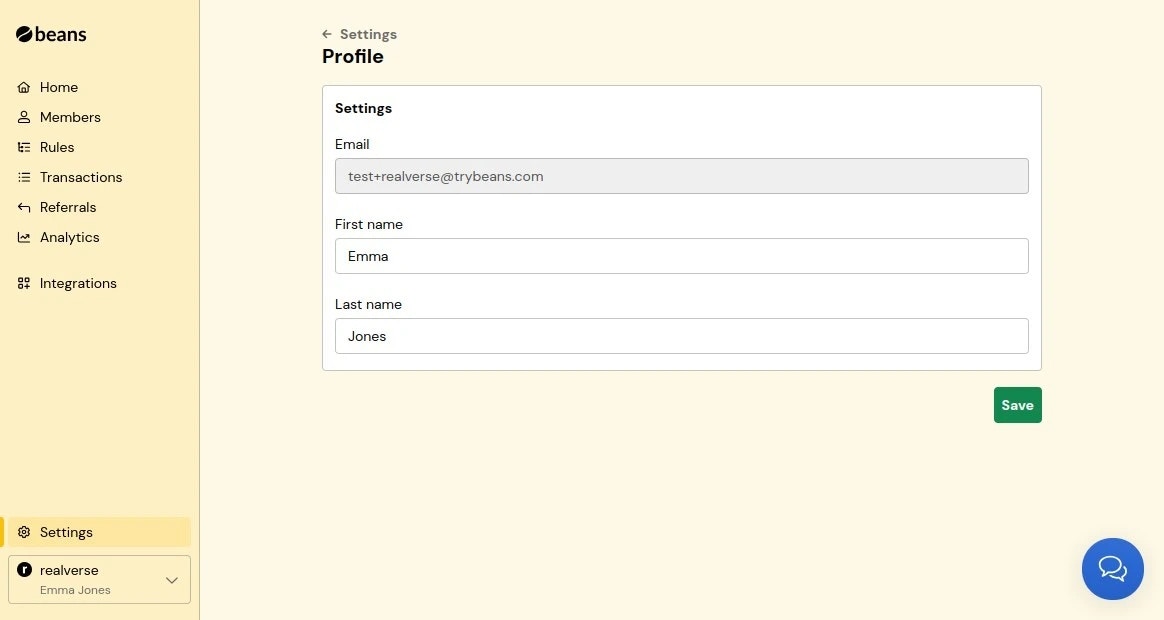 ## Team Access
Add team members from your organization as admins to help manage your loyalty program through
the Beans dashboard. They'll have full access to configure and monitor the rewards program.
## Team Access
Add team members from your organization as admins to help manage your loyalty program through
the Beans dashboard. They'll have full access to configure and monitor the rewards program.
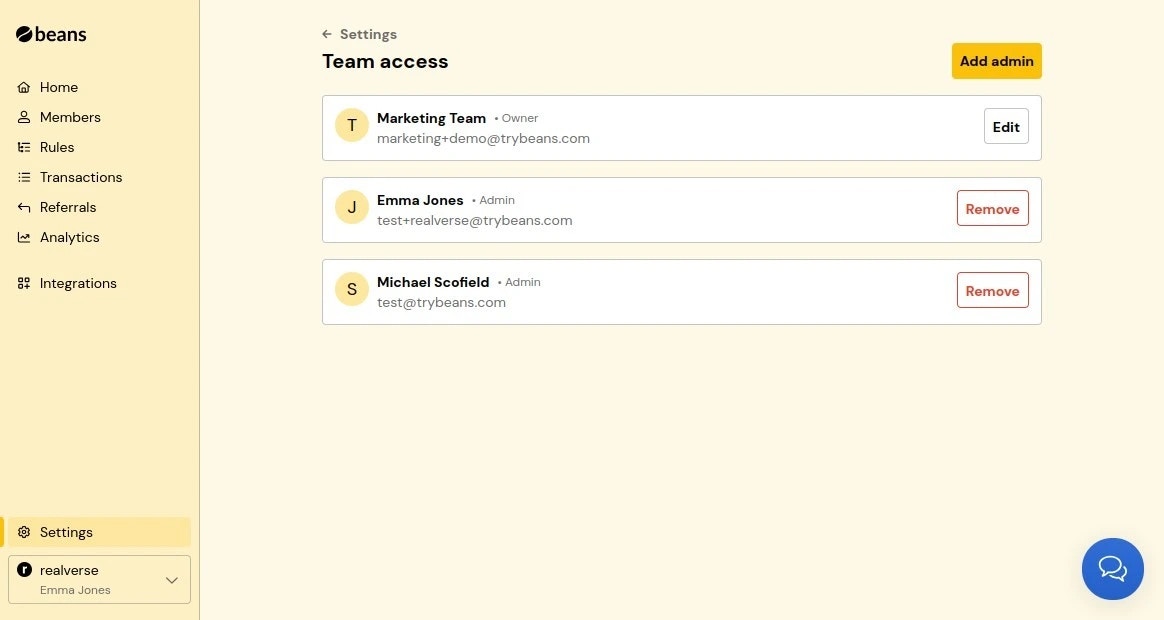 ### Add a team member
1. From the **Team Access** page, click **Add admin**.
2. Enter the team member's email address, first name, and last name and click **Add admin**.
3. Once added, the team member will receive an email with instructions on how to access your
Beans workspace.
### Remove a team member
1. From the **Team Access** page, click **Remove** next to the team member's name.
2. Click **Remove admin** to confirm.
3. Once removed, the team member will no longer have access to your Beans workspace.
## Plan and Billing
Get a comprehensive overview of your Beans subscription status and usage.
You will be able to monitor your order count, subscription tier, and payment settings.
### Add a team member
1. From the **Team Access** page, click **Add admin**.
2. Enter the team member's email address, first name, and last name and click **Add admin**.
3. Once added, the team member will receive an email with instructions on how to access your
Beans workspace.
### Remove a team member
1. From the **Team Access** page, click **Remove** next to the team member's name.
2. Click **Remove admin** to confirm.
3. Once removed, the team member will no longer have access to your Beans workspace.
## Plan and Billing
Get a comprehensive overview of your Beans subscription status and usage.
You will be able to monitor your order count, subscription tier, and payment settings.
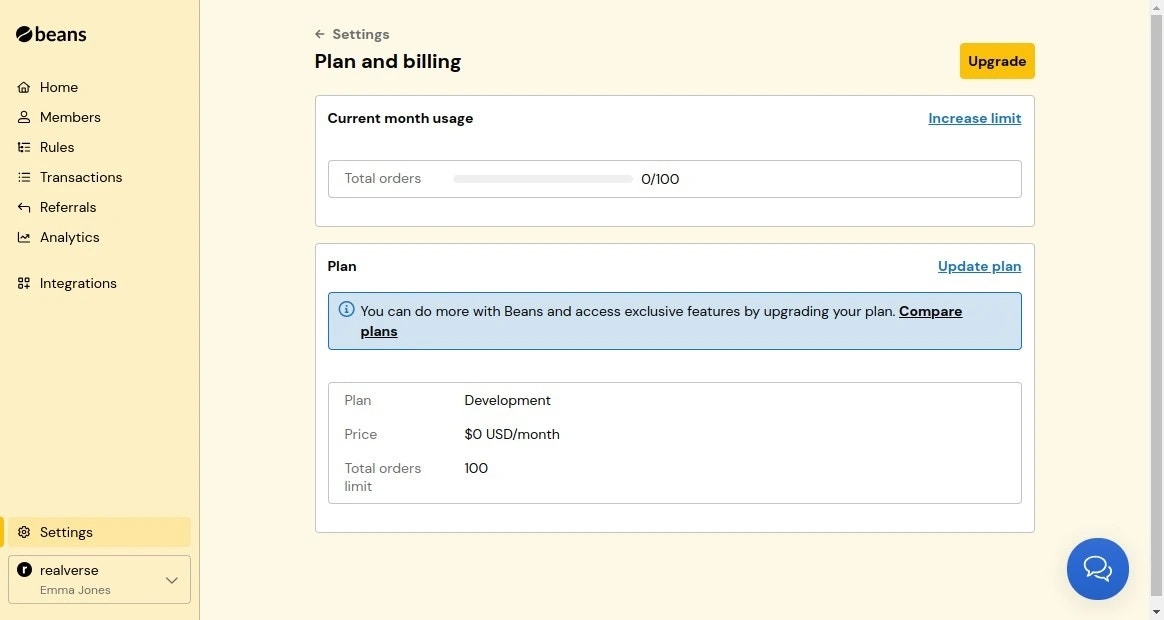 The usage dashboard shows the total number of orders processed this month, helping you track your activity relative to
your plan's maximum order limit. You'll also find details about your current subscription tier and its associated monthly cost.
You can upgrade your plan at any time to increase your order processing capacity or access additional features as your
business grows. For detailed plan comparisons and volume-based pricing options, visit our
[pricing page](https://www.trybeans.com/pricing).
### Account Suspension
If an invoice remains unpaid 7 days after issuance or after two failed charge attempts,
your account will be marked as delinquent.
Once marked delinquent, the Beans app will become inactive on your website.
Please note that if payment is made after delinquency, account reactivation may take some time.
To prevent these issues, regularly verify that your payment information is up to date.
### Refund Policy
Beans provides flexible billing options with monthly and annual subscription plans.
#### Annual Plan
A full refund is available for annual subscriptions canceled within 14 days of the initial
payment. After this period, refunds are not provided.
#### Monthly Plan
For month-to-month plans, refunds are not available for cancellations at the start or during
the billing cycle.
### Supported Currencies
Currently, billing is supported only in USD. Expanding currency support is a priority, and
additional options will be added in the future.
If your currency differs from USD, billing will still be in USD, with the applicable
conversion rate set by your bank.
# Tiers
Source: https://docs.trybeans.com/manage/admin/tiers
Segment customers into different levels.
The Beans tier system is a powerful tool that allows merchants to create different levels of membership
within their rewards program. Each tier can offer unique benefits and incentives, encouraging customers to
engage more with your brand and strive to reach higher tiers.
Tiers are levels within your rewards program that customers can achieve based on their activity and
engagement. Each tier offers distinct benefits, creating a sense of exclusivity and motivating customers to
increase their participation. Merchants can tailor rewards and benefits to each tier, making the program more
attractive and personalized.
The Beans tier system allows merchants to define up to three tiers. Each tier can have a points multiplier,
meaning customers in higher tiers earn more points per purchase than those in lower tiers. This incentivizes
customers to reach higher tiers for better rewards.
### Points multiplier
Merchants can set a points multiplier for each tier. For example, customers in the lowest
tier may earn 5 points per dollar spent, while those in the highest tier earn 10 points per dollar spent.
This encourages customers to make more purchases to move up the tiers and earn points faster.
### Tier-specific benefits
Merchants can customize their tier system by defining unique benefits for each level. While Beans provides the
framework for tier management, the implementation of specific benefits requires integration with your ecommerce
platform and custom configuration.
Here are some popular tier benefits you can implement:
* **Exclusive access to collections**: Restrict access to certain product collections to higher-tier members.
* **Free shipping**: Offer free shipping to customers in specific tiers.
* **Special discounts**: Provide additional discounts or offers to higher-tier members.
* **Early access to sales**: Allow higher-tier members to access sales or new products before others.
The usage dashboard shows the total number of orders processed this month, helping you track your activity relative to
your plan's maximum order limit. You'll also find details about your current subscription tier and its associated monthly cost.
You can upgrade your plan at any time to increase your order processing capacity or access additional features as your
business grows. For detailed plan comparisons and volume-based pricing options, visit our
[pricing page](https://www.trybeans.com/pricing).
### Account Suspension
If an invoice remains unpaid 7 days after issuance or after two failed charge attempts,
your account will be marked as delinquent.
Once marked delinquent, the Beans app will become inactive on your website.
Please note that if payment is made after delinquency, account reactivation may take some time.
To prevent these issues, regularly verify that your payment information is up to date.
### Refund Policy
Beans provides flexible billing options with monthly and annual subscription plans.
#### Annual Plan
A full refund is available for annual subscriptions canceled within 14 days of the initial
payment. After this period, refunds are not provided.
#### Monthly Plan
For month-to-month plans, refunds are not available for cancellations at the start or during
the billing cycle.
### Supported Currencies
Currently, billing is supported only in USD. Expanding currency support is a priority, and
additional options will be added in the future.
If your currency differs from USD, billing will still be in USD, with the applicable
conversion rate set by your bank.
# Tiers
Source: https://docs.trybeans.com/manage/admin/tiers
Segment customers into different levels.
The Beans tier system is a powerful tool that allows merchants to create different levels of membership
within their rewards program. Each tier can offer unique benefits and incentives, encouraging customers to
engage more with your brand and strive to reach higher tiers.
Tiers are levels within your rewards program that customers can achieve based on their activity and
engagement. Each tier offers distinct benefits, creating a sense of exclusivity and motivating customers to
increase their participation. Merchants can tailor rewards and benefits to each tier, making the program more
attractive and personalized.
The Beans tier system allows merchants to define up to three tiers. Each tier can have a points multiplier,
meaning customers in higher tiers earn more points per purchase than those in lower tiers. This incentivizes
customers to reach higher tiers for better rewards.
### Points multiplier
Merchants can set a points multiplier for each tier. For example, customers in the lowest
tier may earn 5 points per dollar spent, while those in the highest tier earn 10 points per dollar spent.
This encourages customers to make more purchases to move up the tiers and earn points faster.
### Tier-specific benefits
Merchants can customize their tier system by defining unique benefits for each level. While Beans provides the
framework for tier management, the implementation of specific benefits requires integration with your ecommerce
platform and custom configuration.
Here are some popular tier benefits you can implement:
* **Exclusive access to collections**: Restrict access to certain product collections to higher-tier members.
* **Free shipping**: Offer free shipping to customers in specific tiers.
* **Special discounts**: Provide additional discounts or offers to higher-tier members.
* **Early access to sales**: Allow higher-tier members to access sales or new products before others.
 ## Setting up