> ## Documentation Index
> Fetch the complete documentation index at: https://docs.trybeans.com/llms.txt
> Use this file to discover all available pages before exploring further.
# Settings
> Edit your Beans account settings and configuration.
The Settings page lets you manage a number of details about your Beans account including
store details, personal information, team access, and plan options.
## General
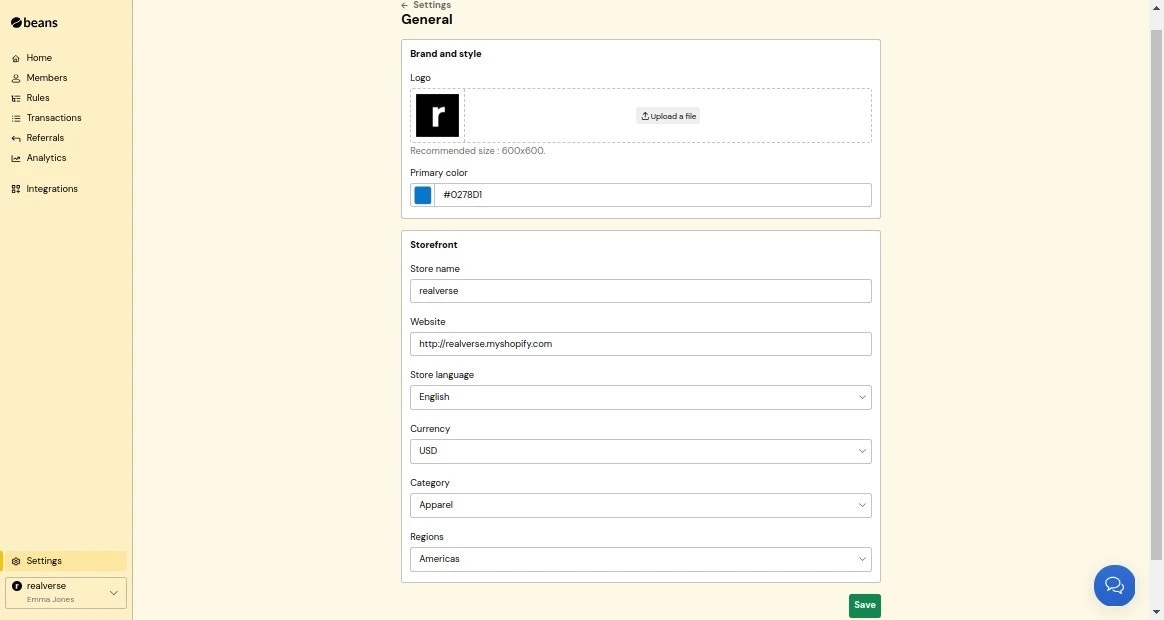
Update essential store information:
**Brand and Style**
* **Logo**: Your store's logo.
* **Primary Color**: The main color used to match your brand identity. This color appears on
the rewards page, emails, redemption button, and other customer-facing elements.
**Storefront**
* **Store Name**: The name of your business or store.
* **Website**: Your store's website URL.
* **Store Language**: Your store's primary language ([list of supported languages](https://www.trybeans.com/i18n)).
* **Currency**: Your store's primary currency ([list of supported currencies](https://www.trybeans.com/i18n)).
* **Category**: The product category that best describes your store. (This helps Beans provide relevant recommendations
and benchmarks for your rewards program based on similar businesses in your industry.)
* **Region**: The geographical region where your store operates.
 ## Profile
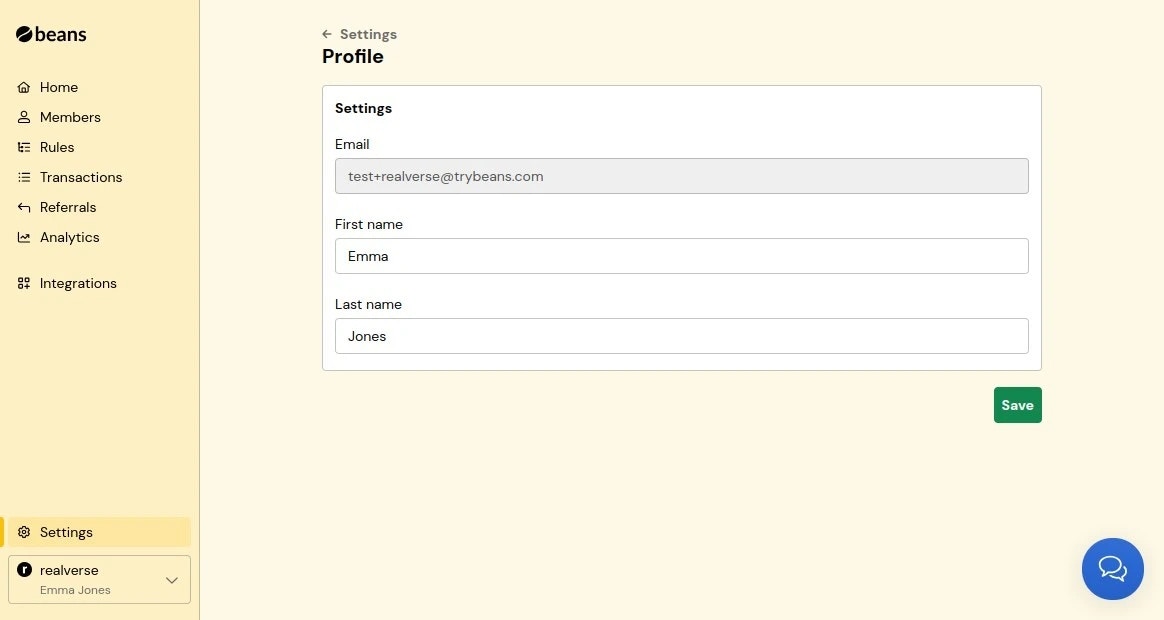
Edit your personal information including your email address, first name, and last name.
## Profile
Edit your personal information including your email address, first name, and last name.
 ## Team Access
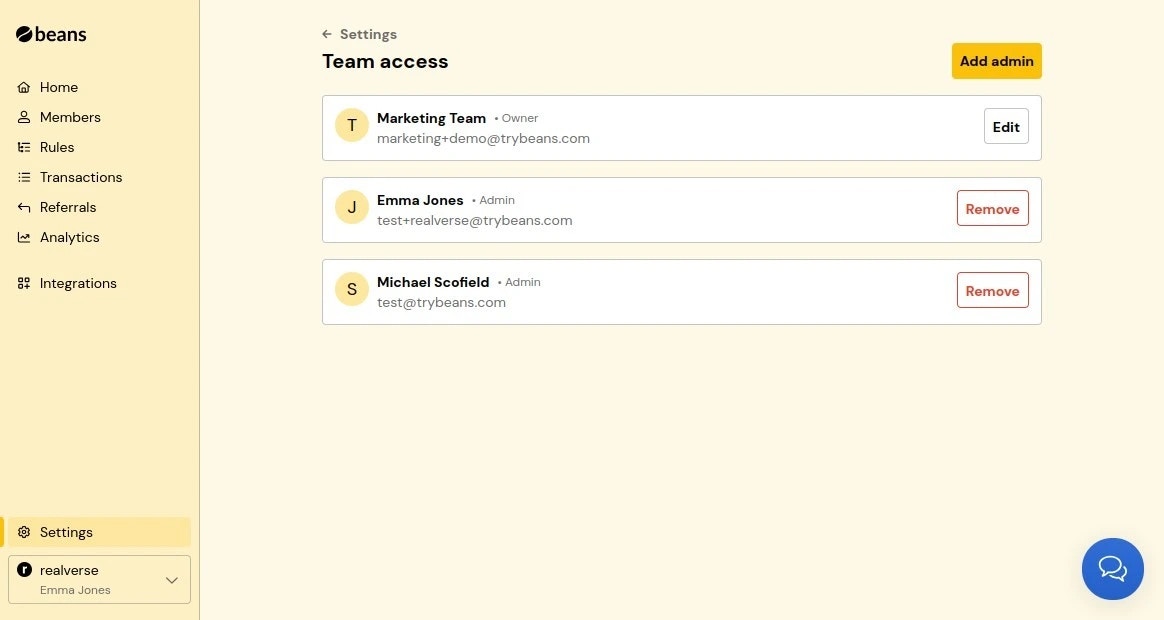
Add team members from your organization as admins to help manage your loyalty program through
the Beans dashboard. They'll have full access to configure and monitor the rewards program.
## Team Access
Add team members from your organization as admins to help manage your loyalty program through
the Beans dashboard. They'll have full access to configure and monitor the rewards program.
 ### Add a team member
1. From the **Team Access** page, click **Add admin**.
2. Enter the team member's email address, first name, and last name and click **Add admin**.
3. Once added, the team member will receive an email with instructions on how to access your
Beans workspace.
### Remove a team member
1. From the **Team Access** page, click **Remove** next to the team member's name.
2. Click **Remove admin** to confirm.
3. Once removed, the team member will no longer have access to your Beans workspace.
## Plan and Billing
Get a comprehensive overview of your Beans subscription status and usage.
You will be able to monitor your order count, subscription tier, and payment settings.
### Add a team member
1. From the **Team Access** page, click **Add admin**.
2. Enter the team member's email address, first name, and last name and click **Add admin**.
3. Once added, the team member will receive an email with instructions on how to access your
Beans workspace.
### Remove a team member
1. From the **Team Access** page, click **Remove** next to the team member's name.
2. Click **Remove admin** to confirm.
3. Once removed, the team member will no longer have access to your Beans workspace.
## Plan and Billing
Get a comprehensive overview of your Beans subscription status and usage.
You will be able to monitor your order count, subscription tier, and payment settings.
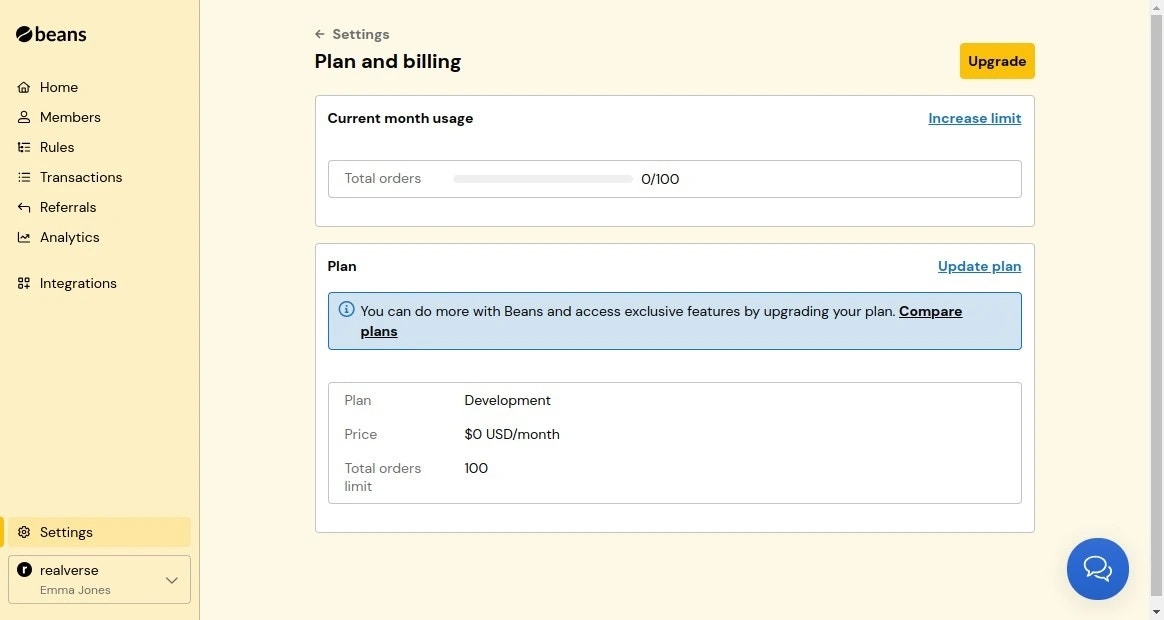 The usage dashboard shows the total number of orders processed this month, helping you track your activity relative to
your plan's maximum order limit. You'll also find details about your current subscription tier and its associated monthly cost.
You can upgrade your plan at any time to increase your order processing capacity or access additional features as your
business grows. For detailed plan comparisons and volume-based pricing options, visit our
[pricing page](https://www.trybeans.com/pricing).
### Account Suspension
If an invoice remains unpaid 7 days after issuance or after two failed charge attempts,
your account will be marked as delinquent.
Once marked delinquent, the Beans app will become inactive on your website.
Please note that if payment is made after delinquency, account reactivation may take some time.
To prevent these issues, regularly verify that your payment information is up to date.
### Refund Policy
Beans provides flexible billing options with monthly and annual subscription plans.
#### Annual Plan
A full refund is available for annual subscriptions canceled within 14 days of the initial
payment. After this period, refunds are not provided.
#### Monthly Plan
For month-to-month plans, refunds are not available for cancellations at the start or during
the billing cycle.
### Supported Currencies
Currently, billing is supported only in USD. Expanding currency support is a priority, and
additional options will be added in the future.
If your currency differs from USD, billing will still be in USD, with the applicable
conversion rate set by your bank.
The usage dashboard shows the total number of orders processed this month, helping you track your activity relative to
your plan's maximum order limit. You'll also find details about your current subscription tier and its associated monthly cost.
You can upgrade your plan at any time to increase your order processing capacity or access additional features as your
business grows. For detailed plan comparisons and volume-based pricing options, visit our
[pricing page](https://www.trybeans.com/pricing).
### Account Suspension
If an invoice remains unpaid 7 days after issuance or after two failed charge attempts,
your account will be marked as delinquent.
Once marked delinquent, the Beans app will become inactive on your website.
Please note that if payment is made after delinquency, account reactivation may take some time.
To prevent these issues, regularly verify that your payment information is up to date.
### Refund Policy
Beans provides flexible billing options with monthly and annual subscription plans.
#### Annual Plan
A full refund is available for annual subscriptions canceled within 14 days of the initial
payment. After this period, refunds are not provided.
#### Monthly Plan
For month-to-month plans, refunds are not available for cancellations at the start or during
the billing cycle.
### Supported Currencies
Currently, billing is supported only in USD. Expanding currency support is a priority, and
additional options will be added in the future.
If your currency differs from USD, billing will still be in USD, with the applicable
conversion rate set by your bank.